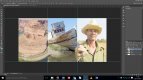
Trying to make a photo collage

TG.

Suspended / Banned
Messages
6,905
Name
Tel
Edit My Images
No
I am trying to make a photo collage of 3 images, I have cropped the images so they are in a straight line blended together, then I am trying to get a size of 60x30cm on a canvass in photoshop, they are either to big or to small, I just want all 3 together with a size of 60x30cm with no boarder, I know I have done this before but for the life of me can't remember how I did it, any help would be much appreciated. Thanks in advance
 
Hiya.

So you now have 1 image which consists of the three individual shots in a row, yes ?

If so I would start by creating a new document 60x30 cm with the same resolution as your photo file. I would then drop your image into the 60x30 file. It should land central or hold down shift key as you do it. Then transform/scale it to fit the canvas either up or down. If it is not the same ratio your gonna have to loose some or have a border.
I am no expert but that's where I would start.

(Photoshop)

Gaz
 
Tried that Gaz and it won't work, I am losing to much from the photo, the actual photo won't resize to 60x30cm either.
 
Ahh. So the ratio is wrong. I'm not sure there is a way of doing that. I wouldn't have thought so. Hope you get it sorted.
Gaz
 
Assuming that all three pictures are the same size (?) you need to crop/resize each to 20 x 30 as a first step and then join them together.
 
Microsoft Digital Image 2006 has a program in it which does this. All you have to do is drag a photo into a square. very easy

mClkD0V.jpg


But that is more photos in it than you wanted

This is what it looks like
HTASGmF.jpg


it is the only one I know of that you could possibly get for next to nothing that does collages and works on windows 7. Don't know about it working on Winows 10. Works on RAW files as well

https://www.ebay.co.uk/itm/Microsof...510802?hash=item440f2ef152:g:IJ4AAOSw8FRZudRx
 
Last edited:
As said, resize each image to 20cm x 30cm with the same resolution. Don't crop them to size, use the image-image size function.
Copy each image to a new document, 60cm x 30cm. You can use the move tool, or edit-free transform tool to move them, and add a layer mask to each image to blend the edges if you so desire.
An extremely poor example, but you get the idea?
30 by 60.jpg
 
Last edited:
As said, resize each image to 20cm x 30cm with the same resolution. Don't crop them to size, use the image-image size function.
Copy each image to a new document, 60cm x 30cm. You can use the move tool, or edit-free transform tool to move them, and add a layer mask to each image to blend the edges if you so desire.
An extremely poor example, but you get the idea?


I can't resize them all the same as they are different sizes
 
If it were me, I'd create my document to size, then create three new layers, with each having a shape box of 20x30 and then place each of your photos over these individually and use a clipping mask on each.
 
I can't resize them all the same as they are different sizes
Then you need to resize them so that the vertical height is 30 and the horizontal lengths add up to 60.

If, once you have resized to get the vertical to 30, the horizontal lengths do not add up to 60 you need to crop them so that they will.
 
Last edited:
If it were me, I'd create my document to size, then create three new layers, with each having a shape box of 20x30 and then place each of your photos over these individually and use a clipping mask on each.

I can create the document size, but I'm not sure how to create 3 layers with a shape box of 20x30 and do the rest you said, I have just tried with just 2 images, but the problem is when I put them in a 60x30 document it decreases the size and the resolution making them unsuitable to print
 
I can create the document size, but I'm not sure how to create 3 layers with a shape box of 20x30 and do the rest you said, I have just tried with just 2 images, but the problem is when I put them in a 60x30 document it decreases the size and the resolution making them unsuitable to print
Ok, I don't know if I'm totally understanding your issue here...so forgive me if I'm sounding like I'm asking you to suck eggs lol.
What size are your images? Did you export them from lightroom? And did you export them so that your longest edge is 30 wide?
Regards to the photoshop layers thing... on a new layer of your document, use your rectangle marquee tool and create a box and fill it with a colour. Then Control T (transform) it and put your size dimensions in the boxes in the toolbar along the top. And then duplicate each of those layers. 'Place' an image over the top of one of your box layers. Use your flyout menu in the layers palette and create clipping mask. You can then control T (Transform) to resize or move it to where you want it.
 
  • Like
Reactions: TG.
Is your 60x30 document the right physical size for what you want? How big an image do you want to output?

Make sure your document is 300dpi and your measurements are in cm or inches rather than pixels will help. But you're going to end up with a massive file.

I'd start by doing the above and then putting two guides in - one at 20cm and one at 40cm (for example) to get your three 'boxes'.

guides01.jpg

Import one image, and get it set up where you want it - doesn't really matter which of the three 'bits' - and then use your guides to crop off the bits you don't need.

Use the marquee tool to draw a rectangle around the bit of the image you don't want - clicking to the guides - and then hit delete.

guides02.jpg

guides03.jpg

Repeat for the other side.

guides04.jpg

Then do the same with your two other images...

guides05.jpg
 
collage.jpg So you'd end up with something like this:

PS - these images aren't mine, they're sample images from the Light L16, but you said three images and they were the first three I came across in my files at work.
 
Last edited:
Ok, I don't know if I'm totally understanding your issue here...so forgive me if I'm sounding like I'm asking you to suck eggs lol.
What size are your images? Did you export them from lightroom? And did you export them so that your longest edge is 30 wide?
Regards to the photoshop layers thing... on a new layer of your document, use your rectangle marquee tool and create a box and fill it with a colour. Then Control T (transform) it and put your size dimensions in the boxes in the toolbar along the top. And then duplicate each of those layers. 'Place' an image over the top of one of your box layers. Use your flyout menu in the layers palette and create clipping mask. You can then control T (Transform) to resize or move it to where you want it.

Tried that and it doesn't work Beth, I'm guessing because the images are different sizes, I can't resize them in free transform without making them look wrong i.e. to long or to wide, hope that makes sense
 
Is your 60x30 document the right physical size for what you want? How big an image do you want to output?

Make sure your document is 300dpi and your measurements are in cm or inches rather than pixels will help. But you're going to end up with a massive file.

I'd start by doing the above and then putting two guides in - one at 20cm and one at 40cm (for example) to get your three 'boxes'.

View attachment 115410

Import one image, and get it set up where you want it - doesn't really matter which of the three 'bits' - and then use your guides to crop off the bits you don't need.

Use the marquee tool to draw a rectangle around the bit of the image you don't want - clicking to the guides - and then hit delete.

View attachment 115411

View attachment 115412

Repeat for the other side.

View attachment 115413

Then do the same with your two other images...

View attachment 115414

It's not the document size that's a problem, I can do that fine, it's fitting the images in because they are different sizes, I'm guessing it can't be done for this reason, but thanks for your imput and posting the diagram :)
 
Well those images I used were WAY too big to begin with...

Hit 'V' to activate your move tool. Grab one of the corners of the image and hold down shift to keep the proportions correct, then resize it.

You'll have problems if your images are too small (i.e. resolution problems).
 
Last edited:
Your 60 x 30cm canvas (background) has to be the same resolution as all three images that you're going to paste onto it. Normally for print you'd choose 300ppi.

As said above, you then prepare each of the 3 images so that it is 20 x 30cm. So if its proportion isn't 2:3 and you don't want to distort (stretch) it, you gotta crop it. But keep the ppi the same. So you're cropping to 20 x 30cm at 300ppi (or whatever you've chosen).

You've only had it if the original image files are too small to acheive that size satisfactorily. What are the pixel dimensions of your originals?

Then you flatten the layers and save for print. If you need to tally your output with a known paper size that's different to your output image, you can choose the next one up, add a border to fit it, and trim that off later.
 
Last edited:
Why don't you post the images here so that someone can have a go?

I'm really not sure I'm understanding your issue correctly.

If the images are not the right shape, then you'll have to make them bigger on at least one side and then crop it to fit. As in this image:

guides05-jpg.115414


As you can see the image was bigger than I needed.

You just move it into place and then crop off the bits you don't want. As long as it's big enough to go over the edge of your canvas, you won't end up with any gaps.
 
Last edited:
  • Like
Reactions: TG.
Why don't you post the images here so that someone can have a go?

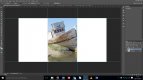
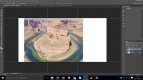
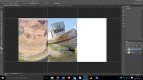
Yes should of done that, just tried to upload on here though and I'm getting an error message saying the files are to big, despite the fact i have resized them to 800 pixels on the long side and they are only around 500kb, so not sure whats happening on here, unless upload sizes have changed
 
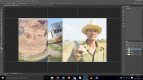
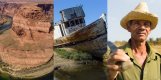
Ok resized again, but tiny files now, probabaly not workable, the last one is how I wanted the sequence, but 60x30cm
 
Last edited:
Not sure if this helps but you can do collages in dtp software. Apple Pages will definitely do page sizes of 40 x 60 inches.
 
Not sure if this helps but you can do collages in dtp software. Apple Pages will definitely do page sizes of 40 x 60 inches.

Thanks but I don't have that software
 
Your images are the wrong proportion to do what you're trying to do. You need to go wider on the finished print size to get 'em all in. As they stand, they're not croppable to suit your intention. The one with his arms out can only crop to an approximate square, which doesn't leave enough room for the flanking images, which if 30cm high would end up only about 15cm wide. Why the insistence on 30 x 60cm?
 
They were for a mate of mine, he wanted that size to match some he already had, I guessed what you said was correct all along, but I thought I would give it a go on here, the one with the arms outstretched threw a spanner in the works, lol, I ended up just doing 2 photos together
 
Last edited:
So we can all relax? Phew - you didn't arf wind us up.
 
So we can all relax? Phew - you didn't arf wind us up.
But we do so enjoy a challenge, its what makes the forum ;)
 
  • Like
Reactions: TG.
Back
Top