
trying to get the hang of PP - a bit of help / advice needed

HopefulM

Suspended / Banned
Messages
3,323
Name
Maria
Edit My Images
Yes
I've got lightroom 2.5, and am just starting to get to grips with it (I think!:lol:)

But...

when I 'tweak' a photo to make the subjects look better, it seems I lose the vibrancy and life of the original photo :'(

can anyone give me a few pointers where I'm going wrong, as its driving me bonkers :bonk:,

have attached an example

thanks,
Maria

no pp - photo straight from camera, no cropping, no nothing :
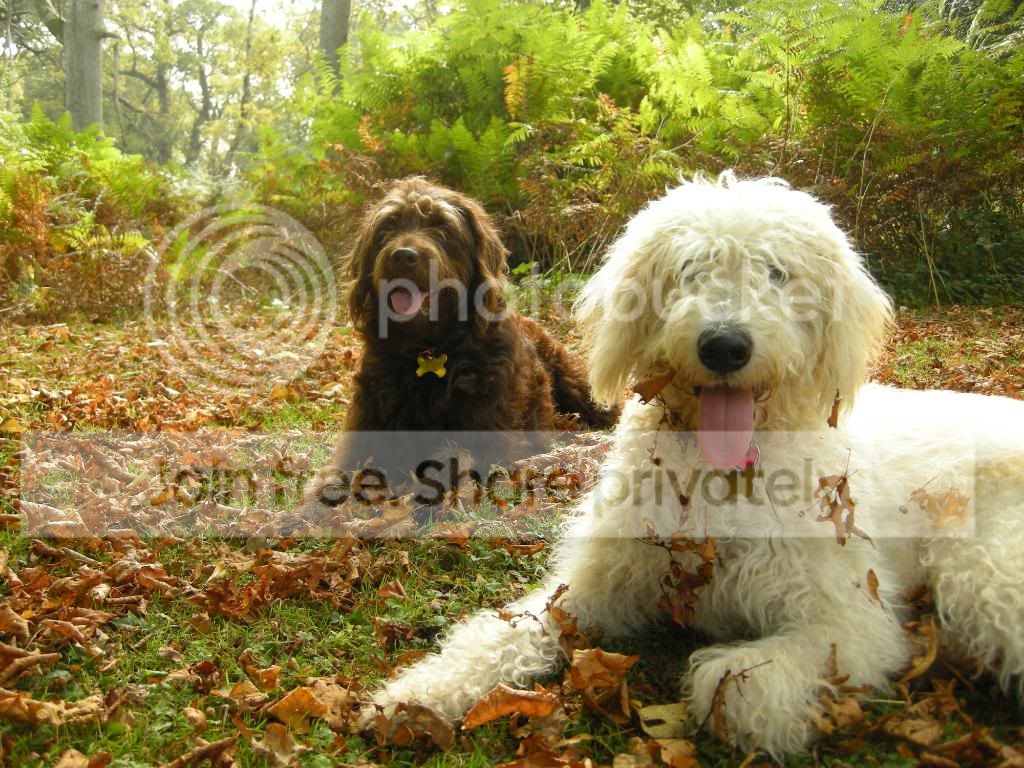
doodsmatley043.jpg


with pp ing, I think the cream dog looks better, however, everything else looks less vibrant, lifelike and interesting :shrug:
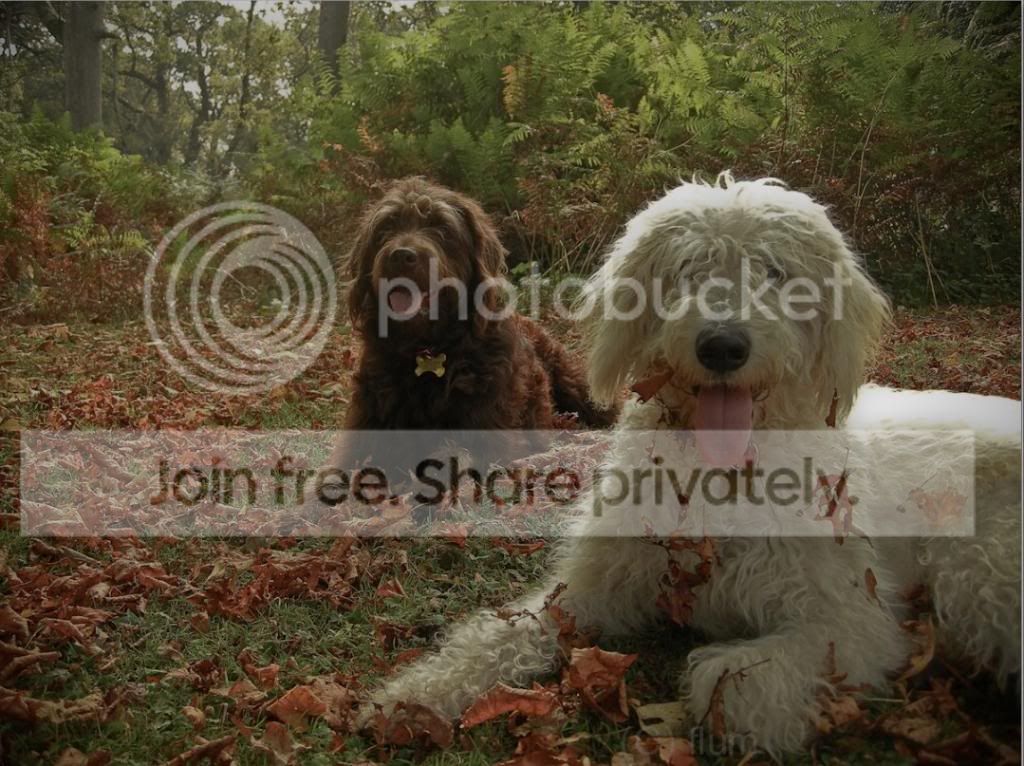
scrumpsfudge3-11jpeg.jpg


HELP! :thinking:
 
Move the vibrancy slider to the right?

Seriously? What have you done to the image, go back through the history (even running your mouse over it will change the preview) so you can identify at what point the colour went, so you can reverse it.

The beauty of Lightroom is that it is non destructive, so keep tweaking until you find something that works, if you don't like what has been changed Cmd - Z!

If you are going to make changes to that image save where you have got to as a snapshot, or make a virtual copy to tweak so you can get back to where you are now easily.
 
thanks! I'll have another try - I guess when learning, it's a bit of trial and error, and expecting great things after two days really doesn't work;)
 
Also are you starting with a raw file or a JPEG?
 
You've taken a lovely shot there Maria :clap: - what did you do in Lightroom to produce the second image?

It looks like you've tried to recover the highlights on the cream dog, and therefore the rest of the image has also suffered, (become duller,) a tad. It's a tricky PP task tbh, and you may have been better off trying to adjust your camera settings at the point of capture - then playing in PP to produce the result you really want.

Spot metering off the area where you want to retain highlight detail may have helped, or perhaps using exposure compensation to reduce the brightness of the highlights may have been a good choice. For two days experience, you've done very well imho. :)

It's all a learning curve, but I'm sure you'll get there! :thumbs:

Ian
 
with a jpeg - mine doesn't take raw, it's a p&s :'( I'm saving for my first dslr which will be a nikon d5000 :D
 
You've taken a lovely shot there Maria :clap: - what did you do in Lightroom to produce the second image?

It looks like you've tried to recover the highlights on the cream dog, and therefore the rest of the image has also suffered, (become duller,) a tad. It's a tricky PP task tbh, and you may have been better off trying to adjust your camera settings at the point of capture - then playing in PP to produce the result you really want.

Spot metering off the area where you want to retain highlight detail may have helped, or perhaps using exposure compensation to reduce the brightness of the highlights may have been a good choice. For two days experience, you've done very well imho. :)

It's all a learning curve, but I'm sure you'll get there! :thumbs:

Ian

thanks, great advice - from memory I spot metered on the brown dog as if both are in, I tend to lose the detail on brown to get the cream not to burn out

use the adjustment brush in lightroom, allows you to work on various parts of the image without affecting all of it

not tried that yet! I'll give it a go, thanks
 
Try the Lightroom Punch pre-set - I find that give's everything, well, a little punch! Seriously, it may just bring the colours back.
 
IMO processing digital images isn't hard, like getting the right print from a negative wasn't easy when i used to do that.

The key things to remember is A) is the processing going to enhance the image, and B) do you think that the final image carries the processing or is it vice versa.

I've seen too many images overprocessed, with the photographer relying on digital 'tricks' to make the image look better even if it's a crap image. There are countless images on this site that are either processed to the point of madness, or the processing is applied to mask what is essentially a dull image.

One of the things with software like LR and PS is that although rescuing blown out highlights (like you have done on the dog's head and back) seems like the right thing to do at first, you have to look at how that highlight balances out with the rest of the tones in the image; if you bring back the highlights you're essentially reducing the tonal range in a sense. Match highlights with contrasty shadow and you'll see a lot more depth come out of the image. That's when you can then start to look at further improvements that then take the image that one step further.

I say when you're getting used to post-processing you need to experiment, experiment, experiment.... but be prepared to have many failures on the route to getting the right process :)
 
here is one I done By the way also pic are to be only 800 pix wide
3956856092_4285960e3e_o.jpg

I have set the black point and mid grey to get this
to set grey I made a dup layer and put a filter/blur/avg add a curves and hit the blurred layer with the mid eye dropper then I set the black point hard to say how but you can pull it in to the base of the graphic
 
In my opinion your colour balance is way off - too yellow and too green, so that needs addressing first. Because you shot JPEG your blown highlights are completely unrecoverable and it is a waste of time trying, especially as all you've achieved is to darken the rest of the picture. If anything I'd say you want to add some fill and brighten the mid tones a little, then boost the contrast to bring back some punch. Here's my attempt at a before and after, taking your original shot as my starting point....

20090919_094434_043_LR.jpg

20090919_094434_043_LR-3.jpg


With a bit of tweaking I think it's a really nice picture, but I couldn't get on with that sickly yellow/green cast of the original. I hope you like my edit. :)

p.s. As you're using Lightroom 2.5, as am I, here are the adjustments I made....

20090927_110745_45.jpg
 
Back
Top