
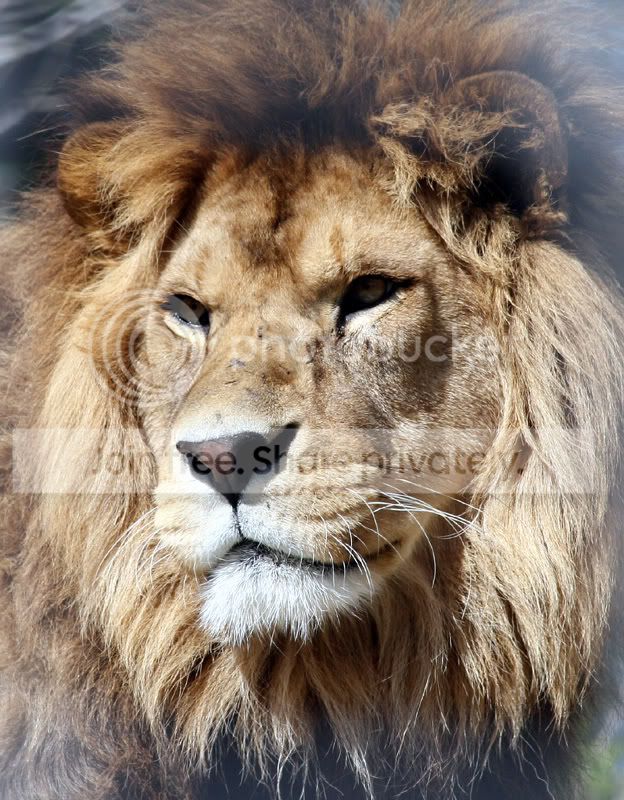
This Pic salvageable? (cage bars)

allie5

Suspended / Banned
Messages
183
Edit My Images
Yes
lion-1.jpg


Anything I can do to rescue this one? It was taken on my very first trip out with my 30D and I was a bit naive to think that zooming through would render the bars invisible! The cage was made up of annoying square panel wire fencing with gaps just a tad too small to be able to get a clear shot.

I know I can tight crop the face to lose the blur lines top and bottom, but it kind of loses impact - plus Ive got a few others with similar problems, so if there are any tips to help reduce the obviousness of the fence Id love to hear them.

Cheers

Allie

Edited to add, I have CS3
 
I have had a quick play in CS2. I selected around the brighter part of the face with a circle type shape (the real name eludes me at the moment) and feathered it at 100 pixels. I then filled in the outer part of the shot with black set at about 80% opacity (essentially added a vignette to the shot) then I burned in the midtones and shadows in the outer areas.

I may have gone too far but it's certainly given the shot a bit more impact.


lion-1jpgedit.jpg
 
Wow - it IS salvageable!

Steve, thats great just what I wanted, youve done a great job, Im well impressed :D .

Ok, just let me clarify,no layers, just a feathered mask round the face then a fill round the edge? Would the vignette tool do the same sort of thing or do you have more control doing it your way?!

I'll have a crack at a few others that were similar - they might get posted for help if I fail miserably...;) :D

Again - Thanks SO much!
 
CS2 doesn't have a specific vignette command (only in the RAW converter I think) so I had to do it maually so to speak. I'm sure the vignette control on CS3 would do a similar thing and as long as you have the option to adjust strength and centre point then it should be fine.
 
I thought I would have a quick go as well, but went a different route.

lion-1.jpg
 
I like stevegreen's fix - very good!
 
CS2 doesn't have a specific vignette command (only in the RAW converter I think) so I had to do it maually so to speak. I'm sure the vignette control on CS3 would do a similar thing and as long as you have the option to adjust strength and centre point then it should be fine.

Sorry if I'm misunderstanding something but on CS2 if you do Filter-Distort-Lens Correction there's a means to increase or reduce the amount of vignetting on an image.
 
I thought I would have a quick go as well, but went a different route.

lion-1.jpg

Another WOW, Trevor!

Can you tell me how you did this please, its also fantastic. Thanks so much for your efforts, Im truly gobsmacked by what both you and Steve did to this!

Sheeesh, I have a heck of a lot to learn with this photoshop lark! :lol:
 
I had a quick play in Picasa, a freebie download viewer and editor, just google it. I find it very useful and easy to use although I do play in Photoshop as well. It has some very neat tools many of which are preset and do a nice job. The I feel lucky button followed by a sharpen if often enough.

The thing I like most about Picasa is there is no steep learning curve, maybe that just means I am lazy, but it does let you see what can be achieved.

With your pic I did a soft focus and sharpen under the effects tab, and had a little tweek under Tuning.
 
you could try something different. I am not normally a fan of mono conversions for animals like this, but the cage bars perhaps justify it on this occasion and it does reduce the effect of the bars on the pic. Changed using yellow filter in ps channel mixer, followed by using curve adjustment to pull the highlights down, then a quick sharpen

lion-1edit.jpg
 
Thanks Ladylens - I like this a lot too. I never would have thought to have done a B&W conversion on this kind of pic, but you're right, in this case it works well! You have done a really nice job with it too -again, well impressed :D.

Cheers everyone, I feel like Ive learnt loads already from this one thread. Im off to apply these techniques to some of my other "cage" pictures now!
 
Allie, try the following

Create a layer. In the mode option select "Soft Light"

Pick the brush tool and reduce in size so that it's about the size of the lions ear. ( you can use the keyboard [ ] controls to reduce and increase size). On the toolbar at the top of the screen select the opacity to about 15-20%. Set flow rate to about 50%.

With the foreground colour set to black simply paint density into the lighter areas. These settings stops to much density being added as you paint. Not enough go over it again building up the density as you go. You'll find different areas need different amounts . This technique helps you do this..

I'd also warm the image up a bit before you start as this will help as well.

Hope this helps
 
All i did was create duplicate layer then contrast sharpen, lighten eyes, dodge & Burn surroundings/nose/mouth then sharpened again

I think that the green might want taking out bottom right but i only spent 2 minutes on it


EDIT got it thanks Hyp.
 
Hope you don't mind but I fancied a go too...

lion4ow8.jpg
 
Allie
Just for future reference, If you have to shoot through bars, remove any lens hood and get as close as you can to the bars then use the widest apurtuere your lens will allow. BTW some great ideas from the forum on how to salvage your pic.
:thumbs:
 
Hi
Use the quick mask mode to make a selection of the eyes.
Feather the selection (try 3)
Open the levels from the layers pallet.
Move the right hand slider to the left.
The lions eyes will appear.

Flatten the image.
Use the lasso tool make a rough selection around the
end of the nose.
Include all of those white wiskers.
Feather the selection (try 50)
Open the unsharp mask and try 150.
Reduce the opacity in the layers pallet until it looks right.
Nice sharp wiskers and a little more depth to the picture.

The picture reminds me of a friend. She to has wiskers, though
not as many but they prick me every time we kiss.

Graham
 
Lady Lens, i think you nailed it hun.. :thumbs:
 
Yeah, i agree with you fraggie :)

allie5 - Please don't edit your first post to change it to the image that someone has worked on for you, because people do like to see the original ones :)

Tony
 
Hello mate, i had a go aswell.....

Tiger.jpg


I am also tired so sorry if it is horrible :)

Tony
 
Yeah, i agree with you fraggie :)

allie5 - Please don't edit your first post to change it to the image that someone has worked on for you, because people do like to see the original ones :)

Tony

I wont - the post was edited only to add that the PP program I used was CS3 - the image on my first post is still the original!

Thanks again to everyone - some cracking results by all.

Techno-geek, im not seeing your pic - can you repost it?

Cheers.

Allie
 
Ah sorry allie, my mistake

There you go mate

Tiger_edited-2.jpg


Sorry for full size image post but when i was trying the link it wasn't working.

AND i have not got a clue how to resize them without loosing the quality and that :)

Tony
 
Yalza, That made my eye's go funny :)

Tony
 
Back
Top