Beginner Storage solutions

karldenson

Suspended / Banned
Messages
4
Name
Karl
Edit My Images
Yes
Hello everyone,

I hope this message finds you well. I'm reaching out to seek recommendations and advice regarding efficient storage solutions for organizing and managing my growing collection of photography files.

As a passionate photographer, I've accumulated a substantial amount of photos over the years, and I'm now in need of a reliable and scalable storage solution. I would greatly appreciate any insights or suggestions you may have regarding the following:

  1. Best External Hard Drives or SSDs: What are your recommendations for high-capacity external hard drives or solid-state drives (SSDs) suitable for storing large volumes of RAW and processed image files?
  2. Cloud Storage Options: Are there any cloud storage services tailored specifically for photographers that you've had a good experience with in terms of reliability, security, and ease of use?
  3. Network-Attached Storage (NAS): I'm interested in learning about your experiences with setting up a NAS for centralized storage and easy access to photos. Which NAS devices and configurations have worked best for your photography needs?
  4. File Organization and Backup Strategies: How do you organize your photo files to ensure easy retrieval and backup? Any file naming conventions or folder structures that you find effective?
  5. Data Redundancy and Backup Practices: What backup methods do you employ to ensure the safety and redundancy of your precious photo archives? Do you use a combination of on-site and off-site backups?
  6. Tips for Data Management Efficiency: Any tips or best practices for efficiently managing a large photography library, including software tools that you find helpful for organizing and sorting?

Thank you in advance for your assistance!


Kind regards,
Karl
 
I use external hard drives and dvd's. I like to have 4 copies at least on drives. I also tend to buy different make drives and from different places to reduce the risk of a bad batch.
For file naming I use subject name and date normally, plus I have a book list of whats where on what drives (drives numbered and lettered) and drives srored in different locations.
It's probably not the most efficient way but it works for me.
 
Last edited:
Hello Karl, welcome to TP.

Photos are the most irreplaceable data for me. Backing them up is important.

First, every drive can fail. Even the best. I don't particularly buy the best to keep stuff safe, I buy it to (hopefully) have it last longer.

All photos are imported using Lightroom where I keep a folder for each year, and subfolders within that for each camera. All my photos are keyworded and found using Lightroom. There is a handy "show file in Explorer" function within Lightroom if I need to access the file outside of the program (hardly ever need this), but LR is my digital asset management. I've tried other software and it doesn't do what I want in terms of keywording, smart collections, and general image organisation.

All photos are stored on an NVME hard drive in my desktop PC. I have a backup program that runs OnFileChange (i.e. as soon as photos are added or changed or edited) to a duplicate set of files on my NAS.

The NAS is a 4 bay QNAP box that has 4 WD Red 2Tb disks in there. It's set up so that if a disk fails, I can hot swap a new one in seamlessly. Incidentally, the NAS has all my movies on there and runs Plex to the smart TV/iPad. I don't use it for sharing photos but I could if I wanted to.

Once every 6 months, I upload the last 6 months worth of photos to Amazon as I get unlimited cloud photo storage with Prime membership. This is not attached to my PC normally as I'm looking to avoid ransomware attacks. It's a manual task. I figure if I get hit with ransomware, I don't mind losing 6 months of photos. It's the older stuff now that's important to me.

That gives me duplicate on site backup to allow a fairly quick restore in the event of a (more common) hardware failure. And cloud in the event of a (less common) physical disaster at home (fire. electrical surge, ransomware)

It's not at the levels we had for corporate backup requirements, but it's good enough for me. The major cost being the QNAP and the disks.
 
Hello Karl, welcome to TP.

Photos are the most irreplaceable data for me. Backing them up is important.

First, every drive can fail. Even the best. I don't particularly buy the best to keep stuff safe, I buy it to (hopefully) have it last longer.

All photos are imported using Lightroom where I keep a folder for each year, and subfolders within that for each camera. All my photos are keyworded and found using Lightroom. There is a handy "show file in Explorer" function within Lightroom if I need to access the file outside of the program (hardly ever need this), but LR is my digital asset management. I've tried other software and it doesn't do what I want in terms of keywording, smart collections, and general image organisation.

All photos are stored on an NVME hard drive in my desktop PC. I have a backup program that runs OnFileChange (i.e. as soon as photos are added or changed or edited) to a duplicate set of files on my NAS.

The NAS is a 4 bay QNAP box that has 4 WD Red 2Tb disks in there. It's set up so that if a disk fails, I can hot swap a new one in seamlessly. Incidentally, the NAS has all my movies on there and runs Plex to the smart TV/iPad. I don't use it for sharing photos but I could if I wanted to.

Once every 6 months, I upload the last 6 months worth of photos to Amazon as I get unlimited cloud photo storage with Prime membership. This is not attached to my PC normally as I'm looking to avoid ransomware attacks. It's a manual task. I figure if I get hit with ransomware, I don't mind losing 6 months of photos. It's the older stuff now that's important to me.

That gives me duplicate on site backup to allow a fairly quick restore in the event of a (more common) hardware failure. And cloud in the event of a (less common) physical disaster at home (fire. electrical surge, ransomware)

It's not at the levels we had for corporate backup requirements, but it's good enough for me. The major cost being the QNAP and the disks.
Ian, that's impressive! Thanks for sharing.
 
I use external hard drives and dvd's. I like to have 4 copies at least on drives. I also tend to buy different make drives and from different places to reduce the risk of a bad batch.
For file naming I use subject name and date normally, plus I have a book list of whats where on what drives (drives numbered and lettered) and drives srored in different locations.
It's probably not the most efficient way but it works for me.
Like Wayne, I use multiple 2 TB drives.

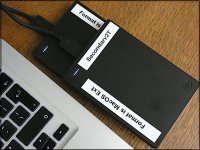
Two are permanently attached to my 2012 MacBook, a third is stored in a small backpack with a 2017 MacBook and two more are merged 1 TB drives, formatted as EXFAT (for direct reading on Windows or Linux) and stored in seperate places. I use Carbon Copy Cloner as my backup tool.

Backup drives Primary and Secondary FZ82 P1010269.JPG
 
My system is very rudimentary in terms of naming etc. Digital photos are stored with a directory structure camera/year/date. At the bottom level the date is actually date followed by subject or location. It's also by day, not week or month.

Film photos are either simpler or more complicated, depending on how you look at it. Because negatives are tangible items, they are stored in negative sleeves, one sleeve per film for 34mm and 120, four negatives per sleeve for 5x4 , two per sleeve for 5x7 and just the one for 10x8. The sleeves are stored in ring binders, with a contact sheet of each film with them. I have a separate binder sequence for 35mm, MF and LF sheets.

Because I was using film for years before scanning and digital printing became available, very few 35mm films exist in digital form; virtually all my negatives from 35mm are unscanned, and the earlier medium format ones. Where scanned, the films are organised in a structure where all the scans from a particular film are in a directory with the binder at the top, then the page within the binder, then the position of the negative within the sheet.

My large format scans are arranged by raw files, straight tiff from the scanner, and spotted versions. Contact sheets with 4 5x4 images are stored on my computer, to save me having to physically pull down a binder to locate a negative. Each LF scan has a name which is binder name, negative number. I should have added the page in as well, but didn't, so my directory has names like LF01-001-RAW.tif for the raw files.

In terms of the digital files; they are stored initially on a RAID system as the primary location. Two drives have to fail before anything is lost (8 drive bay) and hot swapping is possible. I carry a spare drive to be ready. The drives are bought at different times from different suppliers just to ensure that they probably come from different batches. That primary location has both a backup and a mirror on three other RAID systems, one of which is also set up to allow 2 drives to fail. There is also a copy on my desktop computer. Then there are external hard drives as well. It's not proof against all disasters, but then I'm complacent :) and don't plan for a fire etc.
 
I use a Synology NAS. All raw files are sent there and catalog is on the PC for speed.

NAS has 2 4tb drives mirrored which means one drive can fail. Each night the full NAs is replicated to a third hard drive connected to a raspberry pi in my office in a different building hopefully providing a further back in case of fire.
 
Last edited:
Best External Hard Drives or SSDs: What are your recommendations for high-capacity external hard drives or solid-state drives (SSDs) suitable for storing large volumes of RAW and processed image files?

Can't help with the best brands, but I always consider drives to be in one of two states, failed, or about to fail. So having multiple drives is a must.

Cloud Storage Options: Are there any cloud storage services tailored specifically for photographers that you've had a good experience with in terms of reliability, security, and ease of use?

Amazon Prime free photo storage is what I use as I already have Prime.

Network-Attached Storage (NAS): I'm interested in learning about your experiences with setting up a NAS for centralized storage and easy access to photos. Which NAS devices and configurations have worked best for your photography needs?

Synology in SHR raid. I'm currently running an old 214play with two bays, so it's mirrored, but planning to move to a 923 to give me four bays with the option to add additional bays.
The NAS is powered by a UPS to mitigate against power spikes or blackouts corrupting data (controlled shut down five minutes after power is lost, with no auto power on).

File Organization and Backup Strategies: How do you organize your photo files to ensure easy retrieval and backup? Any file naming conventions or folder structures that you find effective?

NAS backs up daily to an external HDD connected via USB
Backup to Prime on a monthly basis using a mini pc that is turned on once a month for the sole purpose of running Amazon Photos to back up to the cloud

Data Redundancy and Backup Practices: What backup methods do you employ to ensure the safety and redundancy of your precious photo archives? Do you use a combination of on-site and off-site backups?

The External HDD mentioned above is transported off site and replaced by another one every month or so. Three drives are rotated in this fashion.

Tips for Data Management Efficiency: Any tips or best practices for efficiently managing a large photography library, including software tools that you find helpful for organizing and sorting?

All photos that are edited in LR are configured to also have the sidecar file generated in order that I am not relying upon the LR catalogue.


I'm sure there is more I could be doing, and better ways of doing it, so I will be watching this thread with interest.
 
Hello everyone,

I hope this message finds you well. I'm reaching out to seek recommendations and advice regarding efficient storage solutions for organizing and managing my growing collection of photography files.

As a passionate photographer, I've accumulated a substantial amount of photos over the years, and I'm now in need of a reliable and scalable storage solution. I would greatly appreciate any insights or suggestions you may have regarding the following:

  1. Best External Hard Drives or SSDs: What are your recommendations for high-capacity external hard drives or solid-state drives (SSDs) suitable for storing large volumes of RAW and processed image files?
  2. Cloud Storage Options: Are there any cloud storage services tailored specifically for photographers that you've had a good experience with in terms of reliability, security, and ease of use?
  3. Network-Attached Storage (NAS): I'm interested in learning about your experiences with setting up a NAS for centralized storage and easy access to photos. Which NAS devices and configurations have worked best for your photography needs?
  4. File Organization and Backup Strategies: How do you organize your photo files to ensure easy retrieval and backup? Any file naming conventions or folder structures that you find effective?
  5. Data Redundancy and Backup Practices: What backup methods do you employ to ensure the safety and redundancy of your precious photo archives? Do you use a combination of on-site and off-site backups?
  6. Tips for Data Management Efficiency: Any tips or best practices for efficiently managing a large photography library, including software tools that you find helpful for organizing and sorting?

Thank you in advance for your assistance!


Kind regards,
Karl
  1. I tend to use WD drives, for storage, I prefer spinning HDDs, as I want capacity rather than speed.
  2. I use AWS S3, but I'm quite tech-minded and work with AWS in my day job and have various AWS qualifications. It is probably what powers a lot of the other cloud storage options. For a more photographer-friendly cloud storage, Flickr is pretty good. I use that, along with Apple's iCloud and Adobe's cloud to store/share processed jpegs.
  3. I have a Synology NAS as my local backup. I use it purely as a backup, rather than for working on. Because it is always on, and connected to the internet, my cloud uploads are from the NAS, rather than my laptop.
  4. I let Lightroom do most of the heavy lifting, but my folder structure is yyyy/yyyy-mm-dd/files.ext I only rename images on export from Lightroom.
  5. I use the 3-2-1 method - at least 3 copies of any file, 2 local and 1 off site.
  6. Think about what you need to store.
My workflow/backup routine is as follows:

  1. All the images on my SD cards get imported to Lightroom on my Mac (this is my working copy) and simultaneously copied to my NAS (this is my archive copy).
  2. TimeMachine backs up my Mac to my NAS every 30 minutes.
  3. Overnight all my new archive images are copied from my NAS to AWS S3 automatically.
  4. Processed/exported images are uploaded to Flickr/iCloud/Adobe for sharing and an extra layer of backup.
  5. At least once a week, or after a big import, I collect my Peli case of hard drives from a detached outbuilding, and plug one into my Mac, so the CCCloner can copy the Mac's storage, and I plug another into my NAS, so that my photo archive can be copied. Both of these are set up to trigger automatically when the relevant drive is plugged back in.
  6. Only after I know I have 3 copies of both my keeper images and my archive, will I then format my SD cards.
 
Best External Hard Drives or SSDs: What are your recommendations for high-capacity external hard drives or solid-state drives (SSDs) suitable for storing large volumes of RAW and processed image files?

Can't help with the best brands, but I always consider drives to be in one of two states, failed, or about to fail. So having multiple drives is a must.

Cloud Storage Options: Are there any cloud storage services tailored specifically for photographers that you've had a good experience with in terms of reliability, security, and ease of use?

Amazon Prime free photo storage is what I use as I already have Prime.

Network-Attached Storage (NAS): I'm interested in learning about your experiences with setting up a NAS for centralized storage and easy access to photos. Which NAS devices and configurations have worked best for your photography needs?

Synology in SHR raid. I'm currently running an old 214play with two bays, so it's mirrored, but planning to move to a 923 to give me four bays with the option to add additional bays.
The NAS is powered by a UPS to mitigate against power spikes or blackouts corrupting data (controlled shut down five minutes after power is lost, with no auto power on).

File Organization and Backup Strategies: How do you organize your photo files to ensure easy retrieval and backup? Any file naming conventions or folder structures that you find effective?

NAS backs up daily to an external HDD connected via USB
Backup to Prime on a monthly basis using a mini pc that is turned on once a month for the sole purpose of running Amazon Photos to back up to the cloud

Data Redundancy and Backup Practices: What backup methods do you employ to ensure the safety and redundancy of your precious photo archives? Do you use a combination of on-site and off-site backups?

The External HDD mentioned above is transported off site and replaced by another one every month or so. Three drives are rotated in this fashion.

Tips for Data Management Efficiency: Any tips or best practices for efficiently managing a large photography library, including software tools that you find helpful for organizing and sorting?

All photos that are edited in LR are configured to also have the sidecar file generated in order that I am not relying upon the LR catalogue.


I'm sure there is more I could be doing, and better ways of doing it, so I will be watching this thread with interest.
Thanks Tim! Your comments have shed some light on the matter.
 
  1. I tend to use WD drives, for storage, I prefer spinning HDDs, as I want capacity rather than speed.
  2. I use AWS S3, but I'm quite tech-minded and work with AWS in my day job and have various AWS qualifications. It is probably what powers a lot of the other cloud storage options. For a more photographer-friendly cloud storage, Flickr is pretty good. I use that, along with Apple's iCloud and Adobe's cloud to store/share processed jpegs.
  3. I have a Synology NAS as my local backup. I use it purely as a backup, rather than for working on. Because it is always on, and connected to the internet, my cloud uploads are from the NAS, rather than my laptop.
  4. I let Lightroom do most of the heavy lifting, but my folder structure is yyyy/yyyy-mm-dd/files.ext I only rename images on export from Lightroom.
  5. I use the 3-2-1 method - at least 3 copies of any file, 2 local and 1 off site.
  6. Think about what you need to store.
My workflow/backup routine is as follows:

  1. All the images on my SD cards get imported to Lightroom on my Mac (this is my working copy) and simultaneously copied to my NAS (this is my archive copy).
  2. TimeMachine backs up my Mac to my NAS every 30 minutes.
  3. Overnight all my new archive images are copied from my NAS to AWS S3 automatically.
  4. Processed/exported images are uploaded to Flickr/iCloud/Adobe for sharing and an extra layer of backup.
  5. At least once a week, or after a big import, I collect my Peli case of hard drives from a detached outbuilding, and plug one into my Mac, so the CCCloner can copy the Mac's storage, and I plug another into my NAS, so that my photo archive can be copied. Both of these are set up to trigger automatically when the relevant drive is plugged back in.
  6. Only after I know I have 3 copies of both my keeper images and my archive, will I then format my SD cards.
Thanks Lewis. Very insightful.
 
1. Storage: three Western Digital Ultrastar discs because they are silent and fairly cheap. They use helium to reduce friction.

2. Cloud storage: I tried once and it took two or three months to upload 10% of my files. Unusable (in my case!). Business products are much quicker, but they are expensive.

3. NAS: my favourite brand is Synology, but I use hard discs with Thunderbolt cables (40Gbps).

4a: File organisation: very (too?) simple: it's project based. Regardless of their type, all the files related to a project go in the same directory. The projects are organised chronologically.

4b: Backup strategy: 3-2-1 rule.

5: Backup practice: One copy of the files is on a 12TB disc called 'Photos' and a second copy is on a 18TB disc called 'Time Machine 1'. A third copy is on another 18TB disc called 'Time Machine 2', which is stored remotely, 15 kilometres away. Every 10-15 days and after each important addition of files, I substitute the second and third copies.

6: Pictures management: I use the functions offered by Capture One. Some years ago, I used Lightroom, but I don't like the subscription model. What happens to your post-processing work if Lightroom is discontinued? Everything evaporates into thin air. Update: sorry, the last sentence is wrong (thank you, Craikeybaby). Nothing is lost, but further editing won't be possible.
 
Last edited:
I use NAS, I do not want to rely upon cloud storage services, and I have seen far too many (even giant corporations) suddenly withdraw from offering serivces (and some even disappearing with no passing on data that ; not foentrusted to them!) Cloud storage is useful if you travel and need access to files from remote locations that have internet; not me.

I set up two-HD NAS RAID1, so both drives have a full copy of all data, providing reduncancy of data archive. If I need to add storage capacity, I can replace one drive and the RAID automatically rebuilds the data onto the new drive...and once the first drive is relaced, I replace the second drive and the RAID automatically rebuilds the data onto the new second drive...very easy and transparent process. From day to day I rely upon only primary HD in the computer, but I copy files added to the HD during the past week/month to the various RAID (NAS, USB). In retirement now, making redundant data copies happens with much more widely spaced time periods than pre-retirement! No special backup software is used, I merely sort file list by Date and copy all files created within the appropriate time period, ito the NAS.

I have a USB-connected RAID drive as well, to serve as a backup to the primary NAS RAID. So I have really five copies of data (count the primary HD in the PC). All of the RAIDS (USB, NAS) are usually powered down when I am not putting data onto them or reading data from them, in order to reduce accumulation of power-on hours... MTBF statistical avoidance!
Only 'data' is kept in this manner...application files are reliant upon original software installation disks whenever possible (again, I dislike having to go to the web as the only way to install something, and avoid that if possible)

I keep all photos in 'Digital Photos' folder, which is then subdivided into category folders for 'special purpose' organization, plus one folder with all 'serious shooting'...one folder for each year, contiaining subfolders for each event/topic. So if I want my 2012 images of our trip to New Zealand, I simply to go to folder 2012 subfolder New Zealand. This structure is mimic
d in all drives holding copies of same data.

Editorial: I detest the subscription model of applications, and like to buy copy on DVD of software that I use. Running a computation of total cost (including loss of Interest, even at rate of inflation) makes for staggering cost over a lifetime...I have been interested in Photography for almost 60 years, imagine the nestegg if I saved $10 a month into an interest-bearing account for that period of time!...Close to $30k for one avoided subscription, at average 4% rate of inflation, or $20k at very conservative 3%!
 
Last edited:
6: Pictures management: I use the functions offered by Capture One. Some years ago, I used Lightroom, but I don't like the subscription model. What happens to your post-processing work if Lightroom is discontinued? Everything evaporates into thin air.
If you stop paying your Lightroom subscription, nothing evaporates into thin air. You can still use the catalog to view/export your exiting images, what you cannot do is do any more editing.
 
Lots of the above stuff -- multiple drives, regular backups etc. I also have a firesafe in the house which is supposed to protect documents, hard drives etc. etc for some time in temperatures of up to 1000C. I figure that if a fire occurs that is hot enough to destroy the photographs on my backup hard drives then the loss of all those photos is going to be the least of my worries.

So as well as the fire safe, in which there are two external hard drives, I have my hard drive in my PC which can be backed up to another, larger drive, also in my PC. I use Microsoft Synctoy to backup to my in-PC drive and for the others I completely delete, then re-copy, every month or so (obviously, one at a time, just in case).

It's a rubbish and time-consuming way to do things but it works for me. I don't use Amazon cloud storage because it just takes too long to upload. Also, AFAIK, it's just cumulative, so I might do a big delete on my PC to clear out any dross, but without repeating my efforts on Amazon I haven't really deleted anything and if I have to restore, I have all the crud I didn't want.
 
I'm both impressed and amazed at the sophistication of people's backup solutions. Mine is much more basic

Ignoring phone photos (which backup to Google photos), I have two external ssds. I keep one in my locker at work.

Once a month I backup the folder structure on my laptop (photos and a few other things) to the external ssd at home. Then I take that into work and bring home the other SSD. That night I backup the file structure on that SSD too. At that point I format the card in the camera too.

At worst, I lose a month's worth of photos if I am burgled. I suppose I could do this weekly and reduce my risk further.

I suspect that others here take a lot more photos than me and so maybe need a daily backup, hence the NAS style solutions?
 
I use a couple of external hard drives in different locations (in my house- would be better somewhere else)

One is in an army cartridge box and another is in a tupperware box. Smoke will ruin a hard drive really fast.
 
I'm another using NAS, in my case a four bay Synology solution, network speeds coupled with local Ssd for catalogue caching means things fly along nicely
 
Back
Top