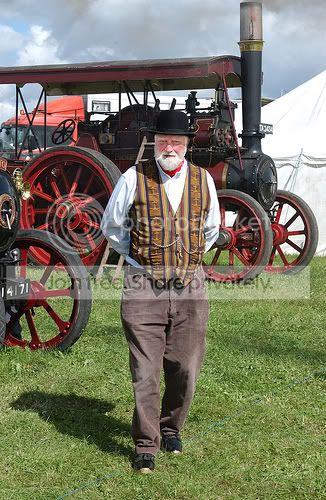
Shadows - how do you remove them?

gramps

Suspended / Banned
Messages
44,805
Name
'Gramps'
Edit My Images
No
Okay, so not the best of images but it highlights the issue - how do you remove shadows as evidenced on the face of this steam enthusiast?
I have CS4, Elements 8 and a few others - will this do it ... if so how?

As much detail as possible please :)

4992795691_f9b601370a.jpg
 
Shine a light at them! :razz:

In CS4 carefully use the 'dodge' tool. :)
 
With some sport shots i usually just draw around the area that the shadow is in, feather it and then use levels on that area to brighten it up slightly. But that is when the whole front of them is dark so maybe a lot hard on this one.
 
Why would you want to remove the shadow from this image? It would look odd without it I feel.
 
Why would you want to remove the shadow from this image? It would look odd without it I feel.

It is distracting - the image was taken 'as was', so not posed and in high sunlight as can be seen.
 
i think it looks right for the kind of photo it is, i wouldnt bother trying to remove it

You don't think it's distracting?


TBPhotoGraphi><™;2996055 said:
Bang it up in JPEG so someone can have a go for you mate.

Thought it was!
 
Your edit box isn't ticked, and I think it would be quite hard to edit a picture that small....:thumbs:

Yeah, I'm still struggling to find where to untick it :shrug:
Also having difficulty in uploading to gallery so it's what I get in a link from flikr.

Used to be simple ... point > shoot > take to Boots > show family :D
 
Fill flash would have sorted that. Easy to do in Lightroom with the adjustment brush - but not really a job for post.
 
If you want to do anything with this in PP I'd recommend keeping it subtle. One of the easiest ways would be :

In CS4 create a duplicate layer.
On the new layer use the shadows / highlights adjustment to bring back some of the shadow detail in his face, but don't overdo it.
Add a mask to the duplicate layer so that only his face is affected by the adjustment.

The same principle could be used to make the adjustment with the "dodge" tool or within levels on the duplicate layer.

And because it's a separate layer, you can fiddle with the opacity if you've gone too far to bring it back down again.
 
Thanks Sarah, I keep forgetting layers and how useful/essential they are.
 
I did a quick edit:

4992795691_f9b601370a.jpg


Duplicate layer
Shadows and highlights - boosted the shadows untill it looked ok
Layer mask - masked off the whole image except the shadow on the face
Cloned stamped the bright highlights
Boosted saturation on just the face
Finished

But fill flash would be the best option.
 
Thanks, I'll give it a try. :)
 
For my two penneth, I'd leave it be. With the shadows on his trousers, and the very obvious one on the grass, your eye is pretty much *expecting* to find one on his face. It looks a little odd without it.

Just my opinion.
hat.gif
 
Thanks Sarah, I keep forgetting layers and how useful/essential they are.

I struggled to see the point of layers in the beginning, but I'd be lost without them now.

I did a quick edit:

Duplicate layer
Shadows and highlights - boosted the shadows untill it looked ok
Layer mask - masked off the whole image except the shadow on the face
Cloned stamped the bright highlights
Boosted saturation on just the face
Finished

But fill flash would be the best option.

:thumbs: That's exactly what I would have done. Personally, I'd tone down the adjustment layer a bit - I think the adjustment needs to be more subtle than that, but in principle it illustrates the point well. And of course it would be far easier to work on the original file rather than the resized one here.
 
Duplicate the layer (as a copy) then use the dodge brush set to 10% on shadows and gently lighten.
 
alternative

if you have the raw - create two images, one with exposure and potentially brightness up, then add it as a layer, and bring through the shadows with a layer mask as above

using raw might retain a bit more quality
 
Try contrast masking.

CMD+J - Duplicate layer
CMD+Shift+U - Desaturate Layer
CMD+I - Invert Layer

Change blend mode to soft light, and adjust opacity to taste somewhere between 70-85%
Layer Mask - Hide all (whichever route you take is fine)
Press B - Brush tool
Press X - to select white as the foreground colour (check visually as depends on what you left it on)
Set Flow to 10%
Make brush small & soft
Brush away shadows

When happy, Flatten all.

If you're on a PC, replace CMD with Ctrl

Next time, fill flash ;)
 
I'd use Capture NX2 on the NEF: Colour Control Point, set radius to match the shadow size, then raise the brightness. Much quicker than CS4.
 
I`m having trouble fixing the shodow in this pic, but I only have elements7, any clues? :shrug:


Uploaded with ImageShack.us

Rodders
 
It can be improved by using the quick selection tool to highlight the area of shadow and then using the smart brush tool to brighten the area inside the selection - doesn't get rid of the area of shadow but lightens it to look 'ok'.
Of course there's probably an easier/better way that will be posted by someone else later :)
 
Back
Top