PP'ing help needed please........

Phil-D

Suspended / Banned
Messages
7,553
Edit My Images
Yes
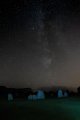
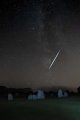
Whilst taking a few test shots of the milky way over Castlerigg Stone Circle, I fortunately captured a meteor.

My problem being I was just setting up, checking composition( I couldn't stand where I wanted there was already someone there :)), exposure, light pollution, ect.....when this meteor passed through the shot in front of the milky way.

The metoer was blown, as in over exposed, but I've managed to retrieve a good bit of detail but obviously at the expense of the rest of the shot. The next shot I took I added a bit of light painting to the stones but it was took a few seconds after so the stars don't line up!

What I'm trying to do is put the meteor into the shot of the stones and milky way. I've tried using layers but without any success.

If someone could do it and make it look right, then explain how they did it, it would be very much appreciated as I'd like to be able to do it myself, thanks :)

Nearly forgot, the only software I have is Elements 14
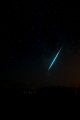
meteor - Copy.jpg Milky way top layer - Copy.jpg
 
I am no expert at Photoshop but this took me about 10 minutes to do. I suspect that you can do the same in elements.

Open both files and add a layer to the photo with the meteor. Arrange to display both photos at the same time and then drag the layer of the meteor photo onto the other photo taking care to align the two photos. You should have the one of the milky way showing with the layer hidden beneath it.

Select the eraser tool with a very small hard point. Using this locate the meteor by erasing small parts of the top photo which will reveal the layer beneath. You will need to do this a few times until you locate the meteor trail. Keep the pointer on the meteor trail and press ctrl, alt and z and the bits you have erased will be removed. Now you know where the meteor trail is slowly and carefully move the eraser to show more of the meteor trail. Do this in short stages as you will go wrong occasionally. If you go wrong remove the last stage with ctrl, alt and z and repeat that stage until you have it right. You will gradually reveal the meteor trail. Once happy with it save the file with the layer (TIFF format is probably best) in case you want to revisit this and improve it.

I have no doubt someone better at Photoshop than me will come up with a better quicker way but until then the photo below was my quick and dirty attempt.meteor merge.jpg
 
I am not sure why the color corruption has occurred just above the horizon. It is not in my file on my PC so I guess it is an upload issue. I am sure this will not happen when you do this on your PC.

Good luck
 
I am no expert at Photoshop but this took me about 10 minutes to do. I suspect that you can do the same in elements.

Open both files and add a layer to the photo with the meteor. Arrange to display both photos at the same time and then drag the layer of the meteor photo onto the other photo taking care to align the two photos. You should have the one of the milky way showing with the layer hidden beneath it.

Select the eraser tool with a very small hard point. Using this locate the meteor by erasing small parts of the top photo which will reveal the layer beneath. You will need to do this a few times until you locate the meteor trail. Keep the pointer on the meteor trail and press ctrl, alt and z and the bits you have erased will be removed. Now you know where the meteor trail is slowly and carefully move the eraser to show more of the meteor trail. Do this in short stages as you will go wrong occasionally. If you go wrong remove the last stage with ctrl, alt and z and repeat that stage until you have it right. You will gradually reveal the meteor trail. Once happy with it save the file with the layer (TIFF format is probably best) in case you want to revisit this and improve it.

I have no doubt someone better at Photoshop than me will come up with a better quicker way but until then the photo below was my quick and dirty attempt.View attachment 76104

Thanks very much Martin, only on mi phone but that doesn't look bad at all (y)

I'll have a better look and another read at what you did later, many thanks :)
 
Hi Phil - hope you keeping well.

Blend mode "lighten" will do most of the work for you here.

BLEND MODES THAT LIGHTEN
Lighten: Turns darker pixels transparent if the pixels on the target layer are darker than those on layers below. If the pixels are lighter, they’re unchanged. This effect is the opposite of Darken.

  • As above, open both files, align them (drop opacity of top layer to 50% so you can see through it and then move it till they line up, opacity back to 100% after)
  • change blend mode to lighten
  • add a layer mask to meteor layer and fill it with black, paint on the mask in white where the meteor is.
Layer mask only really necessary to get rid of any extra stars that appear.

blend mode lighten.jpg

layer mask.jpg
 
@overbez Hello Graham, yes, all good thanks, hows you?

Thanks for that, I've had another couple of goes at pp'ing the shots, this is about the best I got but feel there's still room for improvement in the Milky Way.

Will have another go at the way you've explained when I get chance, cheers (y)

Meteor through the Milky Way by Phil D, on Flickr
 
Not doing too bad generally, been struck down with a cold I can't shift which is why I dropped in here yesterday.

Can't see much wrong with that last one. Like the way the light on the ground is under the meteor, so it could be the light cast from it that is illuminating the ground... (With enough imagination). :)
 
been struck down with a cold I can't shift

That's called getting old, I speak from experience :D

Can't see much wrong with that last one

Cheers, I would have liked a little more detail in the Milky Way. Its taken me a while but learning how to work in layers has brought my pp'ing on a long way since I did the '52', but still loads to learn!

........... so it could be the light cast from it that is illuminating the ground... (With enough imagination).

Yes, I've had to explain a couple of times what 'light painting' is ;) :D
 
Back
Top