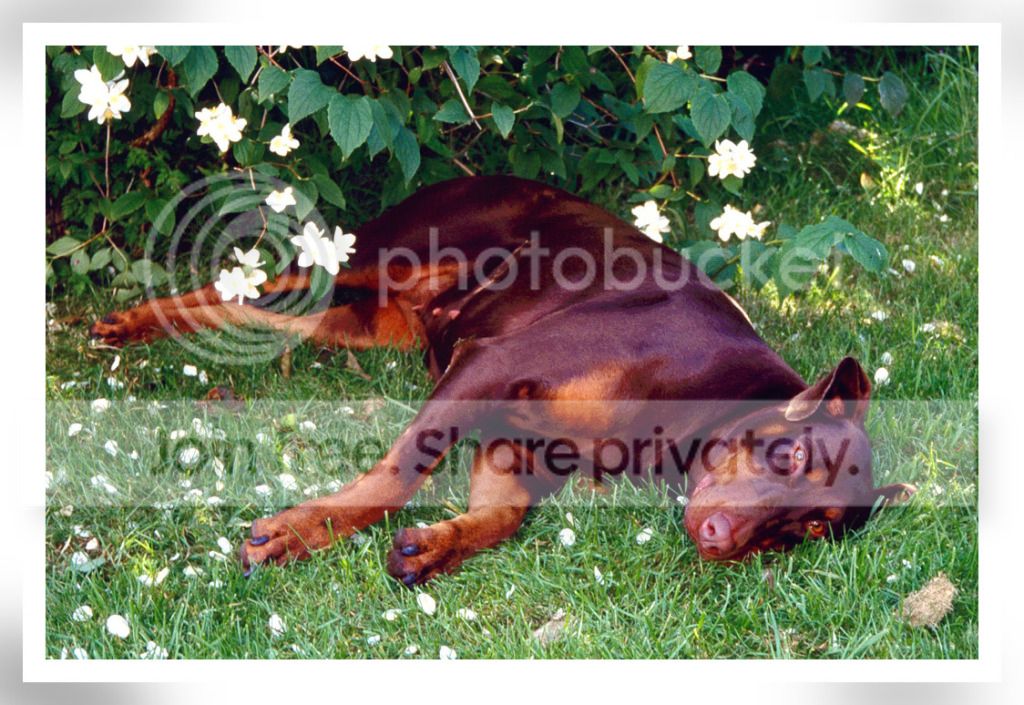
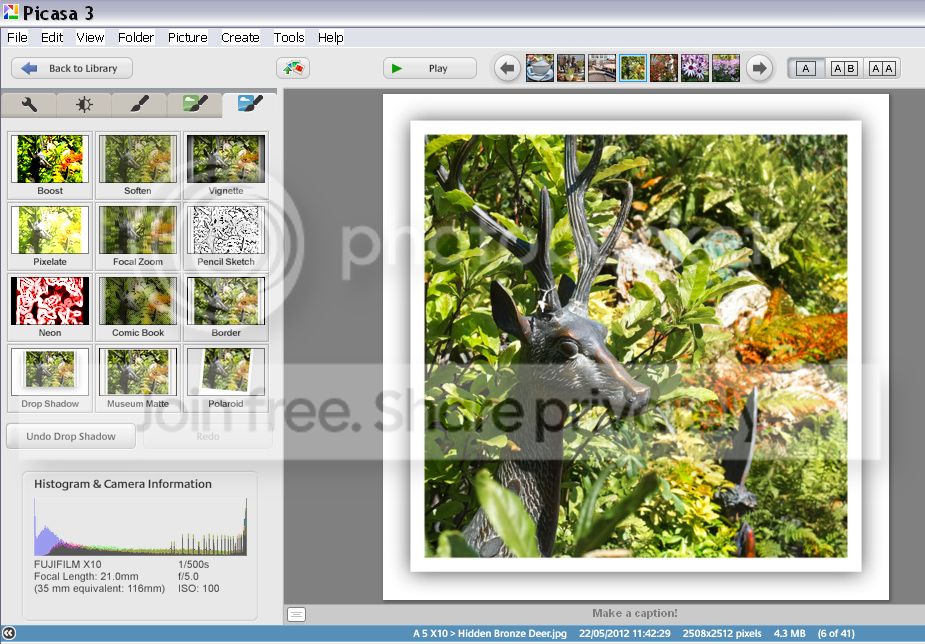
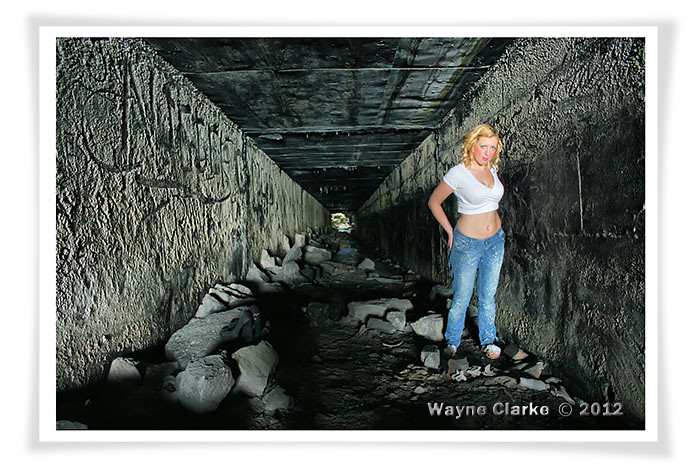
Please help, need to find out how to create this photo frame

xrayhead

Suspended / Banned
Messages
143
Name
Lee
Edit My Images
Yes
Hi All

I would really appreciate some help on creating the following "FRAME" effect (see image bellow). I've done some of this before in Photoshop but a long time ago, any help or pointers would be much appreciated indeed!!

Also I'm looking for this specific frame, I've had a look and there seems to be loads of grunge types floating about but nothing I can find that looks like the below..

Many thanks, Xray
ScreenShot2012-08-14at222408.png
 
Do you mean the white borders and drop shadows?

Err yes please.....

Trying to use the following in CS5 but cant get the look I want -> Image - Canvas Size
 
Hi lee

dont know if this helps but you can do this frame and drop shadow in PowerPoint, just insert photo onto a white slide then add frame resize and add shadow
 
Err yes please.....

Trying to use the following in CS5 but cant get the look I want -> Image - Canvas Size

yes use the way you are and use the layer blending options Choose drop shadow, choose your drop shadow colour and use the little clock dial to move the DS around 1 corner then new layer and repeat the DS for the other corners
 
Last edited:
I've got an action for something very similar giving results such as this.

example very hastily done...

bess-oct-97.jpg


all it does is put a 50 px white border around the original pic, put a new white layer behind that and increase that by a further 50 px.
Then when the action is finished, get the burn tool, set to highlights and about 15% and run it over the edge to suit.

Ive put the action here if you want it. Don't forget you need to manually burn the edges. Burn from the centre if you want something more like your results.
 
Last edited:
I find Picasa has some very easy to use and very quick options like this. Open image in Picasa top left'ish tabs go to far right then 'drop shadow' option. Do it twice to get my effect.

DropShadowExamplebmp.jpg
 
Make a white background, drag on your photo with a border and resize it with free transform to leave enough space around for the shadow effect. Now make a duplicate photo layer, select the middle layer (the bottom photo one) hold down CTRL and click on this layer on the layers palette this selects the bottom photo layer, fill with black, now go to transform/warp and drag out the four corners just a bit (I went a bit too far) finally lower the layer opacity and add a bit of gausine blur.

7787625018_5592079eb4_b.jpg
 
Ah a proper dog - I photographed quite a few of those last weekend in aid of Chancepixies rescue

Yes indeed. She was a gorgeous beast. Really nice temperament too. We had an equally gorgeous black and tan male too. Daft people used to accuse us of being reckless because we had young children and owned "Devil Dogs". If only they knew :)

Anyway, back on subject, it's good to see a few different methods to reach the same end isn't it..
 
I guess all the advice given are starting points and you might be able to tweak them but every example other than the first one and the last one look dreadful.
 
I guess all the advice given are starting points and you might be able to tweak them but every example other than the first one and the last one look dreadful.

Would be good to see your suggestion so we can offer critique on it :lol:
 
Hi Lee

I did this one rather quickly just to see if I could do it, and will give a quick guide, if it is what you want and you need more details I will see if I can remember :D
IMG_2152-.jpg


frametut.jpg

Should read burn not dodge tool

Must say I'm liking this one the most!!!
 
I guess all the advice given are starting points and you might be able to tweak them but every example other than the first one and the last one look dreadful.

Nice to see you made the effort to give an example - did you read the posts as well, some of us had a quick play to see if we could achieve what xrayhead was aiming for :shrug:

~~~


Thanks Lee, hope you find it useful - I would also add Wayne's transform/warp but did not think of it myself :)
 
I guess all the advice given are starting points and you might be able to tweak them but every example other than the first one and the last one look dreadful.
At lleast people had a go at giving/passing on advice.
Must say I'm liking this one the most!!!

A thankyou wouldn't go amiss either to all the others. :shrug:
 
Sorry been away and having to answer with my mobile (not the best)...

I've tried most of them but keep messing them up in PS, I was hoping to create an action so I could share it in this post!

When I get back home I'll have my MAC to play on so should be able to add better input myself, many thanks to all the work and answers that you all have made the effort to explain and help me out!

Much appreciated indeed!
 
Back
Top