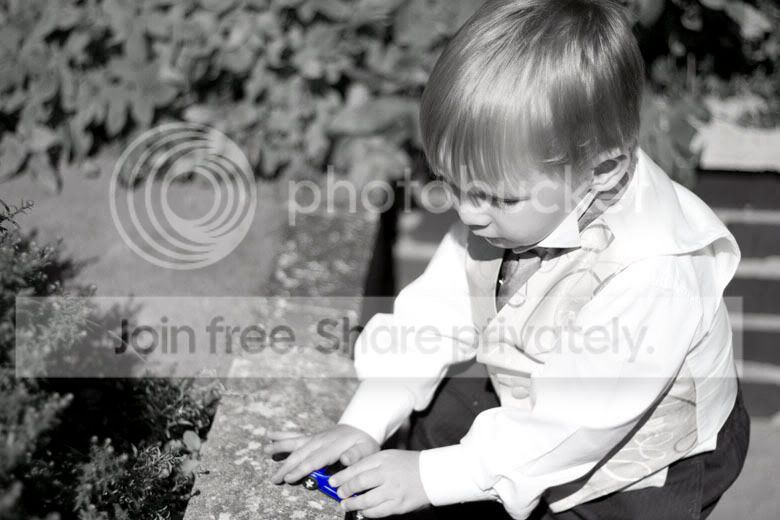
Photoshop help needed - B+W but leaving part of image in blue

Marcus D

Suspended / Banned
Messages
5
Name
Marcus
Edit My Images
Yes
Hello,

No idea what the technical term is for this :(

Basically I want to keep the car blue in the picture below and then have the rest of the picture in black and white, I am a completely newbie when it comes to photoshop, but this would be one of the things I would like to learn to do, so any advice would be excellent.

Here is the picture (I have a RAW version available to edit):-

Kie_and_Liz_s_Wedding_100_1.JPG


If anyone could point me to a guide on how to do it, or can put a post here I would really appreciate it :thumbs:
 
its known as hand tinting, with your raw file remove/desaturate every channel apart from the blue one... hey presto!
 
The quickest way to do this, if there isn't too much detail, is simply magnetic lasso around the car - copy then colour the whole picture black and white.
Then simply paste and move the coloured car into the right place.
 
Its called selective desaturation and there are loads of ways to do it.

(I also think it is even more over played than HDR :lol:)
 
Thanks for all the replies :)

Thats exactly what I am aiming for stokecity_m, just need to get playing a bit more on photoshop and fingers crossed I will be able to get the same result.
 
Here's how I'd do it quickly. I'm on CS3, so if you're on something different, the menus might be in a different place. Hoping the keyboard shortcuts remain the same... As others have said, there are other ways to do it, and PS is excellent at having twenty different ways to do the same thing...

1. Open your image.
2. Hit CTRL+J to copy it. (You should now see 2 images in the layers sidebar - one colour (background) and one above it ("Layer 1"))
3. On the toolbar at the top: Image>Adjustment>Desaturate, or Image>Adjustment>Black & White to get the B&W effect you want.
4. Click on the Mask icon. It's at the bottom of your layers toolbar in the bottom right hand corner of the screen. It looks like a grey rectangle with a white circle in it. If you get it right, you'll see a white box pop up next to your B&W image in the toolbar.
5. Set your foreground colour to black ("x" on the keyboard will switch fore and background colours, "d" will reset them to black/white if you have something else) and select the paintbrush tool from your left hand toolbar.
6. Zoom in and paint black over the truck.
7. If you mess up, or go over the edges - just paint white over your black to fix (remember "x" switches the fore/background colours). Use a small hard edged brush to keep crisp edges.

That "white" layer should then have a tiny spot of black, and the colour should pop through. Essentially, you're "masking" part of the black & white layer with your black paintbrush - hence the term "layer mask".

Flipping between a black & white brush with the x key makes minor adjustments easy and painless.

Hope this helps!

-H
 
once you now what its called i just open a new tab and put it in you tube then watch it step by step fliking from pp to you tube
 
Back
Top