Photoshop colour shift on save?

cardiff_gareth

Suspended / Banned
Messages
2,734
Name
Gareth
Edit My Images
Yes
Hope I've attached the 2 screen shots successfully.

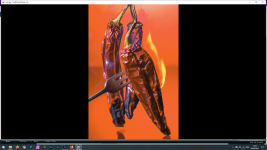
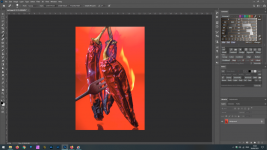
Edited an image on Lightroom and exported it and it was fine colour wise but needed cleaning up with artefacts so I opened it in Photoshop and nuked them. When I saved it and I reopened the file I noticed the colours had changed from the deep reds to an orange colour?

I'm guessing there has been a colour shift but can't for the life of me understand where and also, how to fix it so I get back to the colours I want and see on screen in Photoshop.

Any help would be gratefully received!

Thanks
 

Attachments

  • 1633005249056.png
    1633005249056.png
    254.4 KB · Views: 11
  • 1633005283271.png
    1633005283271.png
    285.5 KB · Views: 11
What colour profile did you set in LR?

There is a bug (it's been known for months but Adobe don't seem to have the inclination to fix it) where 3rd partycolour profiles are not being transferred with the image.

The fix is to CTRL-S or CMD-S the image first. This writes the edits to an XML file, then edit in PS. This should fix the issue.

I reported this to Adobe in March along with a video and they were aware of it before I reported it.


View: https://www.youtube.com/watch?v=ezlyqkAsGMk&t=96s
 
Last edited:
If the issue is as Elliot says, then you can set this automatically in Lightroom's Catalogue Settings (Edit>Catalogue Settings>Metadata)

Screenshot 2021-10-01 100701.jpg

I have this set so that if my catalogue goes bang at least I don't lose my edits.
 
To check if the profile has indeed been lost or there's a mismatch, check the 'Ask When Opening' boxes for Profile Mismatches and Missing Profiles in Photoshop's Edit->Color Settings:

1523019_photoshop%20color%20settings.PNG
 
To check if the profile has indeed been lost or there's a mismatch, check the 'Ask When Opening' boxes for Profile Mismatches and Missing Profiles in Photoshop's Edit->Color Settings:

1523019_photoshop%20color%20settings.PNG

Wrong profiles? This has nothing to do with working Spaces.

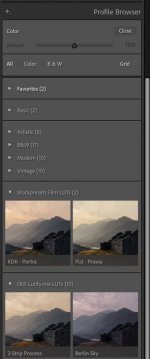
The profiles in question are Adobe Colour, Adobe Landscape, Camera Neutral, etc set in the develop module
 

Attachments

  • Screenshot 2021-10-01 at 11.33.46.jpg
    Screenshot 2021-10-01 at 11.33.46.jpg
    53.8 KB · Views: 0
Last edited:
Wrong profiles? This has nothing to do with working Spaces.

The profiles in question are Adobe Colour, Adobe Landscape, Camera Neutral, etc set in the develop module
ICC profiles rather than 'Lightroom profiles' - e.g., if an Adobe RGB image has been exported from something else but its ICC profile has gone missing, when you open it in PS there may be a colour shift if PS interprets it as (say) sRGB, which will happen if that's your working space and you haven't set PS to complain about missing or mismatched profiles. That may not be the problem here, but it only takes a second to enable checking and see.
 
Wrong profiles? This has nothing to do with working Spaces.

The profiles in question are Adobe Colour, Adobe Landscape, Camera Neutral, etc set in the develop module
Those do not get read or applied by PS. If the issue is the camera profile edits are not applied with "edit with LR settings" in PS, then that is something different entirely.
 
Last edited:
My best guess is that you have PS working in Adobe RGB and saved the file out with that color space applied. And if it wasn't properly tagged it will display desaturated when displayed as being sRGB, even in a color managed program.
 
I'd missed that the second screenshot isn't PS, but FastPictureViewer. I don't know what colour management that has, if any. Try Edit->'Convert to Profile' in PS (not 'Assign Profile') and set the profile to sRGB, then save a copy. See if that looks OK in FastPictureViewer, which may be assuming sRGB.
 
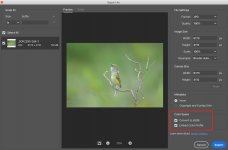
There are two settings when saving/exporting a jpeg from PS. This is the export dialogue and both color space options should be checked as shown; the "save for web" dialogue also has the same two options

Screen Shot 2021-10-01 at 8.10.58 AM.jpg.
 
In general, when you see duller colours when opening an image in some random application (including web browsers), it's very often a sign that an image in the Adobe RGB colour space (or another specialised colour space) is being misinterpreted as sRGB. This can happen when:

(1) The application is not colour managed.
(2) The application has colour management switched off or the settings are wrong.
(3) The image has lost its Adobe RGB profile or it was never tagged with one.
(4) The image is still in the Adobe RGB space, but has been incorrectly tagged with an sRGB profile. This can happen when 'assign profile' is used instead of 'convert to profile' in PS, and there's a mismatch between the actual colour space and the assigned profile.

The missing/mismatched profile checks in PS are useful for diagnosing the problem.

Once you leave the Adobe colour managed workflow, conversion of a copy of your image to sRGB is the safe option, including for web use. The image will still look more or less OK even in a non-colour-managed application, or if the profile becomes stripped (which happens when images are uploaded to some websites).
 
Back
Top