noob photoshop question

Ian Jones

Suspended / Banned
Messages
182
Name
Ian
Edit My Images
No
i have cs2

i have taken two pictures, both on tripod, in same place etc

1st one is front of a car
2nd some pic but with the bonnet open

I just want to stick 2 pics together, then use a rubber to rub away some of the top pic so i can see the through to the engine bay in the bottom pic.

how do i do this?

thanks
Ian
 
Open both images.

bonnet closed image, Ctrl+A, Ctrl +C. Go to bonnet open image and Ctrl+v. Should paste it as a new layer.

Make sure the closed bonnet layer is above the open bonnet layer. Then with the closed bonnet layer selected, just rub out part of the bonnet.
Open bonnet image from below will show through.

Thats the basics, there are other methods of making selections and feathering the edges etc.

few I have done in the past. I selected the bonnet bit I want see through and cut and pasted it into a new layer. Then just reduced the opacity of the layer. Think you can do the same thing with the eraser, there is an option to adjust opacity of it, before rubbing out.

luton11.jpg


luton12.jpg


Removed completely.
luton13.jpg
 
Last edited:
open both photos in photoshop and drag the one photo into the other using the move tool.
Once you done that just rub out the open bonnet and some of the closed bonnet. Hope this helped...I can do it but cant explain it very well
 
open up the open bonnet pic in ps. then open the closed bonnet pic in ps place the closed bonnet pic on top of the other one by using the move tool (Top of tools pallette) Whilst doing this have Ctrl pressed to centralise it. Pick the eraser brush, feathered, and erase the bonnet to reveal parts of the engine. You may want to choose an opacity for the eraser. Note in layers you will have 2 layers and when finished you may want to flatten if you wan a jpeg/tiff file. There is a similar more accurate way by using layer masks, but I haven't got the grammar to explain it well enough.

Edit: I would think it is easeir to use the eraser at 100% opacity, and then use the opacity slider of the top layer to get the desired effect.
 
Last edited:
I think we were all similar enough there! :lol:
 
Hi Ian

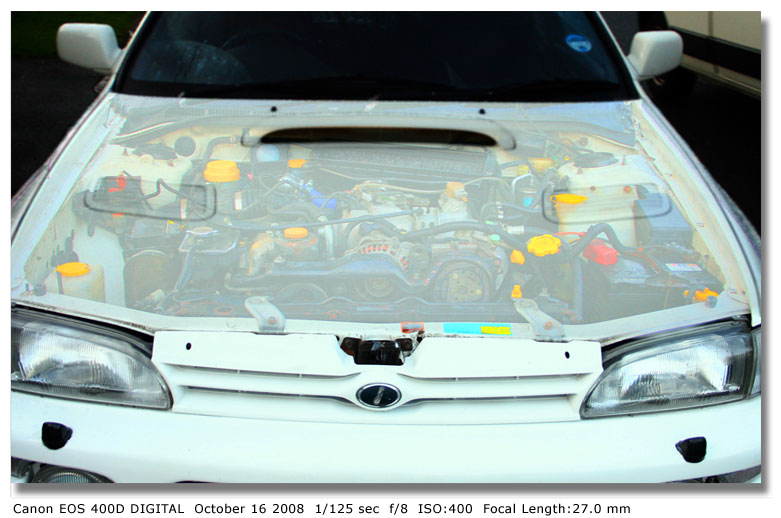
I had a go at this in 2008,

I shot the 2 images using a tripod, then in PS used a layer mask and selection then adjusted the opacity of the bonnet layer to reveal the engine

2947600450_d9635b710c_o.jpg


Dave
 
Hi Dave, nice looking scoob there, can you do a step by step guide on how you did the ghosted effect there please.

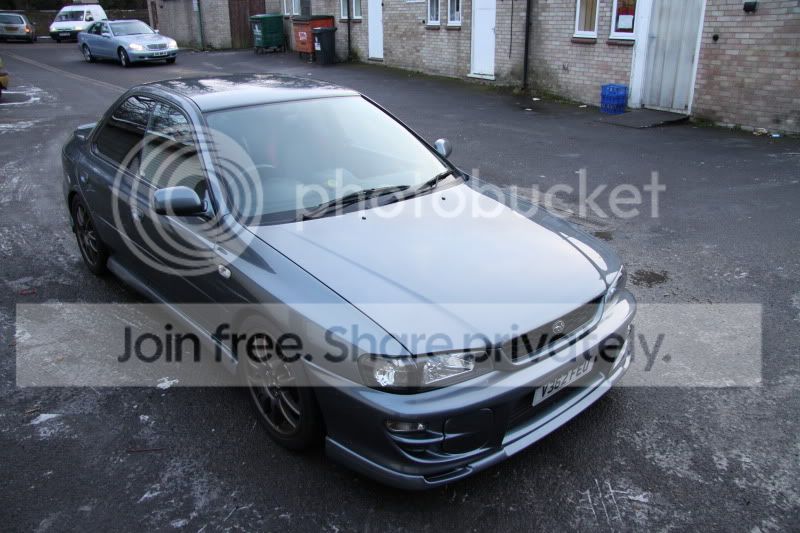
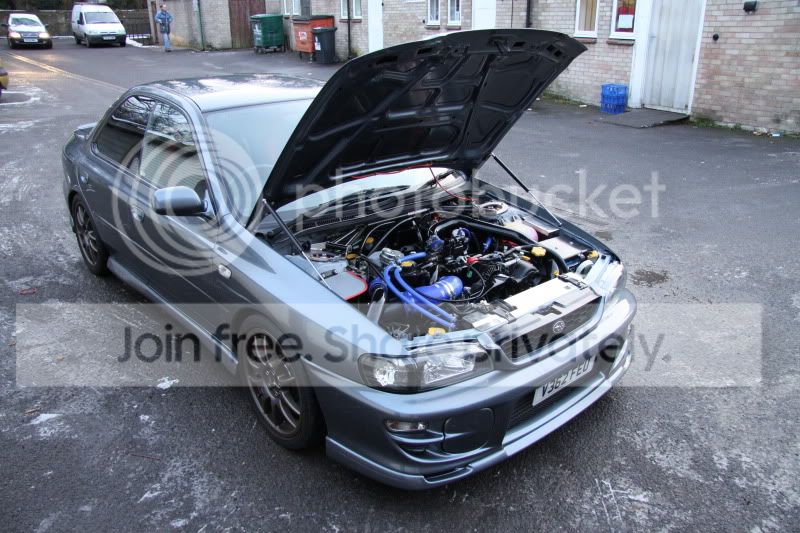
here are 2 pics of mine

IMG_2371.jpg

IMG_2372.jpg
 
just had another read though all your post above and had another play, found new parts of PH that I did not even know whas there.

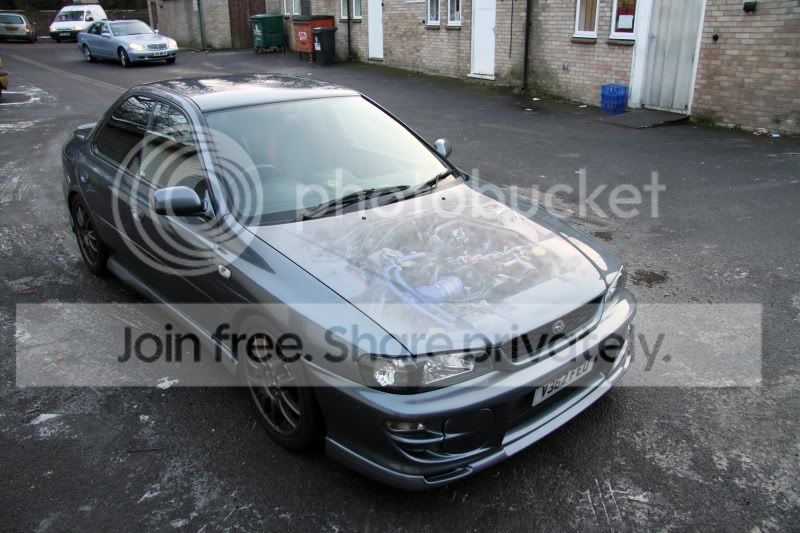
what do you think?

IMG_2372-1.jpg
 
While these are well done I'm courious about the reasons behind it? I'd rather see the enging properly (maybe with the bonnet removed like one of the posts above) rather than the half transparent look, just personal taste though.
Is this look popular with the car mags?
Wayne
 
some mags use it. but i have been pics over the interweb of it before and thought to my self, I would like to know how to do this...

It is just something to play around with really
 
Think you have done a good job there Ian for a first try. :thumbs:
 
I'd maybe shoot so that there isn't such a big reflection of the sky on your bonnet. May help the engine stand out a bit more in the final version.
 
Also, before erasing the top layer make a feathered selection as to where you want the engine bits to show through, if you haven't already done so.
 
Rather than using the rubber tool, I'd definitely recommend learning to use layer masks as the edits are non-destructive and can easily be undone if required. Plus it's really easy to soften the edges of the paintbrush to get a nice blended effect, as well as changing the opacity... and using masks is definitley one of the more useful photoshop skills :cool:

Pretty good tutorial on masking here...

HTH

:D
 
Back
Top