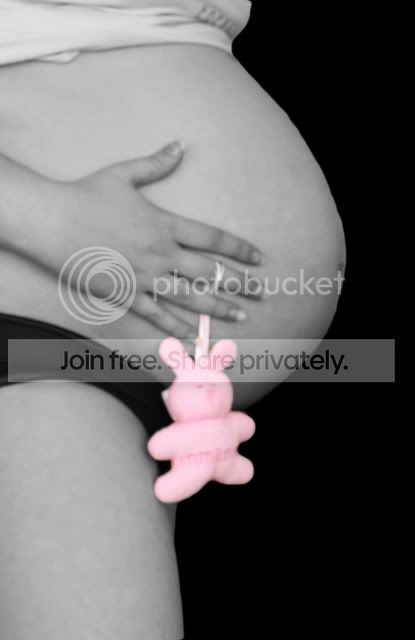
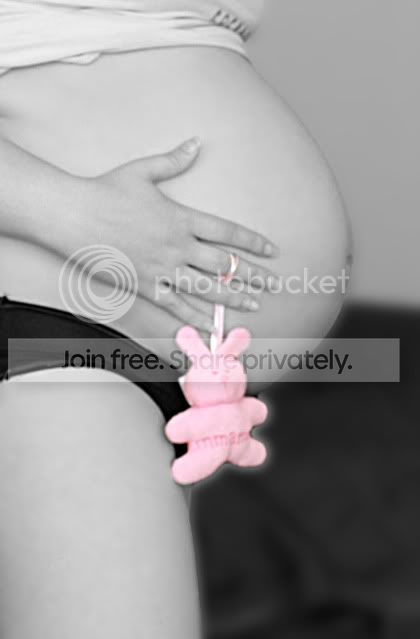
need some major help....im just no good at this!!

button-moon

Suspended / Banned
Messages
1,171
Name
Tracey
Edit My Images
Yes
hello....after a quick 10 minute shoot, where i got TOTALLY out of breath trying to focus in the right place then diving on the bed ready for the self timer with a huge 7 month preggo belly...all i got was this!!
wanted to go for a black and white theme, with just the rabbit in pink (as im having a girl!:love:)

but as you can tell im totally rubbish in photoshop (ive got cs3) ive got TONS to learn...and it isnt the easiest of programs!!

id love it if some of you could help me out and edit it for me.....how would you edit it to make it look its best....and yes...get rid of those stretchmarks :lol:

looking forward to seeing some of your photoshop magic!

original:
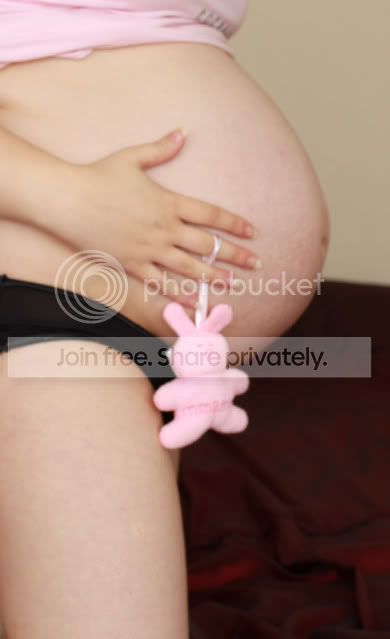
3b4.jpg

PS:
2.jpg
 
Hi there
just a quickish go, I'm supposed to take the good lady shopping :shake:
I thought that the background would look better if it was OOF instead of changing it, other than that, all thats been done is a smart sharpen, and desaturate, hope it's ok
tp.jpg
 
wow how the hell did u do that in such short time!
did you use the wand tool for selecting the bump in order to blur the background?
im cluless with this sort of thing....i worked for ages on my pic and yours is trillions times better!
 
hi
I selected the background with the wand, and then tidied it up with the quick selection tool, then i copied and pasted it to a new pic, tidied up the pic a bit more (some of your top was still in the selection) added lens blur, then copied and pasted into the original, flattened image, blurred the edges with the blur tool to blend them in a bit, selected the bunny with the wand and quick selection tool, inverted mask and desaturated .
I think thats it :thinking:
AL
 
ooo i dont know how to use masks etc!! goes way over my head all that! :lol:

that seems like alot of work (copying and pasting to a new picture etc.!)
how did u get the bump to look not so 'cut out' like mine?

i think its amazing what youve done!!...now i just need to blur those stretchmarks out! lol
 
Each photo worth editing is a lot of effort, that's the reality of it.
When I was at your stage I couldn't believe the amount of time my Grandad was putting into 1 photo.
But when you get used to it, you sort of know which ones are worth the effort and spending longer on them actually becomes more enjoyable.

You'll be doing yourself a massive favour if you read up an learn layers and layer masks. It's what makes photoshop worth having.
 
I just used the blur tool on the edges, I forget what settings i used, I just adjust the strength of the brush until it looks right,
also try this site to help with PS http://www.photoshopessentials.com/basics/ it may help, and the stretch marks will take a bit of time I think, I will have a go but not sure how long I can stall the shopping trip :lol:
 
i kind of know how layers work, i blurred one layer, then on the layer over it i used the eraser to get rid of some of my stretchmarks......but i have no idea about masks!

i tried editing it again from scratch...and sharpened the bump,blurred the background etc but i keep getting a 'glow' around the bunny and bump??
this one is still nowhere near as good as your edit alxxx!!!

3.jpg
 
alxxx awww bless u!! its not urgent...u can always do it when your bored :lol:
i just blurred one layer, then erased the top layer so the blur shows through (which ironed out the stretch marks abit!!)

i still think yours is brill though!
 
personally, i would get a sharper image to start practising with. Get the fiance to point the camera and press the button, so you get better focus. it is easier to work with a sharp picture and get it right in camera than try to fix a OOF picture etc...

if you want to take the picture yourself, on the disk that came with your camera is the software to shoot tethered, you set the camera up where you want it pointing in the direction, and then use the computer to alter the settings... you can then set the shot up yourself and take the shot from the comp rather than using the timer

also if you do reshoot it, put a sheet over the background so it is more solid colour/less cluttered rather than cut the background out, it is a LOT easier!
 
Used quick mask on the bump, then Gaussian blur at 2.5px although that would have to be different on the full size file.

Picture3-1.png


end product with some more 'messing'.

3b4.jpg


You'll improve, I am all the time :D
 
seriously!! u can do that with your computer? can you get it to focus etc? thats amazing!!

i know....its a pretty crap pic to begin with...i was just knackered from running around from the camera to the bed lol

thanks for that! x
 
thats great cyclone....that first pic looks so freaky!! lol

so that is what a mask looks like? i used Gaussian blur...but as a filter on one of the layers? then erased it out on the top layer.....im presuming the mask is alot quicker?
also did u use a tool to blur the background? noticed a bit near the leg that is still in focus. which tool did u use? everytime i try to use the blur tool it doesnt make any difference no matter how i change the settings at the top?
 
personally, i would get a sharper image to start practising with.
it is easier to work with a sharp picture and get it right in camera than try to fix a OOF picture etc...

I agree the photo is OOF,

I would colour select the bunny, this will also select your top, then remove the top from the selection

I.ve sent you a PM that may help
 
Yeah, just did the same process again on the BG as on the bump.
I find quick mask easier because you can just paint over the bit you want to adjust then invert the selection.
The way you did it is fine, but if you'd added a layer mask instead of just erasing then you could have made adjustments to it after. As in, just paint and erase, if you paint over a bit you wanted, you can just erase it back in.
The bit near your leg is just a bit I didn't select with quick mask, as it was just a quick edit.
 
Back
Top