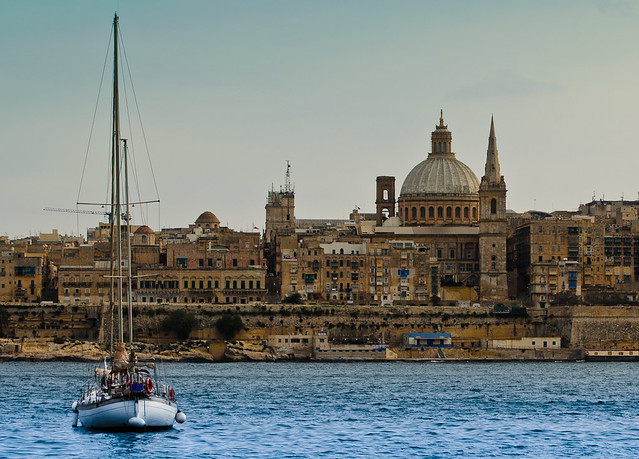
My first try at editing

brett23

Suspended / Banned
Messages
142
Name
Brett
Edit My Images
Yes
Hi everyone :wave:

I have just recently got myself a nice shinny new D7000 and thought it was about time I learnt to shoot in RAW and edit my photos. So after a nice week in Malta I got myself a copy of Lightroom 3 and sat down to start. Initially I was overwhelmed but after watching alot of training clips on Youtube these below are some of my efforts. (I have over 450 to do from the week away:eek:)

Feel free to tell me how i am going wrong or how you think i could have done them better. As i said this is all new to me so the advice/crit is all appreciated.


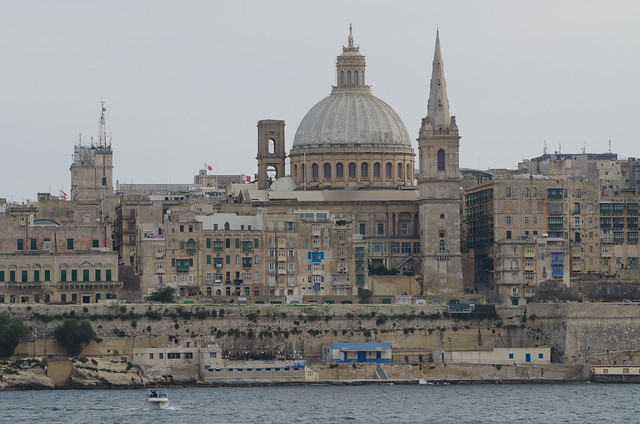
Before
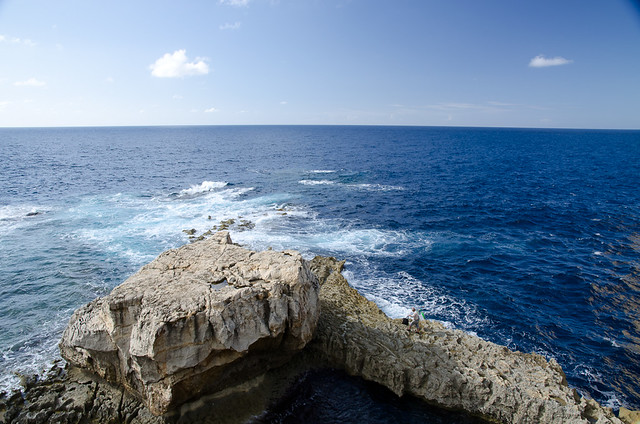
6431824665_6db4b6590f_z.jpg


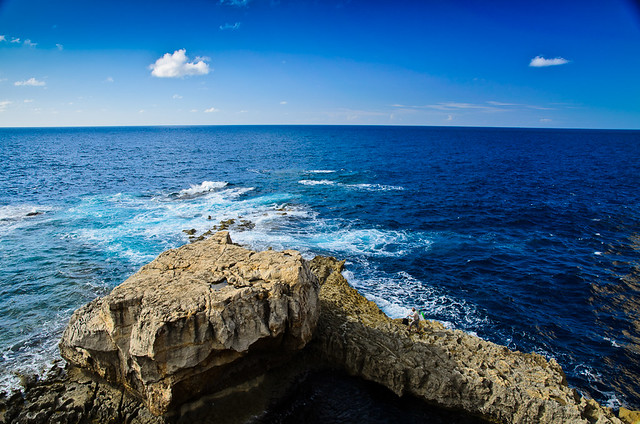
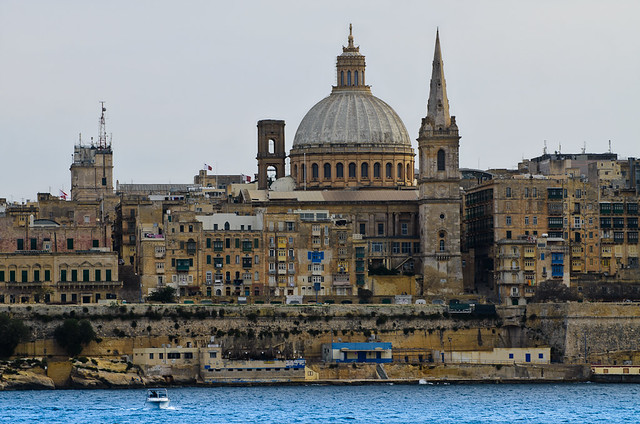
After

6431823935_30c983d180_z.jpg


Before

6431823121_9de1c99aa4_z.jpg


After

6431822685_25b665c133_z.jpg


Before

6431822059_9bed791beb_z.jpg


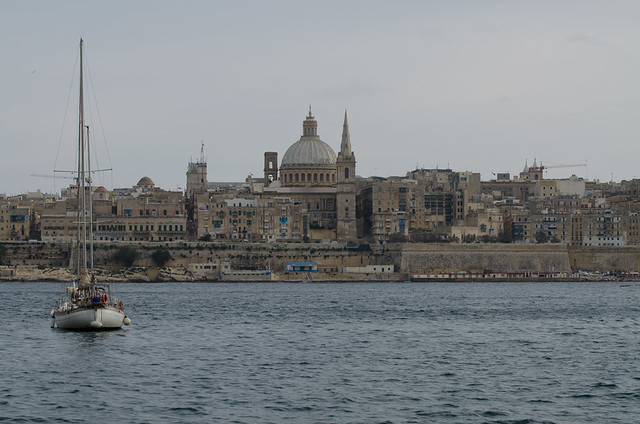
After

6431821613_56427db8db_z.jpg


Thanks for looking

Brett
 
Just out of curiosity Brett, what sort of workflow did you go through to get these results?

They look pretty damn good for a first attempt and I'd love to know a particular route to follow when processing.
 
Just out of curiosity Brett, what sort of workflow did you go through to get these results?

They look pretty damn good for a first attempt and I'd love to know a particular route to follow when processing.


Hi Ian

Mostly i just followed the examples on Youtube. I must have spent easily 2 days watching videos on the ipad.

My basic workflow as i do it is

Import to Lightroom from memory card, rename and convert to DNG

Sort through the photos in Libary mode, deleting and rating as i go

Then start to develop each one that i gave a 4 star or more rating to

For the landscape pics above i followed the tutorial on the link below.

http://mansurovs.com/landscape-photography-post-processing-tutorial-in-lightroom

Also on a few of the skys i used the Graduated Filter tool. Check for tutorials on Youtube again.

Hope that helps mate. Maybe not the best explaination. I also find that i just start moving the sliders around unitil i get something that i like. Good thing about LR is its all non destructive.

Thanks

Brett
 
Thanks, Brett. As I feared, Lightroom seems just a tad different to use than Elements which I have :(

Looking for tutorials, but there isn't a massive amount out there that I can find anyway.
 
Brett, these look good.

Were you aware that you can copy your develop settings from one image to any number of others? This can be a massive time saver when you have hundreds to process and many of them where taken under similar conditions and require similar processing (for example your 2nd and 3rd shots above).

If you process the first one as you want, you can then select it and then additionally select the similar images (the original one selected will be 'whiter' to show it is the 'most selected'). If you then click on the 'Copy settings' button (I think - I don't have lightroom here to check) you will get a dialog where you can select the changes you want copied to all the other selected images. The best thing is that as lightroom never makes irreversible changes to your images*, you can safely do this knowing that if the edits don't work out on some of the target images you can get rid of them and start again. Or you can make further changes to some if you want. I often use this technique to make basic improvements to images in bulk before going back to give special attention to any that deserve it.

* Lightroom itself doesn't make any actual changes to your images until you export them (when you would normally save them as a new file anyway) but if you use the option to edit in an external editor like photoshop the changes made there are to an actual file. I (almost) always choose the option to 'edit a copy with lightroom adjustments' when I do this - this creates a new file with all my lightroom changes applied and then opens that in photoshop for me to edit, leaving my original safely untouched.
 
If you then click on the 'Copy settings' button (I think - I don't have lightroom here to check)

Sync Settings.

These are good, especially as you're using unfamiliar software. The horizons in the first 2 are level from one side to the other but bow slightly in the middle. In the Develop module there's a Manual tab in the Lens Correction panel that I think might let you correct this. I'm in Linux at the moment so I can't check which options there are in there. If your lens isn't in the drop-down list in the Profile tab you can go to the Adobe site and see if they've got a profile for it. Or you can create one yourself. This article has more on this topic.
 
Brett, these look good.

Were you aware that you can copy your develop settings from one image to any number of others? This can be a massive time saver when you have hundreds to process and many of them where taken under similar conditions and require similar processing (for example your 2nd and 3rd shots above).

If you process the first one as you want, you can then select it and then additionally select the similar images (the original one selected will be 'whiter' to show it is the 'most selected'). If you then click on the 'Copy settings' button (I think - I don't have lightroom here to check) you will get a dialog where you can select the changes you want copied to all the other selected images. The best thing is that as lightroom never makes irreversible changes to your images*, you can safely do this knowing that if the edits don't work out on some of the target images you can get rid of them and start again. Or you can make further changes to some if you want. I often use this technique to make basic improvements to images in bulk before going back to give special attention to any that deserve it.

* Lightroom itself doesn't make any actual changes to your images until you export them (when you would normally save them as a new file anyway) but if you use the option to edit in an external editor like photoshop the changes made there are to an actual file. I (almost) always choose the option to 'edit a copy with lightroom adjustments' when I do this - this creates a new file with all my lightroom changes applied and then opens that in photoshop for me to edit, leaving my original safely untouched.

Thanks for the tips. That is definately going to be a big help and time saver!


Sync Settings.

These are good, especially as you're using unfamiliar software. The horizons in the first 2 are level from one side to the other but bow slightly in the middle. In the Develop module there's a Manual tab in the Lens Correction panel that I think might let you correct this. I'm in Linux at the moment so I can't check which options there are in there. If your lens isn't in the drop-down list in the Profile tab you can go to the Adobe site and see if they've got a profile for it. Or you can create one yourself. This article has more on this topic.

Again thanks for the advice. I never even noticed the bow until you mentioned it. I will have a play when i get home tonight.
Would like to get them as good as possible because i am thinking of printing them i a little photo book type thing. the wife always complains how we never have hard copys of our pics now with digital cameras.

Thanks for all the help guys
 
Back
Top