monitors help

realspeed

Suspended / Banned
Messages
8,827
Name
Bazza
Edit My Images
No
Up to now I have been using dell 4k monitors. but due to a slight vertical line pixel screen failure
line. I have gone for the Benq PD2706u 27" 4K monitor this time.
anyone can advice on how good this one is compared with dell
 
Last edited:
FWIW
I have the SW270C it is a 2k monitor and I have been happy with it.
The SW series are sold as 'photographer' monitors compared to the PD series sold as 'designer' monitors.
 
Thank you BB. I have no idea on benq monitors but this seems to fit the bill. I now only work in 4K and looking at price range , sze and specification was my criteria.
 
Up to now I have been using dell 4k monitors. but due to a slight vertical line pixel screen failure
line. I have gone for the Benq PD2706u 27" 4K monitor this time.
anyone can advice on how good this one is compared with dell
I have two Benq monitors and a Lenovo monitor, both of the Benq's work really well. My primary one is a Benq GL2480 1080p 24 inch monitor (https://www.benq.eu/en-uk/monitor/home/gl2480.html). Benq no longer make it but it works extremely well for my use. One thing to note is that in my experience Benq monitors are really heavy compared to other brands, the specs of yours say it is 8.3kg so it might be more than you expect (when mine was delivered I thought the parcel was going to be lighter than it was and nearly dropped it....)
 
Thank you Lukew. and Terry .Weight is no problem my wife is strong;):headbang: dell monitors (this being he third) don't seem to have a long life expectency in
my opinion
I ordered from Wex and a 2/3 day delivery as it is free. so have to wait before reporting on it
 
Last edited:
Thank you Lukew. and Terry .Weight is no problem my wife is strong;):headbang: dell monitors (this being he third) don't seem to have a long life expectency in
my opinion
I ordered from Wex and a 2/3 day delivery as it is free. so have to wait before reporting on it
Sounds good, if it's from Wex it's probably going to be good, I have had a really good experience with them, and if you have any problems they are really helpful. Are you going to be using the monitor stand or will you be using it on a monitor arm?
 
I have bought a few things from them before . If it has a stand then that is what I will use
 
I have bought a few things from them before . If it has a stand then that is what I will use
Great, all the monitors I have brought come with a stand and it says on the specs page of the monitor you brought weight with and without stand so it should come with one. I was just going to say if you use a monitor arm make sure to not over tighten the screws on the monitor, it can damage it.
 

I have the previous model, the BenQ PD2705U 27' 4K. I’m very pleased with it.

 
Thank you Steve
Just checked and it should be here later on in the afternoon. This dell monitor sometimes is ok like now, yet other times I get the vertical single pixel line from top to bottom.

I do have the same but not 4K were working ok and another smaller one if anyone wants to come and collect them both , hate to just throw them into a skip.
 
Well arrived and now working. Could not work out why the cordless mouse worked and not the keyboard. Now me being thick and stupid forgot to put the keyboard dongle in as well.
Now as my brain is worn out the round control unit how it works is for another day
 
Well arrived and now working. Could not work out why the cordless mouse worked and not the keyboard. Now me being thick and stupid forgot to put the keyboard dongle in as well.
Now as my brain is worn out the round control unit how it works is for another day

"the round control unit" - if you mean the black/grey 1,2,3 bluetooth "puck" ................it is somewhat illogical ........... it keeps me guessing
 
Well arrived and now working. Could not work out why the cordless mouse worked and not the keyboard. Now me being thick and stupid forgot to put the keyboard dongle in as well.
Now as my brain is worn out the round control unit how it works is for another day
Having set up my monitor and calibrated it I found I had no need for the puck. Depends what you use your monitor for.
 
Having set up my monitor and calibrated it I found I had no need for the puck. Depends what you use your monitor for.

I have a setting in there for a PRINT Calibration and one (a default) for sRGB and another for a normal viewing calibration at 120cdm using a full PMU calibration for the monitor ..... but I still cannot figure out how to assign a calibration to a number ....... I did, assign a calibration to number 3 a week ago, but I don't seem to do it again in the PMU software when I calibrate ........ so I use the menu to see the "calibration" and switch using that, (rather than a button), ......... (reading what I have said .....maybe I have not made myself clear?)
 
Last edited:
Puck Puck Puck. say it enough times, hands to your sides and elbows in and out. then you are half way there to being a chicken:headbang:
I don't know why but all our deliveries come late in the day say after 4pm. so annoying as the daylight has gone so no chance to try anyting out
 
Last edited:
I have a setting in there for a PRINT Calibration and one (a default) for sRGB and another for a normal viewing calibration at 120cdm using a full PMU calibration for the monitor ..... but I still cannot figure out how to assign a calibration to a number ....... I did, assign a calibration to number 3 a week ago, but I don't seem to do it again in the PMU software when I calibrate ........ so I use the menu to see the "calibration" and switch using that, (rather than a button), ......... (reading what I have said .....maybe I have not made myself clear?)
If the GUI is anything like the SW series (pre-supposing) in that you can store up to 3 hardware calibrations on the monitor i.e . Cals 1,2 & 3.

What you do is, using the monitor buttons, navigate to the appropriate section of the GUI and allocate the Calibration 'number' to your desired puck button.
 
If the GUI is anything like the SW series (pre-supposing) in that you can store up to 3 hardware calibrations on the monitor i.e . Cals 1,2 & 3.

What you do is, using the monitor buttons, navigate to the appropriate section of the GUI and allocate the Calibration 'number' to your desired puck button.

Thanks
You will have to explain that simply to me Laurence
1). When I calibrate using PMU - I get an option to save as Calibration 1, 2 or 3 as well as naming the ICC
2). If I use the puck I can see the calibrations if I go to Color mode with the "puck" ........ if I want to use one of the Calibrations I change them here

Q: how can I assign a Calibration to a number, 1.2. or 3 on the puck...............I manged to assign one to button 3 last week but I cannot remember how I did it

Q: where do I find the GUI using the "buttons: underneath the monitor?
 
Thanks
You will have to explain that simply to me Laurence
1). When I calibrate using PMU - I get an option to save as Calibration 1, 2 or 3 as well as naming the ICC
2). If I use the puck I can see the calibrations if I go to Color mode with the "puck" ........ if I want to use one of the Calibrations I change them here

Q: how can I assign a Calibration to a number, 1.2. or 3 on the puck...............I manged to assign one to button 3 last week but I cannot remember how I did it

Q: where do I find the GUI using the "buttons: underneath the monitor?
Sorry, not on my PC now but will try to update with some more details when I look at my settings......to remind myself. NB I will see if I can do a screen grab or two(?) as appropriate.
 
@BillN_33

As promised here are the screen shots of what I see and set.....

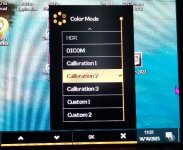
First Color Mode.....in this one you can see that I have created 3 Calibrations, as named from PMU (if you go up or down the listing it will show all the various modes available) and as "ticked" I am using 'Calibration 2' my 90cd/m2 one.

NB scrolling through the list changes the modes quickly to show the effect on what you see on the screen

Color Mode selection.jpg

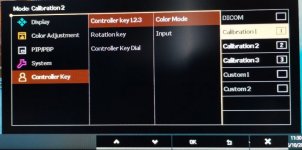
This next one, shows the menu cascade to the section where I input/allocated, in my case, my 3 Calibration settings to the 3 buttons on the puck.
NB On the newer monitor models with the wireless puck I think there are further options to rename the "names" to something more 'meaningful' e.g. to name Cali 2 to 90cd/m2 ???

Controller Key settings.jpg

So, bearing in mind mine is an SW series I hope the the PD series OSD looks the same or similar enough for you to find the settings as above.

HTH :)
 
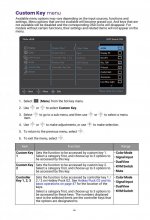
I had a look at the PD series manual and it seems it uses the same wired puck as mine but the method of accessing the OSD is via a toggle joystick not the 5 buttons as on mine (please correct me if I have misread it) and on this page the look is different but the same things are shown.....in regard to (though not selected/highlighted in the graphic on that page) 'Controller Key 1,2,3'

Screenshot 2025-10-16 120159.jpg
 
Thanks Laurance

just going through it

Managed to get Button 3 to be Calibration 3 which is my PRINT setting
 
Back
Top