Learning of before and after images.

AMac

Suspended / Banned
Messages
203
Name
Alex
Edit My Images
Yes
Hi everyone,

Do you think it would be a good idea to have a gallery that had a before and after images. With the poster saying what they did not like about the 1st image and how they processed it.

Sometimes I see a comment about someone's image "it needs more contrast" for example, but as I am a bit new to it all, I don't see it as needing work, but if I saw the finished image it might help me.
Just a thought.
 
that would be great,hope people help out with examples:shrug:
 
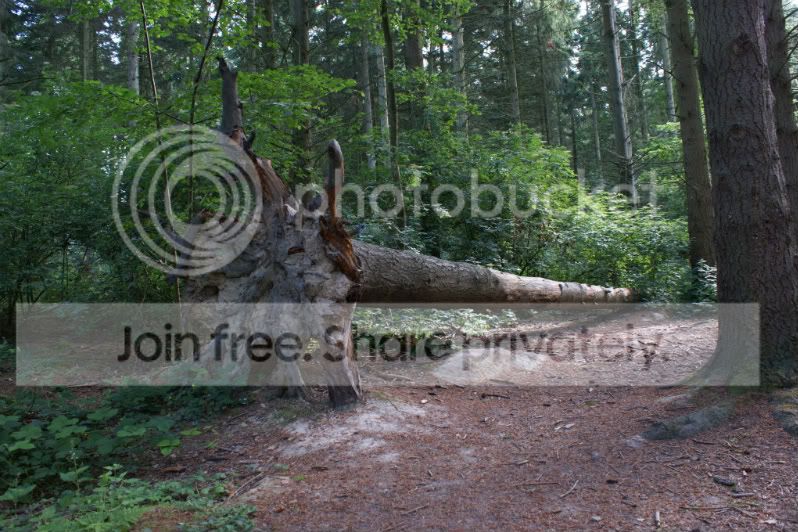
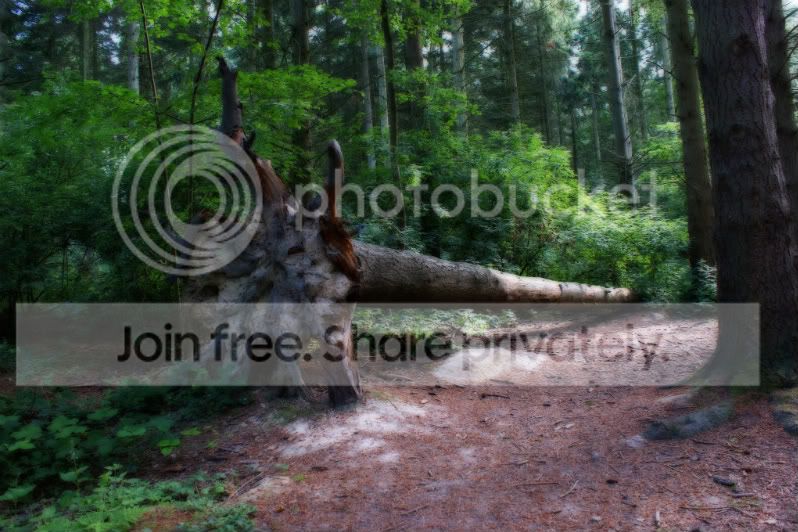
original and my attempt at editing, tried but failed i think, let me know your thoughts.... im thick skinned :lol:


the pale ones are the originals
 
Those images you have posted have a bad White Balance on them. If you use a programme such as Lightroom or Photoshop, GIMP along with the many others, try to adjust your white balance will help greatly with your pictures.

http://www.cambridgeincolour.com/tutorials/white-balance.htm
Explains at the top of the page about white balance, this website shows the effects of a cold white balance temperature (Blue) but yours look too warm (Red) but the logic that is explained still applies
 
Thanks Jamie, I used gimp, and it was the first time for pp for me, still lots to learn then, i'll check out the site, thanks.
 
Here's one I did some time ago, although the edits were to meet a specific idea I had when taking the shot, and aren't as subtle as some.

Biggest changes were obviously to the skin, lips and eyes, but there are also small tweaks to the contrast, saturation and sharpening.


152.jpg
 
There is a very successful thread over on POTN that does exactly that - http://photography-on-the.net/forum/showthread.php?t=684360. It would be well worth doing it here too, especially as POTN is Canon only.

Here's an example from me. This was a grabbed shot. I was in the church and had the camera set up for shooting inside. I saw this opportunity and quickly switched to Av mode and zoomed in as far as I could. The intent in editing was to crop out some of the distracting elements that added nothing to the scene, and further subdue the bits that remained, with a vignette. As the lighting on the bride was poor I needed to do something to deal with that and initially played around with local brush adjustments. Howver, I also experimented with some presets I have and just found this effortless result which I think looks fab....

No edits at all :
20090418_135849_6093_LR.jpg


Edited as follows :
1. Applied Boondoggle 2 preset in Lightroom;
2. Cropped;
3. Added vignette.
20090418_135849_6093_LR-2.jpg
 
just had a play with some help from a video on utube.
let me know what you think and any pointers would be great thanks chris.
086.jpg

086copy.jpg
 
Those images you have posted have a bad White Balance on them. If you use a programme such as Lightroom or Photoshop, GIMP along with the many others, try to adjust your white balance will help greatly with your pictures.

http://www.cambridgeincolour.com/tutorials/white-balance.htm
Explains at the top of the page about white balance, this website shows the effects of a cold white balance temperature (Blue) but yours look too warm (Red) but the logic that is explained still applies

Hi everyone,

This is what I meant, if there was a gallery with some of the common mistakes made in editing, it would help some of us who do not have as much experience. If the people who had a bit more experience posted the same image but edited differently it might show some of the common mistakes. This might save the good guys lots of time in giving feedback to poorly edited images.
Well I hope that makes sense.
 
Hi everyone,

This is what I meant, if there was a gallery with some of the common mistakes made in editing, it would help some of us who do not have as much experience. If the people who had a bit more experience posted the same image but edited differently it might show some of the common mistakes. This might save the good guys lots of time in giving feedback to poorly edited images.
Well I hope that makes sense.

Best off doing it in a thread, it will get more air play.

Ask the mods to change your thread so that it becomes a before and afters in thread. There might already be one so check with a mod first.

the best way to get noticed is report your own thread to the mods and explain your situation and the criteria for the new thread/topic.


Hope that helps


Tom
 
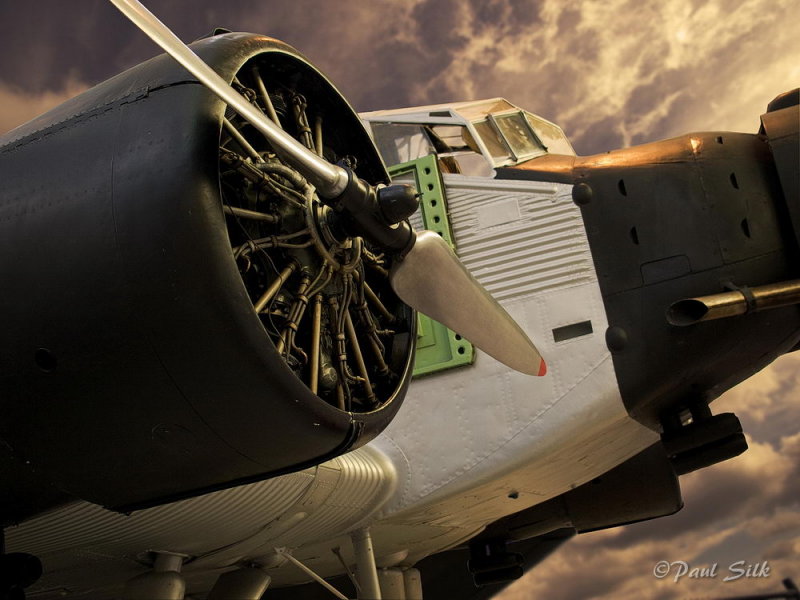
A fairly simple before and after, just dropped in a suitable sky to match the pool of tungstan lighting on the front of the plane. Much easier than trying to change the colour balence of that one particular spot.

120077753.jpg


106906568.jpg
 
Here are, in my opinion, some common noob mistakes when it comes to editing/processing....

1. Trying to save a photo that is really beyond help in the first place. As the saying goes, "You can't polish a turd.".
2. Using a poor quality, ageing or uncalibrated monitor to judge colour, contrast and black and white points.
3. In conjunction with point 2, failing to make use of the histogram to guide setting of black and white points, and perhaps colour casts too.
4. Trying to fix a soft/blurry image by sharpening.
5. Oversharpening.
6. Failing to sharpen as a final step after downsizing.
7. Failure to set accurate (or pleasing) white balance.
8. Too much or too little contrast.
9, Too much saturation.
10. Working on a JPEG straight out of camera that has already taken a hit from "lively" settings in use at the time of capture.
11. Failing to straighten wonky walls and horizons.
12. Excessive cropping of a ridiculously small subject, especially when shot at high ISO and riddled with noise and possibly other artefacts. See point 1 again.

Those are off the top of my head. Of course, many of these things should really be dealt with at the point of capture, and not be left to be patched up during editing. Shooting raw can give you some flexibility to overcome problems caused by using poor in camera settings when shooting to JPEG, and should allow a superior end product to be produced, if the skills are there to realise them.

Two of the greatest skills in post processing - knowing when not to start; knowing when to stop. Quite often, less is more. PP should be used to enhance a photo that is already pretty good, not to rescue a disaster, unless you have no choice. If you do have a choice, reshoot and make a better job of it next time.

It's probably also worth considering your target audience. If you have family snapshots then the memories and content of the images will far outweigh any concerns about photographic excellence, and your family and friends will probably not care two hoots about tilted horizons or a little noise in the shadows. But if you want to share your images with fellow photographers the content needs to have far stronger appeal to complete strangers and you can expect nitpicking over any imperfections in the capture and the processing, especially if you ask for critique. If you want to sell the images, that raises the stakes even higher (probably). So an image that may not cut the mustard at one level might be an absolute joy to behold at another, so don't throw baby out with the bathwater when culling your "duffers". Some of them may have far more importance than the photographic skill (or lack of) that created them.
 
original and my attempt at editing, tried but failed i think, let me know your thoughts.... im thick skinned :lol:


the pale ones are the originals
you have a WB issues going on here here are some quick fixes of the three with a little of the highlight brought back as well.
4771703696_f8deecd7e0_o.jpg

4771066231_edc58f6d1d_o.jpg

4771704386_f46e481bcf_o.jpg
 
Thanks Chaz, here is another attempt, ran through gimp, auto adjust WB, and unsharp mask.


and the original...

 
May as well bung another pair up. Despite setting to WB to daylight in camera there was a lot of atmosphere in the way of my subject and the whole plane was looking hazy and a bit blue, so I had to tweak white balance a little to restore the colours I expected and then jiggle around levels to restore some punch. As the plane was very centred I cropped a little off the right hand edge just to create a bit more nose space in front of the plane and a bit less space behind the plane. Lastly, because there seemed to be a bit of lens falloff in the corners I applied a vignette correction to try to even up the tones of the sky acros the frame. Lasty I bumped up vibrance just to help the colours shine through.

20100626_184102_1182_LR-2.jpg


20100626_184102_1182_LR-3.jpg


Hopefully the adjustments are subtle but worthwhile. It looks a bit pants as such a tiny image but the plane is sharp and looks a bit more impressive at a larger size.
 
Here's another example. Adjustments are to white balance, exposure, blacks and contrast. Nothing more. I used the histogram as well as my eyes to judge the tweaks to the levels. WB was set simply by sampling from the white paint on the bow.

20100102_155216_1229_LR.jpg


20100102_155216_1229_LR-2.jpg
 
There is a very successful thread over on POTN that does exactly that - http://photography-on-the.net/forum/showthread.php?t=684360. It would be well worth doing it here too, especially as POTN is Canon only.

Here's an example from me. This was a grabbed shot. I was in the church and had the camera set up for shooting inside. I saw this opportunity and quickly switched to Av mode and zoomed in as far as I could. The intent in editing was to crop out some of the distracting elements that added nothing to the scene, and further subdue the bits that remained, with a vignette. As the lighting on the bride was poor I needed to do something to deal with that and initially played around with local brush adjustments. Howver, I also experimented with some presets I have and just found this effortless result which I think looks fab....

No edits at all :
20090418_135849_6093_LR.jpg


Edited as follows :
1. Applied Boondoggle 2 preset in Lightroom;
2. Cropped;
3. Added vignette.
20090418_135849_6093_LR-2.jpg

which version of lightroom do you use to get that preset?

thanks
 
There is a very successful thread over on POTN that does exactly that - http://photography-on-the.net/forum/showthread.php?t=684360. It would be well worth doing it here too, especially as POTN is Canon only.

Here's an example from me. This was a grabbed shot. I was in the church and had the camera set up for shooting inside. I saw this opportunity and quickly switched to Av mode and zoomed in as far as I could. The intent in editing was to crop out some of the distracting elements that added nothing to the scene, and further subdue the bits that remained, with a vignette. As the lighting on the bride was poor I needed to do something to deal with that and initially played around with local brush adjustments. Howver, I also experimented with some presets I have and just found this effortless result which I think looks fab....

No edits at all :
20090418_135849_6093_LR.jpg


Edited as follows :
1. Applied Boondoggle 2 preset in Lightroom;
2. Cropped;
3. Added vignette.
20090418_135849_6093_LR-2.jpg

Hope you don't mind me saying but you've turned what initially looks like a snap by A.N Other into a fantastic capture. Can I ask did you know in your mind what the final picture would look like or was it a serendipitous moment? :thumbs:

Joe
 
Hope you don't mind me saying but you've turned what initially looks like a snap by A.N Other into a fantastic capture. Can I ask did you know in your mind what the final picture would look like or was it a serendipitous moment? :thumbs:

Joe

As I think I said, it was an opportunistic shot that I snatched in a flurry. I had no plans or expectations for it when I took the shot. It was only once I got to playing with it in Lightroom that the silk purse emerged.

Photographically speaking it was a bit of an odd wedding. There was no pro wedding tog engaged, but myself and two other friends of the B&G were asked to take our cameras. I was not asked to shoot anything in particular, simply take my camera along. As the two other togs were professionals (although not wedding togs) I didn't feel the need to fight my way to the front or attempt to coordinate the shooting. I just discretely roamed around, shooting much as a second shooter might. In the image I've shown, the woman on the left of the frame was one of the "pros". As long as someone got some decent shots it didn't really matter who it was that got them.

I am pleased to say that this image, plus one or two others I took, have been printed and hung in the MOB's home.
 
Here's another one I had a play with. The before image is straight out of camera, and initially went straight to the reject pile; however I was bored today and thought I would have some fun experimenting.

twi2.jpg
 
These may be too dark for some peoples tastes, but some people love them!

For this one, boosted contrast and blacked the blacks using luminance masks, then dodging and burning where I saw fit, to increase the shine.

Lokiba.jpg


Pretty much the same for this one, except for painting in the black background. Lots and lots of d&b
bonnieblackba.jpg


This one was started with cloning and healing to tidy up any blemishes, skin was dodged and burned to keep the texture, lots of colour and contrast adjustment layers. Gentle sharpening on eyes, lips and hair. D&b on the hair too. There are still some grey patches on the skin :( every time I look at a picture a few days later I see more work to do!
Lisa1.jpg
 
Back
Top