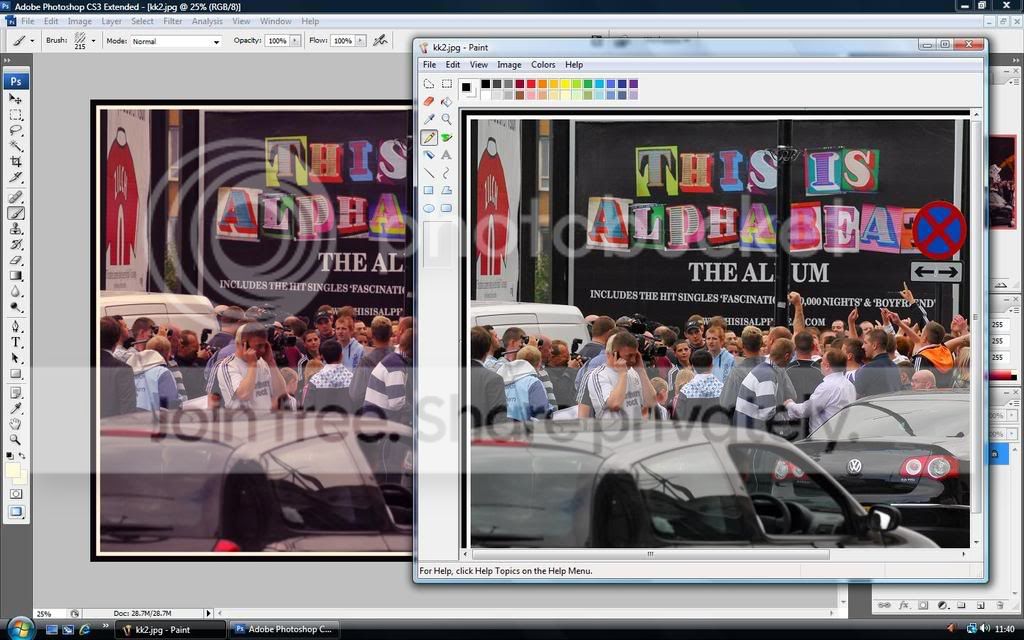
Jpegs look odd!! Please help

TorqueRevs

Suspended / Banned
Messages
258
Name
Richie
Edit My Images
Yes
Hi chaps.

I have just got a new PC and i have started to transfer my pics across.

Here's the problem. When i click a Jpeg it opens in image viewer and they all seem to have a peach tinge to them. even in PS. as the jpeg does not fill the screen when viewing it in image viewer even the "White Background" is a shade of pink/peach/cream.

Any suggestions/help much appreciated
 
Id think its your monitor.. .have a tinker with the colour settings if you cant profile it properly
 
I thought that too. But the images look normal if i open them in Paint
 
Have you got all your colour profiles set correctly?
 
Have you got all your colour profiles set correctly?


I dont really know what im doing with them but i have changed a few settings to see if there is a difference and there was not...

so i changed them back
 
Its odd... if i go into the colour settings on the monitor and take all the red out then the pics look normal. but the interweb and everything else looks....well as if it has no red
 
Go to windows control panel.. choose adobe gamma.. fire through that and then see what your left with. :)
 
Go to windows control panel.. choose adobe gamma.. fire through that and then see what your left with. :)

Im as far as control panel. But i cant find adobe gamma anywhere:shake:
 
CS3 is colour managed, Paint isn't. That explains why the images look different but doesn't really solve the problem as you can't profile your display. CS3 is using whatever profile has been assigned to your monitor which probably isn't very accurate.

You have a couple of choices.

1) Get a h/w calibrator such as the Huey, Spyder, etc. then at least when you look at images in CS3 they will be displayed correctly and look a bit better in Paint.

2) Use a different image viewer other than paint that is colour managed. Then images will look the same in the viewer and CS3 (but they will still look wrong in IE7).

3) Turn off colour management in CS3, then the images will look the same in Paint.

Options 2 & 3 are cheap or free but there's no guarantee how your images will look on other systems or when you get them printed.
 
CS3 is colour managed, Paint isn't. That explains why the images look different but doesn't really solve the problem as you can't profile your display. CS3 is using whatever profile has been assigned to your monitor which probably isn't very accurate.

You have a couple of choices.

1) Get a h/w calibrator such as the Huey, Spyder, etc. then at least when you look at images in CS3 they will be displayed correctly and look a bit better in Paint.

2) Use a different image viewer other than paint that is colour managed. Then images will look the same in the viewer and CS3 (but they will still look wrong in IE7).

3) Turn off colour management in CS3, then the images will look the same in Paint.

Options 2 & 3 are cheap or free but there's no guarantee how your images will look on other systems or when you get them printed.


Thanks alot for that. Its definately made them look how i imagined they were meant too:|
 
Just calibrate your monitor. There was a calibrator being posted around between members for free a while ago. There is a thread somewhere about it so have a search and it may still be available.
 
Back
Top