iMac Linking to Macbook

Marc

TPer Emeritus
Suspended / Banned
Messages
34,670
Edit My Images
Yes
Ok, so having taken delivery of a new Macbook. yesterday, I tried linking it to my iMac.

I followed a YouTube video and all seemed to go ok until it asked me to choose which drive to connect to. It showed the 2 external hard drives connected the iMac but not the internal one. Even then, when I double click one of the external hard drive folders on the Macbook, no files or subfolders are visible.

All I've done is go sharing on the iMac and noted the address then, on the Macbook, I went to Finder>Go>Connect to Server.

Any ideas where I went wrong?

Thanks
 
To connect Macs wirelessly (machines already connected to the same local WiFi network), what I do is...

- On the iMac go to System Preferences > Sharing > [select] File Sharing
- The iMac should then be available from the Finder sidebar (under Locations) of the new Macbook.

Obviously transferring large amounts of data wirelessly will be slow.

If you want to connect the Macs via a Thunderbolt cable, you can use Target Disk Mode.

I'm sure there's many other ways to achieve what you wish to do.
 
Maybe you can reveal them by going into Finder preferences on the iMac, and see if the check box for what items show on the desktop, including hard drives, is ticked. It could be that only the one for external discs is ticked. I dunno. I could be horribly wrong.
 
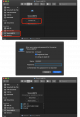
Here's what I see when connecting two MacBook Pros...
FileSharing.png

I've got to dash out, hope you get it sorted soon.

Edit: No idea why those screenshots are so blurred after resizing, sadly no time to fix - sorry.
 
Last edited:
Maybe you can reveal them by going into Finder preferences on the iMac, and see if the check box for what items show on the desktop, including hard drives, is ticked. It could be that only the one for external discs is ticked. I dunno. I could be horribly wrong.

I've had a look and everything is checked.

Here's what I see when connecting two MacBook Pros...
View attachment 279841

I've got to dash out, hope you get it sorted soon.

Edit: No idea why those screenshots are so blurred after resizing, sadly no time to fix - sorry.

Everything seems correct. They are linked as I can screen share but just can access any folders. In Sharing on the iMac, I've tried it with Mackintosh HD, my user folder, the Documents folder within and with nothing at all. All I can see is the 2 external hard drives (with the 3 stick figures on) and when I open those, there are no folders showing.
 
They are linked as I can screen share but just can access any folders.
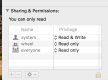
Have you set the permissions on the remote files?

Permissions capture.jpeg
 
This may not help much but...

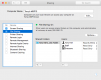
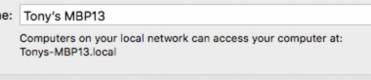
For me, on my remote MBP (macOS 10.13.6) the System Preferences > Sharing > File Sharing shows...
0-Remote.png

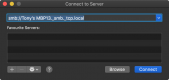
Then on my connecting MBP (macOS 10.14.6) - if I select Go > Connect to Server..., I get this...
1-GoConnectServer.png

If I click Connect, I get...
Also, if I change the server address to the one quoted in the remote MBP's Sharing preferences (in my case smb://192.168.1.75) and click Connect I still get to the following...
2-Connect.png

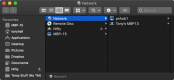
Or, if I click Browse, I get...
3-Browse.png

Both methods allow me to access files on the remote MBP (Tony's MBP13).

This has always 'just worked', for me over the years through many OS's and hardware.

I appreciate this post may not help much, but possibly you'll spot something relevant which will help. Hopefully you'll get sorted soon.
 
Last edited:
I appreciate this post may not help much, but possibly you'll spot something relevant which will help. Hopefully you'll get sorted soon

It was very helpful. It made me realise that I was using the address here:

Screenshot 2020-05-21 at 16.09.30.png

because that's the one the YouTube video said to use when I should have used this one:

Screenshot 2020-05-21 at 16.10.05.png

TBF, the video was from 2015.

I knew it would be something simple. All sorted now, many thanks.
 
Back
Top