There are many online resources that cover a colour managed workflow, most seem to get deep quite quickly so may not help much (unless you like the technical ...). I used to have one of the Canon MP type printers/scanner doobries and was able to get some pretty decent results from it. I now use an Epson printer but the principle is the same.
I enjoy printing images at home, and I follow what I think is a simple method. It's easy to over complicate anything, but especially easy with printing and colour management imo/e.
The first thing I do is ensure the monitor is calibrated, that way I have a fighting chance that the colours I see on screen are near to the actual colours I want

I print from Lightroom or Photoshop and that may have a bearing on how you go about it. The reason being is that I switch off all printer driver control in terms of colour. I'm assuming that you are using Canon inks and papers to print on (and yes it does make a difference). Hopefully whatever s/w you use you can control how the image is printed in terms of which profile to use and what type of paper is used. If not there is another option worth trying. I'll try and explain using the s/w method (how I do it) first.
Option 1. The first thing to do is switch off all colour management on the print driver so open the print driver and on the Main tab select the paper type you will be using (e.g. Canon Glossy or similar - can't remember the actual names). Then select the print quality, e.g. High. Then below that where it says Color/intensity, choose manual and click on the now active Set button. On the page that shows in the color correction drop down choose None. This has switched off and setup the print driver so the application can control colour.
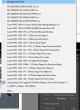
From memory when you install the print driver it also installs a number of paper profiles. These will end with .icm (at least they do on Windows, not sure on Mac). These will be used when you print to get the best results (at least without getting bespoke profiles made). In your editing/printing app go to the print option, in which (hopefully) there will be an option to set color management options. Make sure that the type of paper is either selected by name (e.g. Canon Glossy) or by type (e.g. Photo Glossy). Look for something that states Profile - this will most likely be a drop down where you can select pre-installed profiles from, choose the profile that corresponds to your paper - I cannot remember how canon name these but I do recall it was fairly obvious. These profiles were setup to use Canon inks. You may or may not have a separate media type option, if you do make sure that it is consistent with the paper, i.e. if using a Photo Glossy paper choose Gloss as media type. If there is an option for intent then generally Perceptual will be the safest option. Then click Print - all being well it should produce something similar to what you see on screen, don't try and compare it to the screen image though (unless you have controlled lighting) best to evaluate it in good daylight ime.
Option 2. If the printing/editing application does not support colour management then you need to set the print driver up to do this. As before open the driver and go to the Main tab setting paper type and print quality. Also as before you want to manually set the Color/intensity. But this time don't choose None, instead choose ICM, there will be a selection drop down appear, click this and choose the profile that matches your paper (this is the same profile you would have used in Option 1 above). If my memory has not failed me this will then produce prints using the specified profile and again should get closer to what you see on screen.
Whilst Option 2 seems simpler you have far more fine control using Option 1, specifically in some applications you can soft proof where it will show you a very close simile of how the print will be using current settings, this allows you where necessary to tweak brightness/contrast/saturation etc to suit.
Hope that helps.



 Sun Setting Over St Ives by wakarimasen1, on Flickr