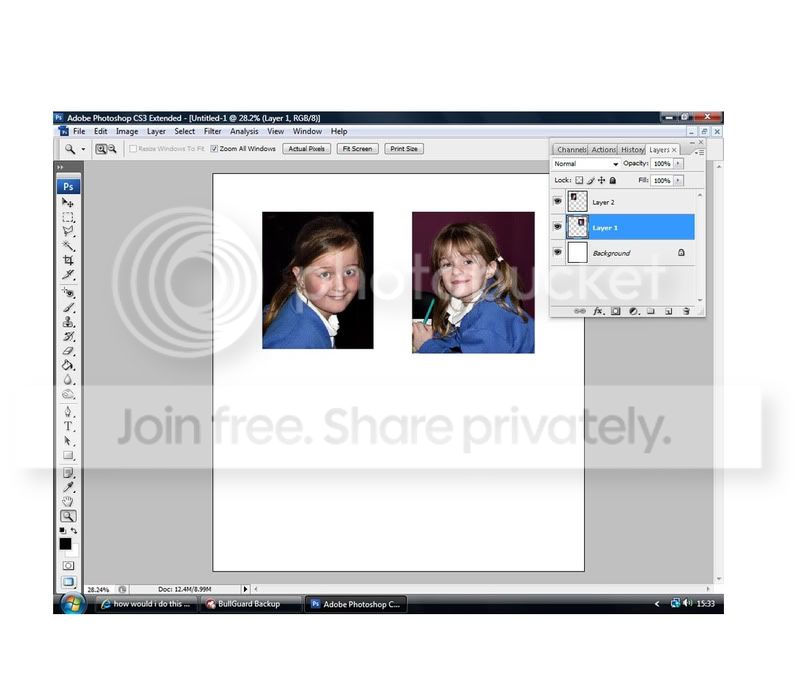
how would i do this

Open a new image the size you want the final image to be. Add the guides to the canvas using the View>New Guide command. You'll need a calculator to get the spacing spot on, count goes from the top left corner out.
Drop the photos into position where you want them, then crop so it fits in the guides (doesn't matter that they are touching)
Once everything is in place crop x pixels/cm off each of them by selecting that picture as a layer by clicking on the layer thumbnail with ctrl held down then Select>Modify>Contract, Invert the selection and then delete and that will give you a uniform white trim around everything.
 
Create a new canvas in PS, let's say A4 (Go to Open>New)

Open up an image, use the move tool and drag onto the new canvas Resize by clicking on the corner and hold shift and drag with mouse. Place where you want the image by using the move tool. Repeat with the 2nd 3rd etc pics. Note each time you drag a picture on the canvas a new layer is formed for each one. If you want to move a picure you need to be on that pictur's layer.
When done flatten the layers.

Note: After dragging the pics on the new canvas close the original so not to clog the virtual memory.

Another way is to create your own templates like here http://www.youtube.com/watch?v=qa-12g2_qKg&feature=related

Going back to the drag to canvas way, you may need to use the transform t6ool to resize, sorry can't remember right now, but the method will be the same by dragging a corner whilst holding down the shift key to maintain perspective.

Hope this don't come accross as a load of mumbo jumbo!
 
thanks for all the replys guys

i found the last post easiest as i can follow the video, but thanks for all the help

i love this site

mat
 
Whatever method you use it's quite hard to explain I think without a 1 2 1 or a video tutorial. After saying that there are a few vids on you tube which are crap. :lol:
Hope you get the result you want and remember to post it on here. ;)
 
Create a new canvas in PS, let's say A4 (Go to Open>New)

Open up an image, use the move tool and drag onto the new canvas Resize by clicking on the corner and hold shift and drag with mouse. Place where you want the image by using the move tool. Repeat with the 2nd 3rd etc pics. Note each time you drag a picture on the canvas a new layer is formed for each one. If you want to move a picure you need to be on that pictur's layer.
When done flatten the layers.

Note: After dragging the pics on the new canvas close the original so not to clog the virtual memory.

Another way is to create your own templates like here http://www.youtube.com/watch?v=qa-12g2_qKg&feature=related

Going back to the drag to canvas way, you may need to use the transform t6ool to resize, sorry can't remember right now, but the method will be the same by dragging a corner whilst holding down the shift key to maintain perspective.

Hope this don't come accross as a load of mumbo jumbo!

hi mate

when i paste the pic ive copied on his it creates a new layer mask but not on mine dont suppose you know what im doin wrong


cheers

mat
 
also struggling to remove someone from 1 picture and use them on another, i have found a vid for it but cant get it to work on cs5

this is the pictures i would like to remove all back ground and just keep the girls , i dont even know if its possible

DSCF1101.jpg

DSCF1100.jpg


mat
 
Sorry, never came back to this thread untill now. Dragging the pics will automatically create new layers.


Untitled-4.jpg

I have cs3, so to deal with the bg I cropped and then chose the colour picker to pick out the dominant bg colour and painted over any distractions.
 
Last edited:
Back
Top