

Vinny
Suspended / Banned
- Messages
- 423
- Edit My Images
- No
Okay so by no means am I an expert, but this is a lovely little technique for getting those white backgrounds in Photoshop CS+ (PS).
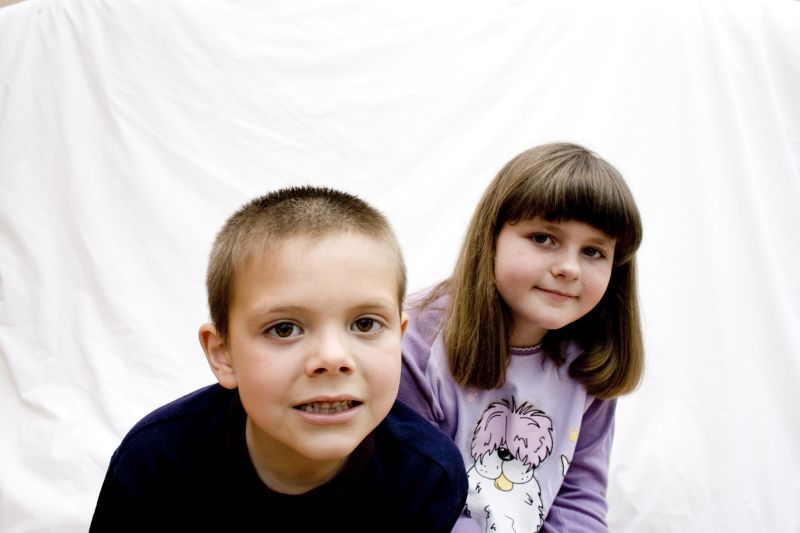
Take your subjects in normal light against a white backdrop. For this instance, I have three dining chairs on a sofa in the conservatory with a white duvet hanging off them!!
Open your image in PS.
Layer --> Duplicate Layer. Click Ok.
Layer --> Blending Options--> Change from Normal to Screen. Click Ok. You now have a white image.
Layer --> Duplicate Layer. Click Ok. Even whiter.
Layer --> Blending Options--> Change from Screen to Overlay. Now the image is really strange
Change the opacity until you are happy with the image. Click on okay.
Now to get a really white background, click on Layer --> New Adjustment Layer --> Levels
In the histogram, drag the white arrow to the right, left a little. Watch your image.
Also drag the middle arrow for the subjects a little until you are happen.
Click on Ok.
Now click on Layer and flatten image.
Okay, so you have your piccy. You can now alter the curves, saturation, and convert to B&W if you wish.
Check for any white areas that need touching up to make it perfectly white after you've finished.
Then, if you wish, click on Canvas size and add 1cm all around the image giving a clean white border.
Original:
After the above steps:
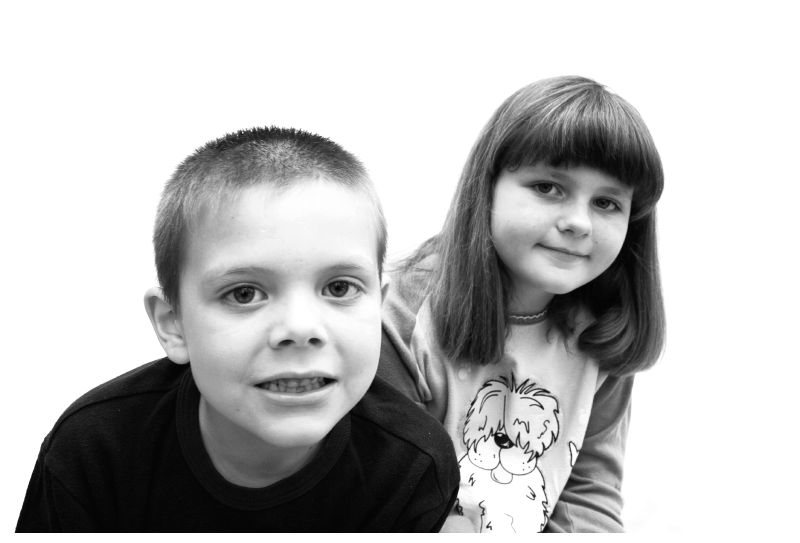
In the above instance I didn't have time to take the photo "properly" - I get to see my kids every other weekend and their Mum is taking them away for the next four weekends now (?!!?) so I didn't spend too much time with the camera. But, before I had to take them back I wanted to get an image I could play about with until next time!
So, have fun peeps and lets see the results
Take your subjects in normal light against a white backdrop. For this instance, I have three dining chairs on a sofa in the conservatory with a white duvet hanging off them!!
Open your image in PS.
Layer --> Duplicate Layer. Click Ok.
Layer --> Blending Options--> Change from Normal to Screen. Click Ok. You now have a white image.
Layer --> Duplicate Layer. Click Ok. Even whiter.
Layer --> Blending Options--> Change from Screen to Overlay. Now the image is really strange
Change the opacity until you are happy with the image. Click on okay.
Now to get a really white background, click on Layer --> New Adjustment Layer --> Levels
In the histogram, drag the white arrow to the right, left a little. Watch your image.
Also drag the middle arrow for the subjects a little until you are happen.
Click on Ok.
Now click on Layer and flatten image.
Okay, so you have your piccy. You can now alter the curves, saturation, and convert to B&W if you wish.
Check for any white areas that need touching up to make it perfectly white after you've finished.
Then, if you wish, click on Canvas size and add 1cm all around the image giving a clean white border.
Original:
After the above steps:
In the above instance I didn't have time to take the photo "properly" - I get to see my kids every other weekend and their Mum is taking them away for the next four weekends now (?!!?) so I didn't spend too much time with the camera. But, before I had to take them back I wanted to get an image I could play about with until next time!
So, have fun peeps and lets see the results


 Whats her number?


 ), the backdrop came down from the ceiling on chains which you could change colour to Black with a lever thingy. Anyway, it was a roll of white background paper which came down the back and then pulled forward to cover the floor area as well. The tutor told us to note down his tip which was to get a board about 4'x6' and paint it matt white and place it on top of the White backdrop that is laying on the floor. He said it saves the paper from being torn and getting dirty. Otherwise, after every shoot he would have to tear off the paper and pull down a new piece, which would work out expensive.