
How do I get more punch?

Pippy_Neville

Suspended / Banned
Messages
1,086
Name
Pip
Edit My Images
Yes
I have been working really hard to improve my image making all round, but I am lacking in terms of basic improvements on PP. I've so much to learn in LRoom/PShop - I think that the basics are there but I'm getting frustrated with myself. I have seen some before and afters that tell me the basics are in my images now, they need coaxing out though.

1. I know there's a great tutorial section on here, which I do refer to. Any more tips as to where to go to learn good solid basic pp skills? I'm really interested in portraits but tend to end up doing a lot of product shots.

2. In the example below from Saturdays shoot I think it lacks any real punch. What would be your top tips to improve it? (Click for bigness).
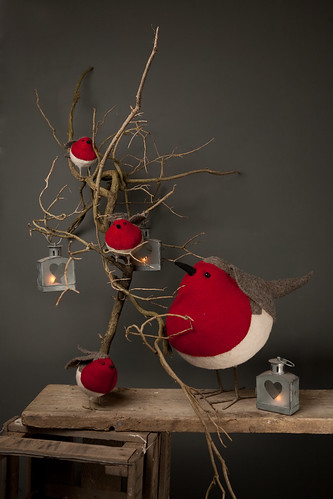


I'm very grateful for any help you can give, it's driving me mad lately! I kind of have a feeling an "Oh, that's where I start!" moment is coming on soon...
Pip
 
I'd recommend looking at Topaz Adjust. You can get some more 'punch' quite easily, but it's just as easy to overdo it.
 
I think if you were to separate the subject from the background and use more directional lighting - that would immediately give you more punch. The lighting is very flat in this shot. PP might rescue it but the first problem is the lighting I think.
 
maybe a brighter backdrop!

really like the pic though :)
Thank you! I wasn't in control of the backdrop though - and I also really like the grey to be honest!

I'd recommend looking at Topaz Adjust. You can get some more 'punch' quite easily, but it's just as easy to overdo it.
I'll have a look at that, it's a new one on me tbh. Thanks Mr P!

I think if you were to separate the subject from the background and use more directional lighting - that would immediately give you more punch. The lighting is very flat in this shot. PP might rescue it but the first problem is the lighting I think.
You may well be right, my lighting is something I'm working on. I'm getting there slowly, For this shot lighting was 1x about 1/8th through white brolly camera left and 1x through stofen camera right hand held on very low power to kill some shadows. How would you have lit it? (I did have one spare flash not being used so had a bit of leeway).
But it is what it is now, and PP is all I have left!

pip
 
Pip

Don't know what software you have but I dropped you image into Photoshop and did a quick levels adjustment and a Brightness / Contrast small tweak and got this


Elements I'm sure would provide a similar result.

HTH

John C
 
Duplicate the background layer
Desat the layer
Blend to Soft Light. Opacity to 70%
Convert to Lab
Apply Image
Set to Soft Light
Select the A Channel.

Save

robins.jpg
 
Pip

Don't know what software you have but I dropped you image into Photoshop and did a quick levels adjustment and a Brightness / Contrast small tweak and got this


Elements I'm sure would provide a similar result.

HTH

John C
Thanks John - I'm on LRoom and CS3, pants with both but getting better slowly! I'd got a similar result to yours, was looking for a bit more oomph...

Duplicate the background layer
Desat the layer
Blend to Soft Light. Opacity to 70%
Convert to Lab
Apply Image
Set to Soft Light
Select the A Channel.

Save

Now that's getting much better than what I had, cheers Jason! I think I'm going to copy what you did and play with the sliders a bit so I can learn how they affect things. Cool.
 
After I posted that I did one more thing... added a vignette.

Flatten all the layers
Duplicate the layer
Set blending mode to multiply
Selected a bit in the middle with the marquee tool, and feathered the edge (50px ish..)
Deleted the selection
Changed opacity to about 60%

That just draws attention to the centre.
 
Here's how my version looks...

robins_001.jpg


This is basically what I did in CS4 - quick 3 minute job.

  • Duplicate the background layer, and whack it into a new layer group
  • Add a B&W and curves adjustment layers on top of that inside the group, adjust to taste.
  • Set the group's blending mode to overlay, and adjust opacity to taste
  • Duplicate the original background layer, and put it above the group and set its blending mode to colour
  • Another curves layer to brighten up the midtones a bit
  • Add another curves layer for the vignette using a layer mask to darken a areas as necessary (I do my vignettes manually, usually by making my curves layer, slapping on a mask, and using the circular marquee to delete chunks out of the mask for key objects (in this case the robins and the little lights), then use gaussian blur with 250 pixels on that mask 4 or 5 times).

I debated whether to add the vignette, as the light fall off seemed to give a quite nice "natural" vignette to the background anyway, but decided in the end I felt it needed it.
 
I love this. Would defo buy the actual art work off you if it were for sale :D

4531536927_b9b24ce248.jpg
 
Pip

As you have Lightroom use the curve control in the Develop module to give a bit more punch. You could then use the HSL red luminance slider to give the red a bit more impact.

Don't forget the local adjustment tool for those small adjustment in parts of the image.

john C
 
4537646944_98f1eda973.jpg
4537647012_561e88c719.jpg


Im not the best at PP but thought I would stick it through lightroom to give you an example of what 2 mins can do. Trial and error works for me so when opening in Lightroom go to the developer tab and work your way through the various sliders until you get what you are after.
 
Great response, thanks everyone! I'm gonna have some stuff to go through later...

And Onikami, you will be able to buy the Robins in the not too distant future from boutique type shops and a well known chain store. If you want to know where you can get them pm me and I'll ask the wholesaler (who I was working for).
pip
 
Back
Top