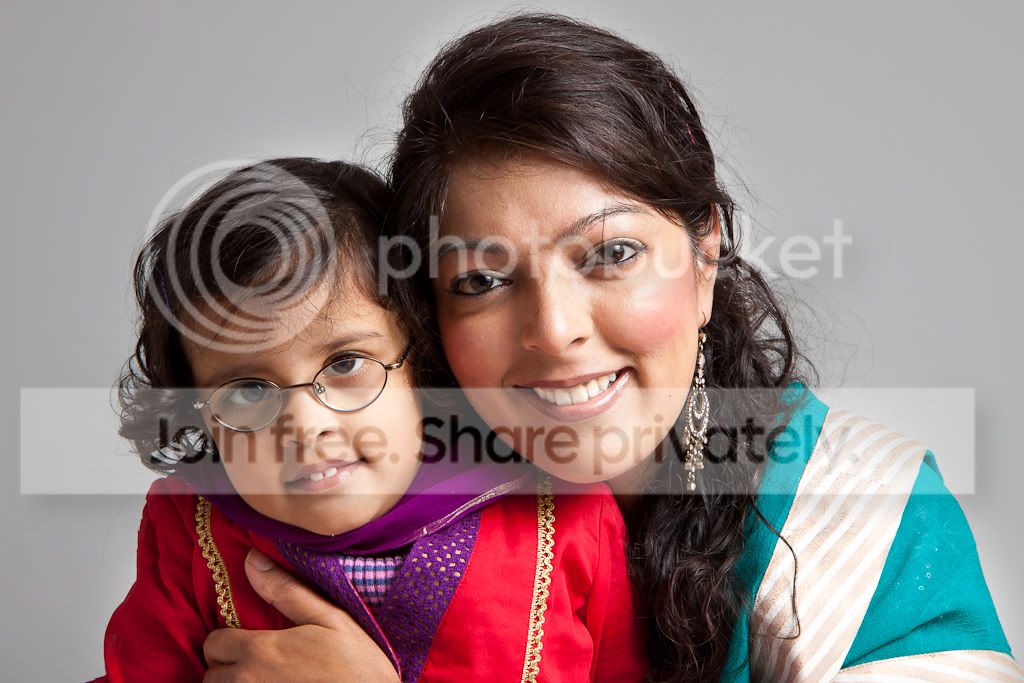
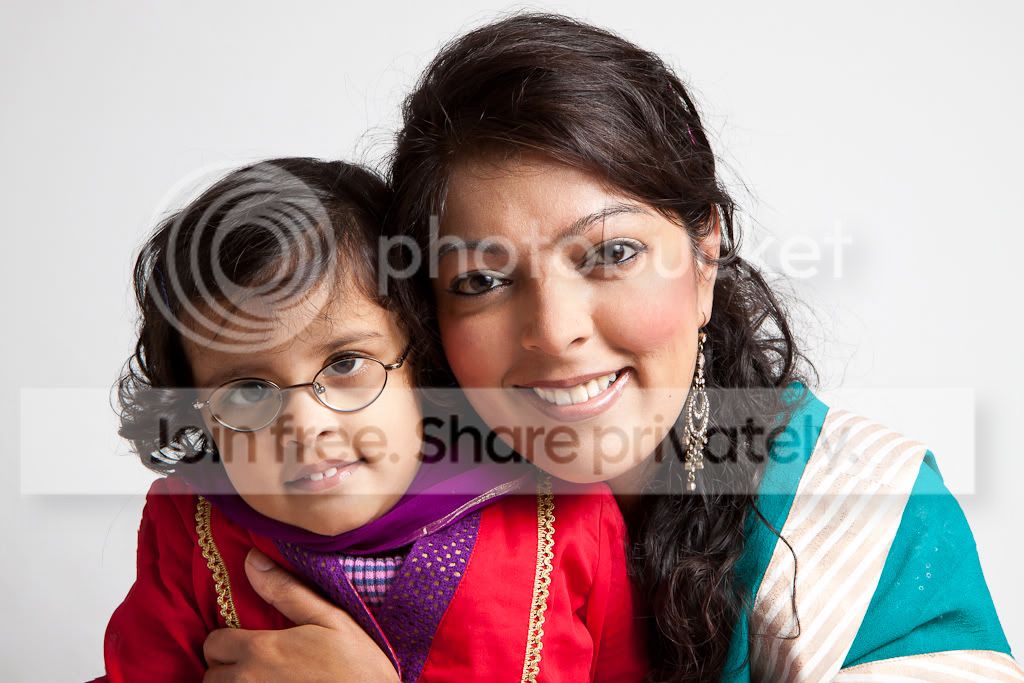
How do I edit out the creases in the backdrop?

dubcat

Suspended / Banned
Messages
1,310
Name
Amir
Edit My Images
Yes
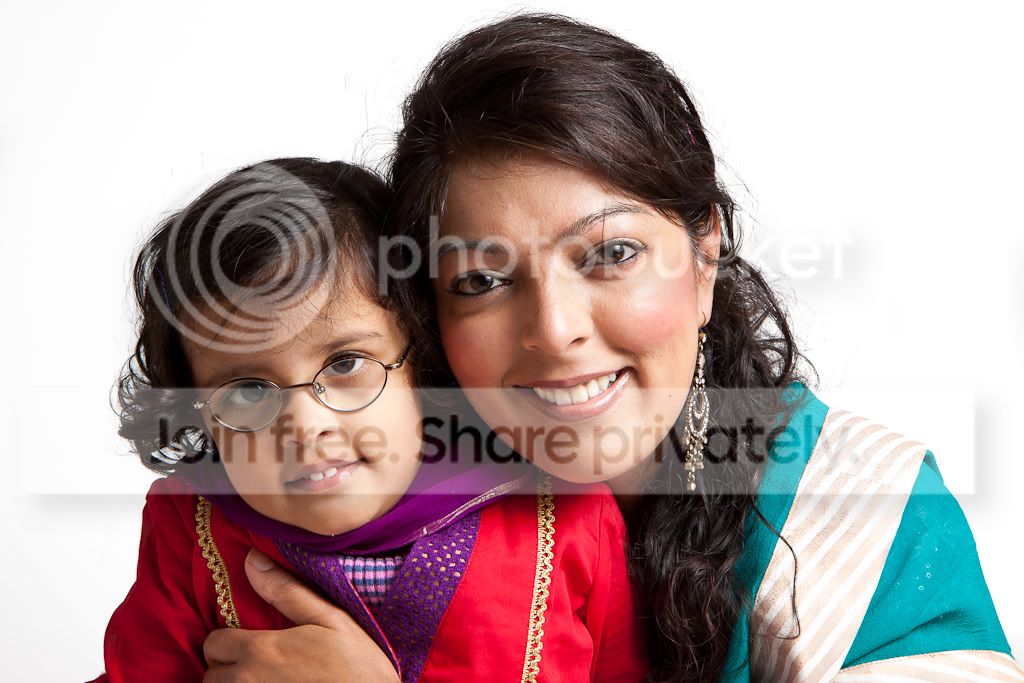
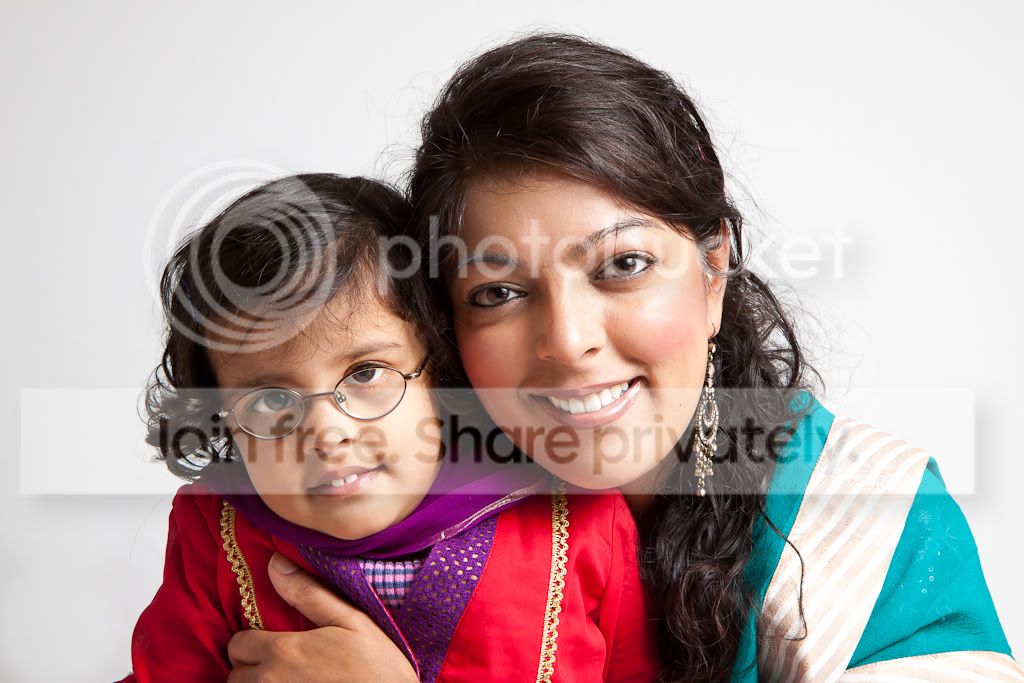
Hi - my wife dressed up the kids today (as well as herself) as they were going out to a little party. I had only minutes to get a shot so I whacked out my backdrop and set up a speedlight in an umbrella. I was not fussed about making the backdrop white as I only had one flash. I could not get them to stand too far away from the backdrop as the room is small.

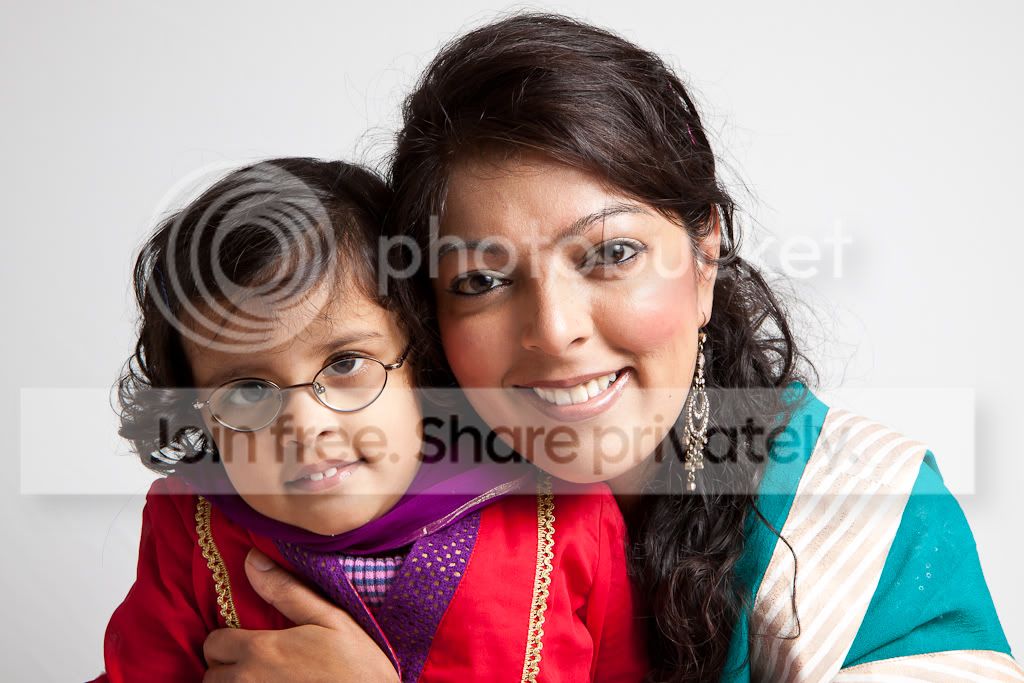
Consequently, I have noticed that creases are showing up in the backdrop :( Here are two examples - look at the bottom left corner. Can I edit these out? I would prefer to do it in Lightroom but I have Photoshop CS5 at my disposal too and will use it if necessary.

Thanks in advance.
Amir

(ps i believe the forum size limit is 1024 on longest edge. If this is not the case please let me know).
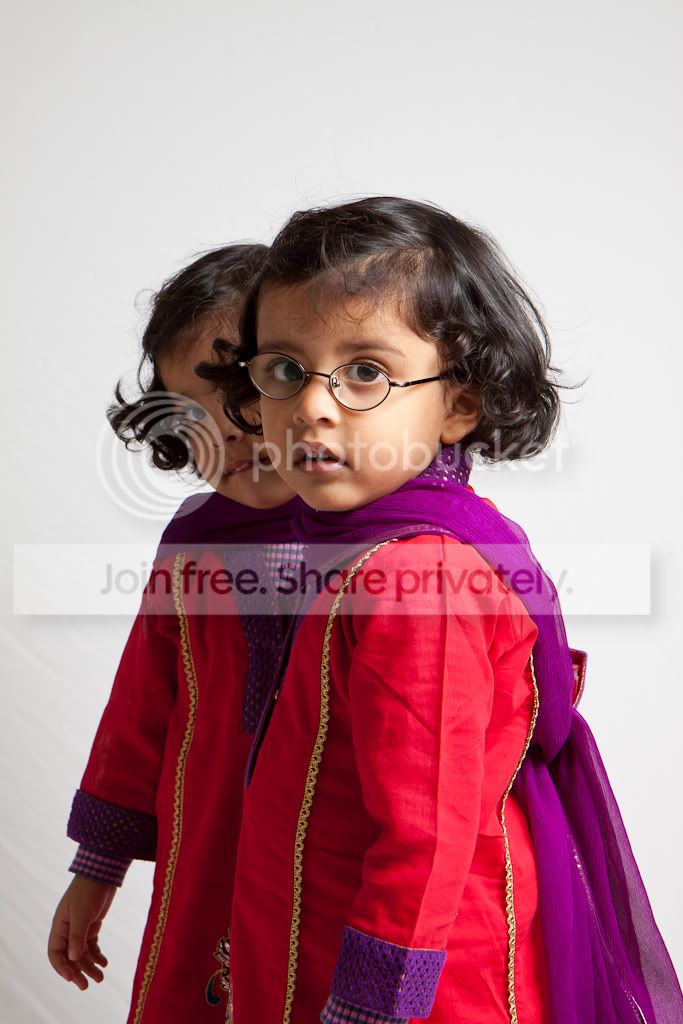
creases.jpg


creases-2.jpg
 
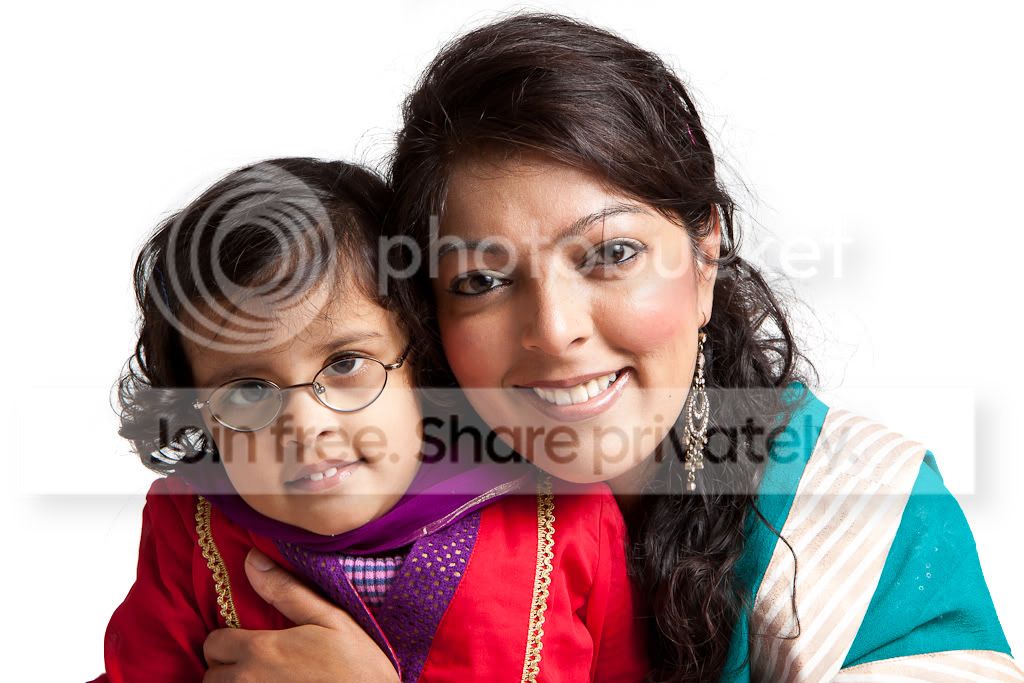
Mipevo Martin gave me the idea of using an exposure brush. I did that in Lightroom and the effect is pretty good. Due to the background being a gradient and not white I had to make it all uniform and just blew the background out. Problem is that even with auto-mask the hair seems to burn out a bit too. Am I imagining that? Here is an example:

creases-3.jpg
 
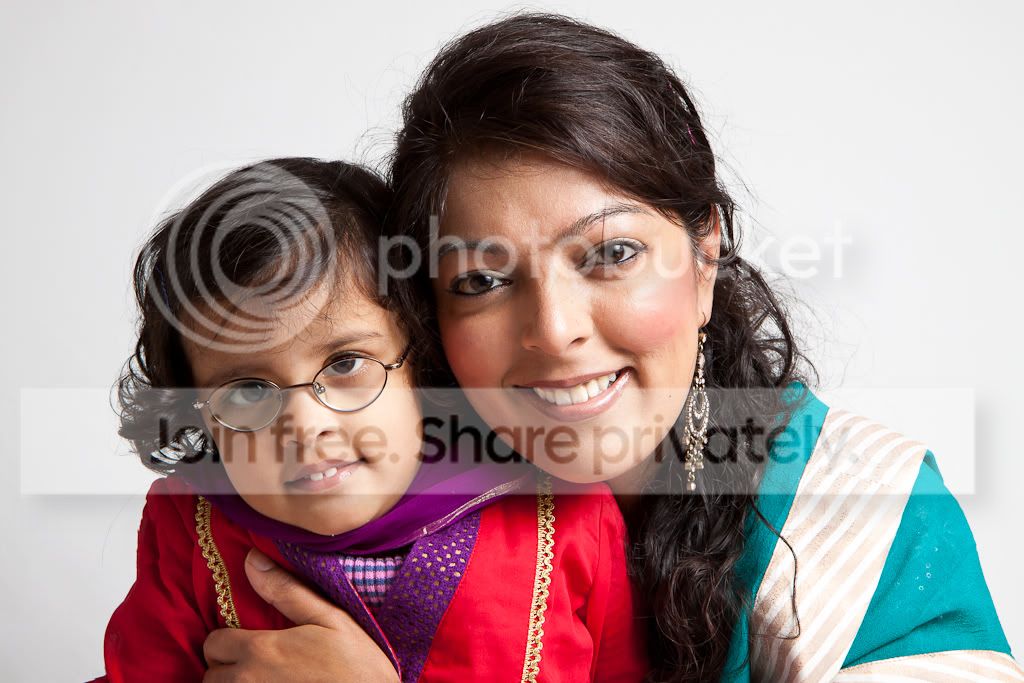
Actually after experimenting I found that using the clone tool produced the best results - another mipevo suggestion. I think this is probably the best one.

Does anyone have any other tips?

creases-4.jpg
 
heres my 2 min edit, you could get better if you spend abit more time. i used the dodge tool set to highlites opacity to 100% where there is no deteil to be lost, quick se;lected the clothes so they were not affected, then lowered the opacity to 1% on thei but sometimes anything upto around 10% opacity.
creases-2s.jpg


also if you dont want the backround blown, then as you have clone and heal tools.
 
Last edited:
another ways i use, which work if the lighting on the backround is even, is to select the white/grey area and simply adjust the brighness up, if you want to maek it greyer clone like you have the lower the brightness on about 40% opacity, if it adjust the brighnees of the people use the rubber tool(if you duplicate the layer then it will adjust skin tones and clothe back to it original, does take 5 mins to.
heres my whitish one, and a greyer one.
creases-edit2adjustcolourwhite.jpg

greyer.
creases-edit2adjustcolour.jpg
 
Thanks! :) Much to learn! How do you select around hair and stuff?

I will start googling the tools you mentioned and have a play. Rather than clone the blown bits on her face I just used the exposure brush in lightroom. Is this acceptable or a poor technique?
 
ps. Scott I really want to understand the technique you used to change the background. I really like that effect and prefer the pic with a mid grey background. My poor brain doesn't quite understand how you did it though.
 
ps. Scott I really want to understand the technique you used to change the background. I really like that effect and prefer the pic with a mid grey background. My poor brain doesn't quite understand how you did it though.
have you got photoshop cs4 or elements, i have lightroomm 3.6 but havent had it long and only know your way of doing it.
 
I have CS4 actually - not CS5 as I claimed earlier.
 
I have CS4 actually - not CS5 as I claimed earlier.

ok, in cs4, open your image and duplicate the layer, now at the top, click on the image tab and in the drop down menu and then in the adjustments menu and replace colour is 2nd from bottom in there(click on that) and it will bring a box with 3 sliders (replacement box) top one is for hue adjustment(leave that alone) 2nd one down id saturation(leave that alone) and the bottom one is lightness(this is the one you want to use) so click on the picture(backround area) with the dropper tool, then adjust the lightness up and down just be carefull not to push it to far.
Also right at the top there is a slider called fuzziness that should be on 40,
hope this helps.
 
You can "make" an adjustment brush in Lightroom. Bump up the exposure and brightness and the key is to turn on 'auto mask'. Brush over the white and it will automatically leave the rest alone as long as you don't go directly over it and you have a clear white background. Learnt this from someone on here a couple of weeks back and love it!
 
Scott brilliant instructions and not at all complicated! Will have a play tomorrow.

Yv I have the old version of this. The material is some kind of stretch man made
fibre.

http://www.photodeals.co.uk/product.php?productid=15

Ah, I see, I was trying work out what was making the 'folds' to offer some advice for next time. I have only played with a black version, just the once, and we were using a very directional light, so the background was not an issue. Not sure you could do it with those, but when I use a cotton b/g, I gaffer tape it taught to the floor, which makes a huge difference. I would have a play when you have some time, especially if using it like that, for upper body shots, see what you can weight it with at the bottom/support from the top to get it tighter so folds and creases aren't an issue. I know you said you only had a few minutes this time, and limited space, so fair enough, but just an idea to play around with it. :thumbs:
 
dubcat said:
Scott brilliant instructions and not at all complicated! Will have a play tomorrow.

Yv I have the old version of this. The material is some kind of stretch man made
fibre.

http://www.photodeals.co.uk/product.php?productid=15
Your welcome. Just keep playing around. Lots of people have different ways. Its just finding the one that works for you . And some work different with different colour hair.
 
Back
Top