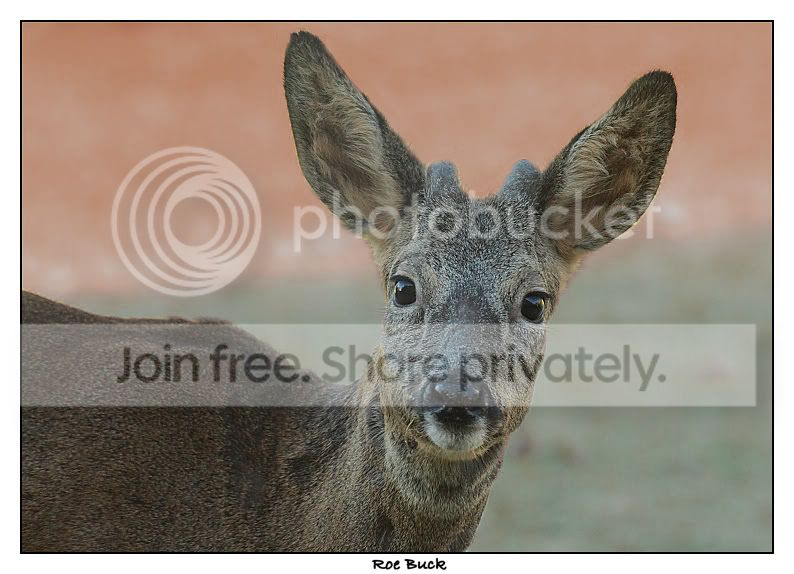
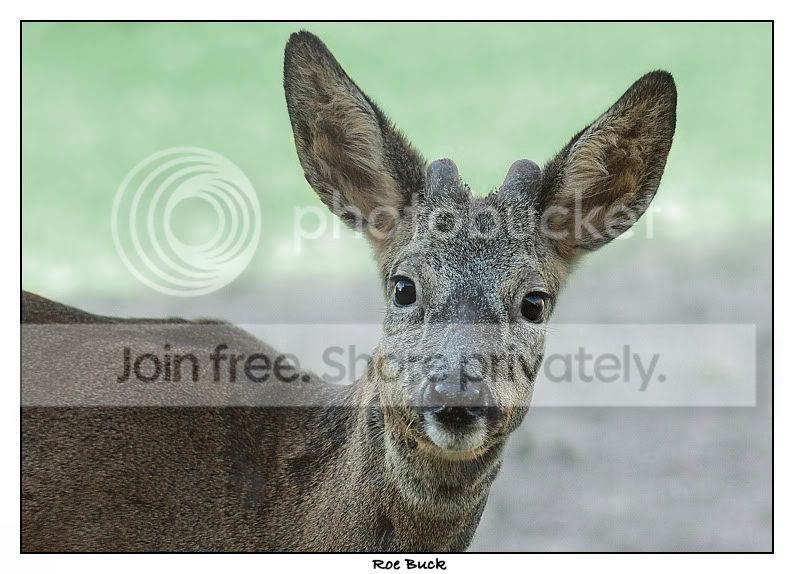
Help with background

jennyb

Suspended / Banned
Messages
1,730
Name
Jenny
Edit My Images
Yes
I posted this image in my 52, but I am not happy with the colour of the background. Can anyone suggest what I can do about it?

The problem was that the lighting conditions were not great (but beggars can't be choosers). The deer was in deep shade but the sun was shining brightly on the lawn in the background (the yellow bit), so I was lucky to get the shot in the first place.

I use PaintShop Pro, so any advice on toning down the background would be much appreciated. I tried making the whole image black and white and that may be the best thing to do.
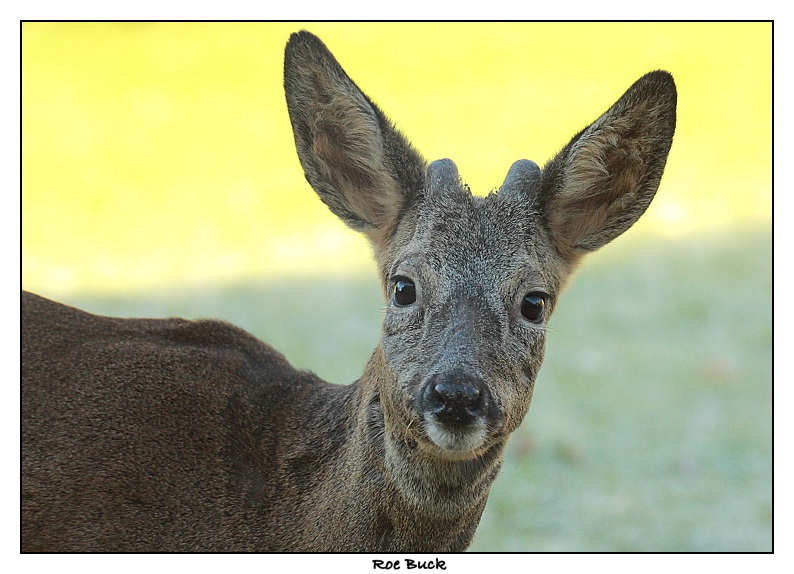
Img_2191d.jpg


Jenny
 
I did not get any replies to this query so maybe I should be more specific.

I thought I should select the deer, invert the selection and work on the background (not sure what). However, with the fur and eyelashes, I thought that this would leave a halo around the deer.

If anyone has any suggestions how to do improve this in photoshop, I can probably translate that to Paintshop Pro.

Many thanks,

Jenny
 
Hi Jenny

I am rubbish at PS so appologise in advance.

Is this the sort of thing?......and yes there is a halo, but as i said..rubbish at PS

deer1copy.jpg


deer2copy.jpg
 
Hi Andy, thanks for this. Yes, the halo is what I am trying to avoid. But your second attempt has given me food for thought. Using a different background may help reduce the halo effect. Although I would like to try to keep it as natural as possible.

Jenny
 
why not try you tube,if you were using photoshop there's a guy called gavin hoey,and he has some great photoshop tutorials on there
 
I used photoshop, magic wand tool to select the area to be changed. Then i adjusted the hue/saturation. There was a bit of halo left so i then used the clone tool to get rid of it...

Img_2191d.jpg
 
I don't know Paint Shop Pro, but in Photoshop I'd

Use Select colour to select the yellow colour range
This creates a selection
Then create a solid colour layer in some odd colour (helps with the next bit)
now select the mask and use the dodge and burn tools to tidy it up
Use the solid colour layer to help see how it looks
Now repeat for the green part (you could do these together but sometimes its easier to do them separately)

Then you can apply that mask to any background you like.

This took under 5 minutes, would have been quicker but I'm on a laptop at the moment with a trackpad.

deer.jpg
 
Hi Jenny :wave: I use PSPPx2 so hopefully I can help you out :)

It's a lot easier to fix the background than you might think. Let me show you ...

First right click on the image, then copy, and then right click again and 'Paste as new layer'.

Staying with your new layer selected go to 'Adjust > Hue & Saturation > Hue/Saturation/Lightness. The settings I used for this were Edit:Master, Hue: 60, Saturation: -70 and Lightness:30. Play around with the settings until you get the desired colours you want.

Then I went back into 'Adjust' and then 'Colour > Fade correction set at 3.

After that it is easier to click on the little visibility toggle in you layer palette (shown by a red ring in the screen grab), then select your eraser (see settings for eraser in screen grab) ... and erase away with your top layer selected in your layer palette. I find it is easier to avoid the edge of your subject, which you can also see in the screen grab. It doesn't show up in the final image surprisingly in most cases. This is because it blends better when you use your eraser at a lower density.

Then before flattening the layers I selected the bottom one (original image) and went to Adjust> Brightness & Contrast > Clarify set at 2. All that was left to do was flatten the layers and save :)

Here is the screen grab showing setting and how far I went with erasing (click to view full size):


Here is the final image:

jenny1.jpg


Hope that helps xxx
 
Back
Top