psybear
Suspended / Banned
- Messages
- 1,895
- Name
- Brian
- Edit My Images
- No
Im at my wits end with this issue. Have made a considerable investment recently in a new iMac and a new Epson R3000 printer. Have borrowed a Colormunki to ensure that everything is set up right for accurate printing, but I am clearly doing something wrong as the prints I am getting are way off on colour reproduction - there is a dull greyish cast on them andf they look nothing like what is on my screen.
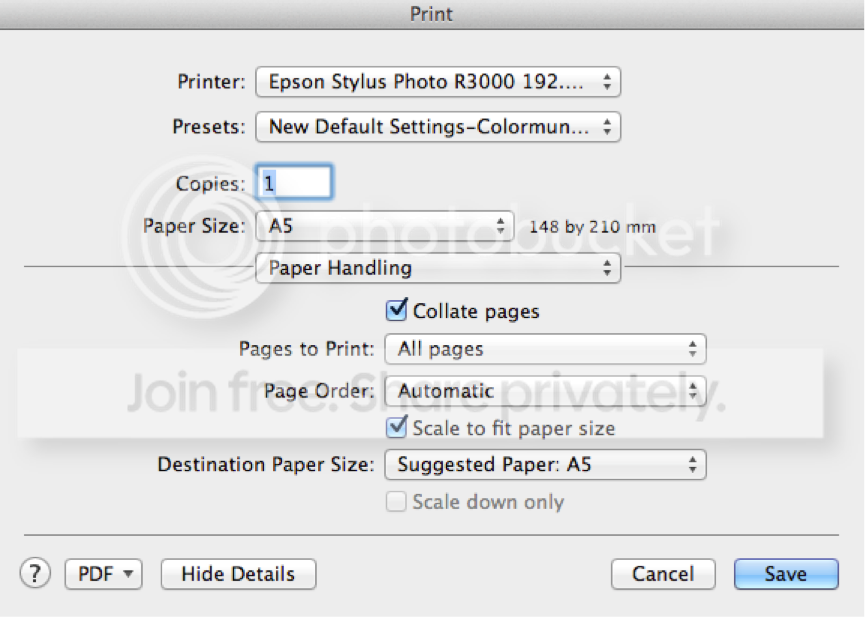
Calibration Ive done this several times now using the Colormunki. I select the first of the three available options Match my Printer to my Display (Create both a display and printer profile to achieve screen to print color matching). I select LCD as screen type. I select Easy as display profiling mode. I calibrate the device and position it on screen. Before I begin the iMac screen is at just 4 brightness. I run the light show with the CM hanging on screen. Printer profiling - I select create new profile, I select the Epson R3000 and I enter the name of the paper. Printing of test charts is next. As per on-screen advice I configure the settings in my print driver dialogs to use the correct paper type and resolution. I do this by hitting the Print button on this dialogue:
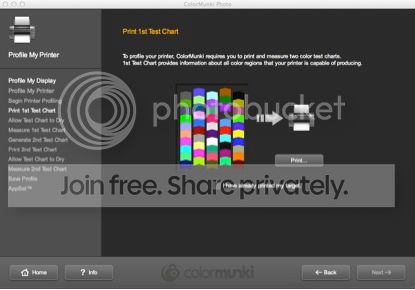
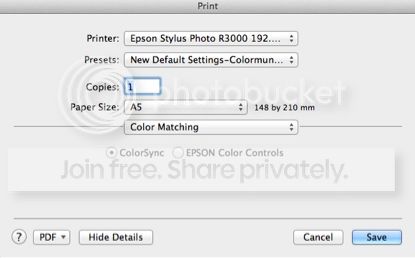
In the Print Settings window that follows I select Color Matching from the dropdown window. This automatically selects Colorsync and allows my to pick a profile from the dropdown window:
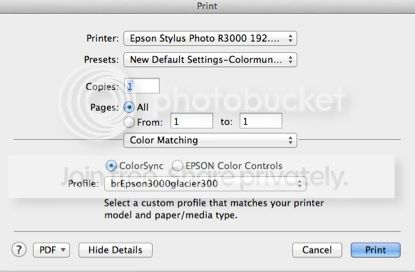
I go to Other Profiles and select brEpson3000glacier300 which I have previously downloaded from the Calumet/BrilliantPaper website as the correct profile to be used with the Calumet Supreme Brilliant Ultimate Lustre paper.
I hit Print Printer prints off a multi-coloured test chart, which I measure using the CM once its dry then same procedure, using same settings (which I had saved as a preset called New Default Settings-Colormunki), measure second color chart and save resulting profile as Epson Photo Stylus R3000 Calumet Supreme Brilliant Ultimate Lustre.
Calibration complete.
Into Photoshop.
Colour settings are as follows:
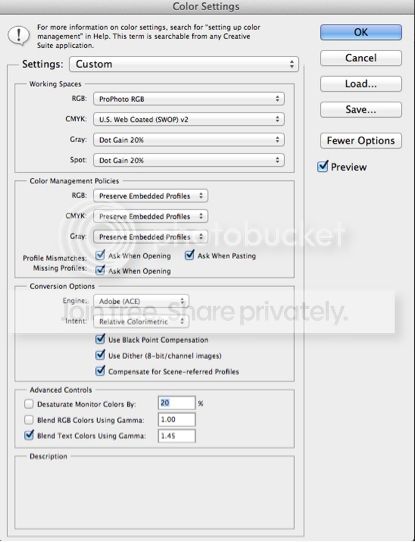
Next I open a TIFF file, which is in 16 bit color and Prophoto RGB colorspace. Resize for printing to an A5 paper size and 300 dpi.
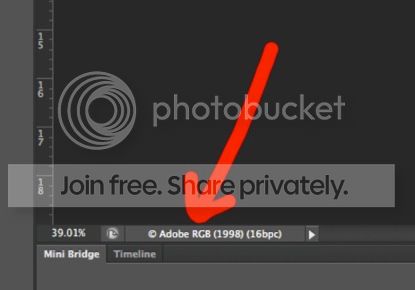
Under Photoshop/Edit I do NOT do anything under Color Settings, Assign Profile or Convert to Profile. Document profile at bottom of screen confirms that the file is in Prophoto RGB color space and is 16 bit.
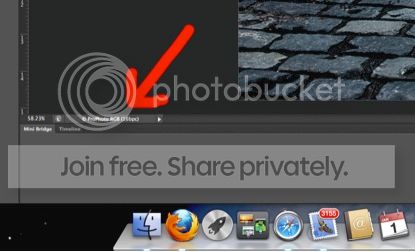
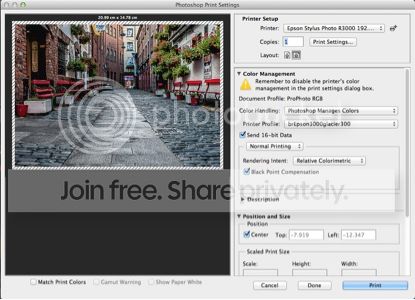
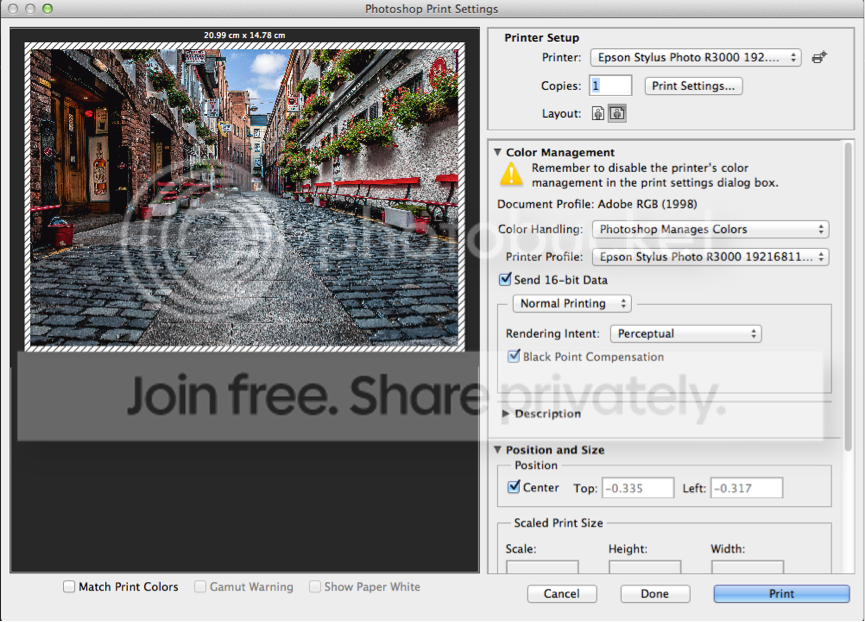
Next step I select File, Print and I get the following dialogue:
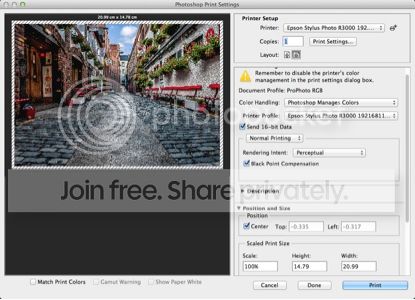
This confirms that the right printer is selected, document profile correctly shown as Prophoto RGB, Photoshop is handling the colors, Printer profile is the one set up by the Colormunki calibration exercise, 16 bit data is selected, Perceptual rendering and Black Point Compensation is selected.
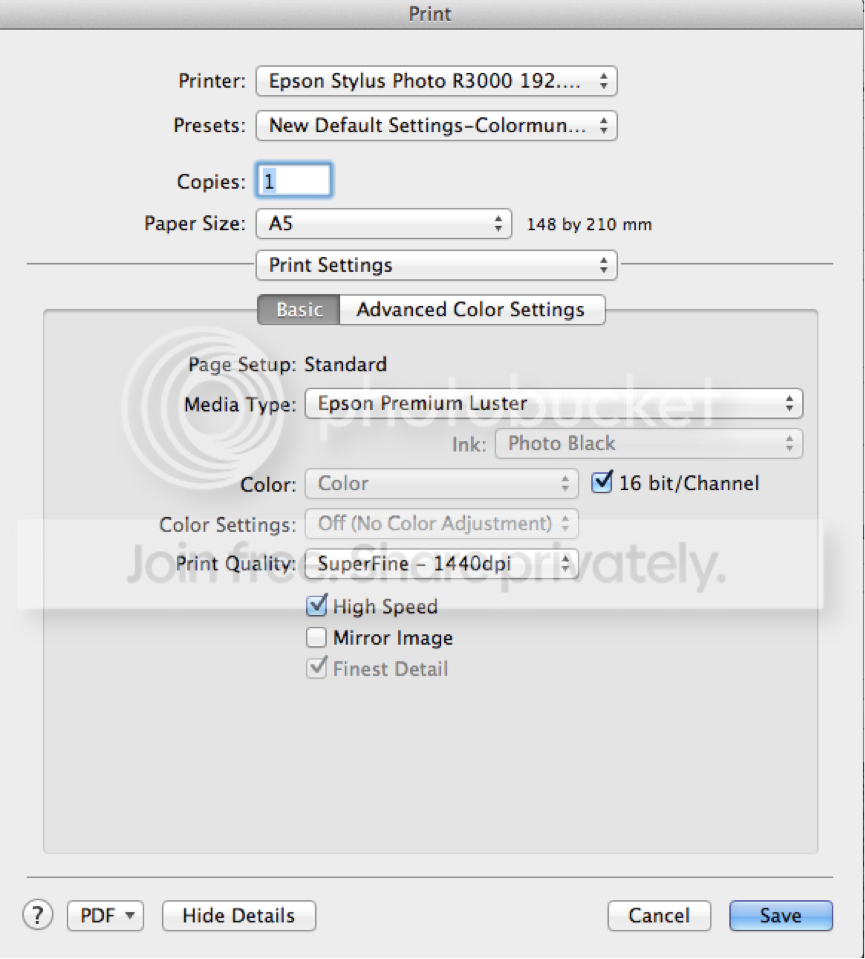
Under Print Settings, the following is displayed under the various drop-down options:
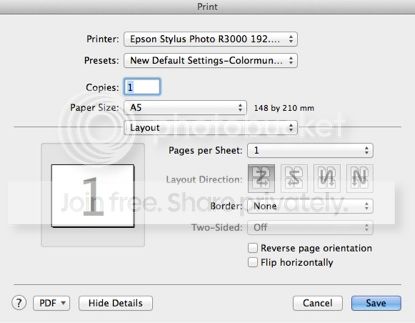
END OF PART I - I have to start a new post at this point, due to limit of 6 images per post....
Calibration Ive done this several times now using the Colormunki. I select the first of the three available options Match my Printer to my Display (Create both a display and printer profile to achieve screen to print color matching). I select LCD as screen type. I select Easy as display profiling mode. I calibrate the device and position it on screen. Before I begin the iMac screen is at just 4 brightness. I run the light show with the CM hanging on screen. Printer profiling - I select create new profile, I select the Epson R3000 and I enter the name of the paper. Printing of test charts is next. As per on-screen advice I configure the settings in my print driver dialogs to use the correct paper type and resolution. I do this by hitting the Print button on this dialogue:
In the Print Settings window that follows I select Color Matching from the dropdown window. This automatically selects Colorsync and allows my to pick a profile from the dropdown window:
I go to Other Profiles and select brEpson3000glacier300 which I have previously downloaded from the Calumet/BrilliantPaper website as the correct profile to be used with the Calumet Supreme Brilliant Ultimate Lustre paper.
I hit Print Printer prints off a multi-coloured test chart, which I measure using the CM once its dry then same procedure, using same settings (which I had saved as a preset called New Default Settings-Colormunki), measure second color chart and save resulting profile as Epson Photo Stylus R3000 Calumet Supreme Brilliant Ultimate Lustre.
Calibration complete.
Into Photoshop.
Colour settings are as follows:
Next I open a TIFF file, which is in 16 bit color and Prophoto RGB colorspace. Resize for printing to an A5 paper size and 300 dpi.
Under Photoshop/Edit I do NOT do anything under Color Settings, Assign Profile or Convert to Profile. Document profile at bottom of screen confirms that the file is in Prophoto RGB color space and is 16 bit.
Next step I select File, Print and I get the following dialogue:
This confirms that the right printer is selected, document profile correctly shown as Prophoto RGB, Photoshop is handling the colors, Printer profile is the one set up by the Colormunki calibration exercise, 16 bit data is selected, Perceptual rendering and Black Point Compensation is selected.
Under Print Settings, the following is displayed under the various drop-down options:
END OF PART I - I have to start a new post at this point, due to limit of 6 images per post....