HDR What am I doing wrong?

  • Thread starter Thread starter Deleted member 11105
  • Start date Start date
D

Deleted member 11105

Guest
Hey,

I have done some HMR merges in photoshop before and they have looked ok (not that I am a connoisseur of HDR) but I tried one today of a lorry that got stuck in my field and it didn't work at all!

Can anybody help tell me what is going wrong and why I am getting such poor results?

this is the HDR result...
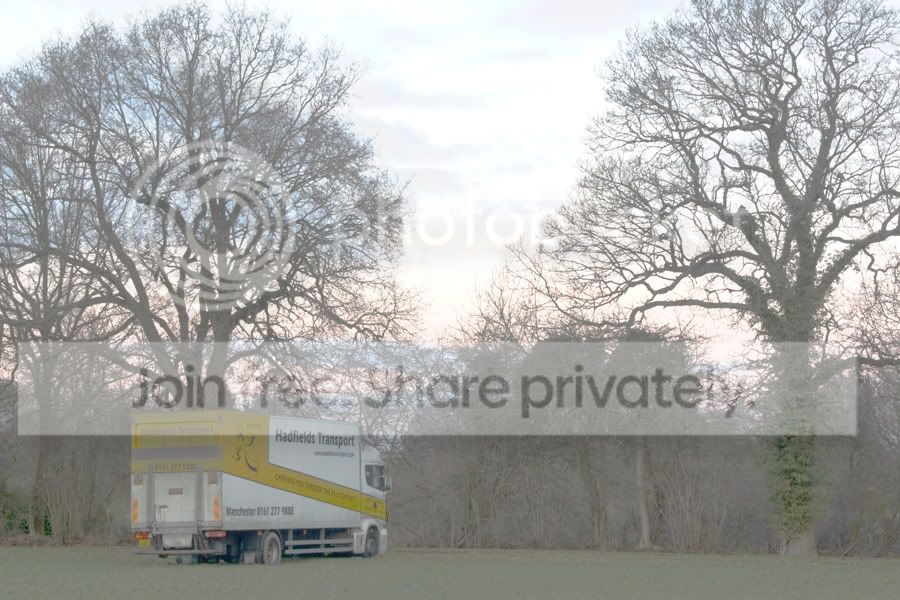
lorry_HDR_02_Fail_900x600.jpg


and these are the three images i used to produce it...
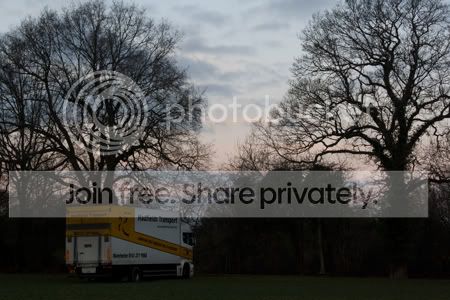

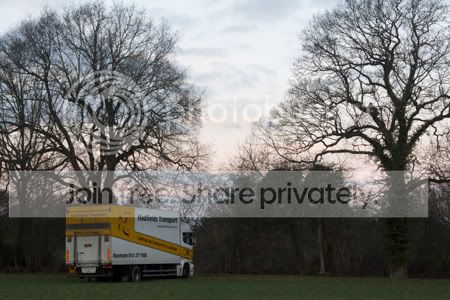
lorry_HDR_02_Fail_450x300_018.jpg


lorry_HDR_02_Fail_450x300_019.jpg


lorry_HDR_02_Fail_450x300_020.jpg


thanks for your help!

Duncan
 
what are you doing to try and compile it as an hdr, that looks like you are just stacking the images on top of each other which is not what hdr is.

also your exposures arent suitable. your brightest images is barely bright enough to be a regular exposure.
you need 1 normal correct exposure and 1 that is something like 2 stops under exposed and another that is 2 stops over exposed. or 3 stops or 4 or 5.:D
 
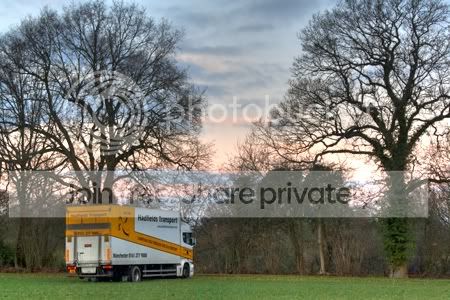
This is the image i get (just using the last setting i used in photomatix) using the three pictures you suplied.

lorry_HDR_02_Fail_450x300_0192_203_.jpg
 
hi mate thats not a finished hdr in photoshop, go to Image>mode>16bits
this will bring up the hdr conversion tool where you choose your tone mapping options.
choose local adaptation.
 
Sadly IMHO photoshops about the worst software for HDR conversions, it requires a fair amount of fiddling with the tone mapping options and usually some further post processing to get it looking half decent. Photomatix on the other hand does a fair job out of the box with the default settings, and once you get the hang of it can produce stunning results.
 
Get yourself Photomatix a much better way to work with HDR, especially for a beginner.....
Try the free trial...
 
stokecity_m

That is much more like what I wanted to achieve! I wonder why photomatix does such a better job. did you make any changes to the images like exposure before HDR merging them?

nope - no changes at all.
 
read that mate
http://backingwinds.blogspot.com/2006/10/how-to-create-professional-hdr-images.html

you will have to have a play with the curves adjustment at the end. HDR in photoshop is fine, most people just dont know how to use it.

I'm afraid I'll have to disargree with you here, photoshop IMHO if far imferior to photomatix. While photoshop can produce a good result it requires a lot more work and "tweeking" the tone mapping options are not even in the same window but have to be accessed seperatly, most of the "good" HDR shots I have seen are produced with photomatix.
 
I'm glad I'm not the only one having problems with PS and HDR, I followed the advice of others on here with the + and - 2,3 or 4 stops and I still get a grey image no matter what tutorial I follow. I even downloaded HDR Photo Studio, but have the same poor results with that too.

Maybe someone could write a how to on the subject, but in idiot terms so beginners like me can understand it.
 
I'm glad I'm not the only one having problems with PS and HDR, I followed the advice of others on here with the + and - 2,3 or 4 stops and I still get a grey image no matter what tutorial I follow. I even downloaded HDR Photo Studio, but have the same poor results with that too.

Maybe someone could write a how to on the subject, but in idiot terms so beginners like me can understand it.

To a certain extent it depends on what the finished effect you wanted was, photoshop can produce a pretty good natural hdr look, but it doesn't easily produce the more in your face hdr look.
You need to start with at least 3 raw images, one correctly exposed, one +2 and another -2 stops (my favorite choice) it's important the the correctly exposed shot is properly exposed.
Do the merge to hdr bit, then the tone mapping bit (convert to 16bit) when this opens click in the drop down box and choose local adaption, also click the little arrow thing to open the toning curve/histogram.
Now the fun starts, drag the bottom left corner of the line towards the edge of the histogram (the graph thing) to make the darker tones darker, then drag the top right in towards the edge of the histogram to make the lighter tones lighter. Now try draging the line gently around and see what looks good (this will vary from image to image) an S shape somethimes works, but not always.
Finally I will somethime up the saturation a little to add more punch to the colours but it depends on the effect your after .


4428475877_2a06993bed_o.jpg
 
Back
Top