Getting my images off my hard drive

Chipper

Suspended / Banned
Messages
3,226
Name
Linda
Edit My Images
No
my Mac is groaning under the weight of my images and there is not much space left on the hard drive. I was told to get a NAS drive and 2 portable disks. another suggestion was to have them on an external portable disk.

I just don't know how to do this and where to start. The suggestion was a NAS drive DS216J to be plugged in near the computer.

So, if anybody can explain this, without too many acronyms or jargon, I would appreciate it.

Thanks in advance...hopefully!
 
A cheaper external drive might be the simplest option for the time being ... how much space are your photos taking up?
Although I have had NAS in the past (for business) I now solely use external drives that enable me to have multiple backups but this is on a Windows machine via USB ports, I am not familiar with MAC and any USB options it may have.
 
I don't know about MAC's but on my Windows machine I simply plug in a USB external Hard Drive and copy from the PC to the Ext Drive, presumably a MAC is very similar.
 
I use external hard drives as well, the Seagate 4TB I use come in around the £90 mark if you wait for the frequent offers from Ebuyer, I can recommend them, and they are only about £100 without any offer on :-)
 
Not sure if you’re in the UK, if you are, Amazon has some Black Friday deals on Western Digital external USB drives at the moment. Do make sure you have your images backed up to a second drive too.
 
+1 for a NAS, but you'll need to think the storage strategy through fully. Single external HDD is just another potential single point of failure; even worse if it's also the only place your photos are stored!

I use a two disk Synology NAS, a 214play, in RAID 1 configuration, which means each 3gb disk is an exact 'mirror' of the other resulting in a total of 3gb of storage.

Attached to the NAS is a usb 3gb external hard disk which is used to back-up the most critical files from the NAS.

(The 'play' versions of the Synology NAS give improved video decoding if you want to store videos for playback elsewhere)

On one of my PC's is a file containing all my photos, which is copied on a regular basis to the NAS, plus another usb external hard disk attached to the PC.

I also use Acronis back up software that copies an image of my entire PC hard disk to the NAS, plus another entire image to yet another usb external hard drive.

So, counting the two disks in the NAS, it's back-up, the PC and it's backup, plus the two Acronis images, I have seven copies of my photographs.

The risk, however, is that they are all in my house, so a fire would see them all destroyed.

I'm just in the process of looking for external storage, be it physical or virtual (cloud), that I can back up to too.

I might go down the route of installing another NAS at a family members house, as the NAS units can be accessed remotely.

Over the top? Yes, but it's a life time of photographic memories. The same equipment also gives me backups of all my other important files, etc.

 
Last edited:
Affirming what others have said, either a USB external disk or a NAS disk. Both easy to use. One connects by USB cable, and the NAS connects by ethernet cable. Plug the NAS into a home router, and it's ready to go. You can backup and share data from all PCs, smartphones and tablets in your home on the same NAS. As the NAS is always connected, periodic backup programs will always find it. Not all have a silent, cold, sleep mode though. My WD MyCloud does for example.
 
A NAS drive has to be plugged into your home network (assuming you have one) and will need setting up as they usually come without and disks in them.

TBH I think a NAS drive is a bit OTT for your requirements and a USB external hard drive would be the cheapest and easiest option.
something like this
https://www.scan.co.uk/products/3tb...hard-drive-with-wd-smartware-and-cloud-backup

just plug it into your Macs USB port and it will mount on the desktop but it will be a windows formatted disk, unless you buy a specific drive for a Mac. I always wipe Fat / NTFS drives and make them Mac OS Extended with Disk Utility.

Then just drag your images from your Mac and drop them onto the freshly wiped external hard drive.

It really is dead easy and not too many acronyms or jargon as requested ;)
 
A NAS drive has to be plugged into your home network (assuming you have one) and will need setting up as they usually come without and disks in them.
Sure you could get one without disks in. But if you want simplicity, just get one that is ready to go. Like the one I quoted. (or QNAP, Buffalo, WD, Synology...). Just plug it in and it's ready.
 
Last edited:
my Mac is groaning under the weight of my images and there is not much space left on the hard drive. I was told to get a NAS drive and 2 portable disks. another suggestion was to have them on an external portable disk.

I just don't know how to do this and where to start. The suggestion was a NAS drive DS216J to be plugged in near the computer.

So, if anybody can explain this, without too many acronyms or jargon, I would appreciate it.

Thanks in advance...hopefully!
I have a mac and i use 2 2TB ext usb 3 drives as backup,that would be my recommendation YMMV
 
Thanks everybody. Much to ponder. What I suppose I still don't understand is how Lightroom knows where the images have been moved to. I do back my images and the rest of my stuff regularly on external hard drives and when we go away I always take one of the disks with me so that if disaster strikes, I have a copy of everything.

I don't have a home network - or at least I think I don't - so I suppose that eliminates NAS drives from the equation?
 
Thanks everybody. Much to ponder. What I suppose I still don't understand is how Lightroom knows where the images have been moved to. I do back my images and the rest of my stuff regularly on external hard drives and when we go away I always take one of the disks with me so that if disaster strikes, I have a copy of everything.

I don't have a home network - or at least I think I don't - so I suppose that eliminates NAS drives from the equation?

Move the images within lightroom and then it knows.
Have you got your PC plugged into your router? Any spare ports on there? The NAS could be right next to the router.

If you're moving to a Nas, be aware of fileshareing. If using SMB then Apple broke SMB2/3 compatibility with other products, it times out on large transfers (we found this on a client running capture 1, it corrupted the databases) , the fix is to use SMB1 (so Cifs rather than smb)
 
I don't have a home network - or at least I think I don't - so I suppose that eliminates NAS drives from the equation?
If you have home Wifi, which connects to the internet, then it's likely you have a home network.
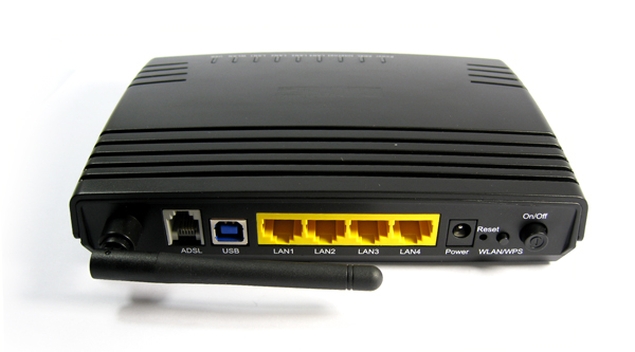
If you have a box that connects to the internet with ethernet sockets on it, like the yellow ones below, that is probably a network router. Then you'd have a network.

adsl_router.jpg
 
Last edited:
Move the images within lightroom and then it knows.
Have you got your PC plugged into your router? Any spare ports on there? The NAS could be right next to the router.

If you're moving to a Nas, be aware of fileshareing. If using SMB then Apple broke SMB2/3 compatibility with other products, it times out on large transfers (we found this on a client running capture 1, it corrupted the databases) , the fix is to use SMB1 (so Cifs rather than smb)

So, move them in Lightroom... could you put up a screenshot to show me where / how that would happen?
I think for a start on this external image storage route,I will back them up on to one of my back up drives that I already use, then use a 4TB drive or possibly two (if I can make it do that automatically). I use a Mac desktop machine for this. Does that make sense?
 
Basically you have to add the folder, so in this case a new drive etc, then use the library module to move the images. A quick google gives:
http://lightroomers.com/tutorial-moving-folders-and-photos-in-lightroom-2/100/

Move it in Lightroom and it knows where the images are. If you don't they'll be 'lost' images which you have to fix by selecting the image then telling it where the new image/folder is.
 
Last edited:
Back
Top