
Hi guys,
I'm a newbie when it comes to photography. I've always enjoyed taking photographs but never really considered how much technique is involved until my husband bought me a DSLR for my birthday. Since then I've caught the photography bug! It's something I really enjoy and have been fortunate enough to be able to convert my garage into a little photo studio.
I two Elinchrom D-lite 2 RX studio lights and a polaroid flashgun mounted to a tripod as my lighting set up.
Unfortunately my husband isn't in the least bit interested in photography so for now my practice subjects are my three rescue dogs, two greyhounds and a staffie!
I know studio photography requires a lot of consideration in regards to placement of lights, the power of the lights, angle of the camera, positioning of the subject etc but I'm finding that since my dogs seem to enjoy running around like lunatics that as soon as they stop moving I'm taking a photo as quick as I can before they run off again!
I've managed to get what I think are a few relatively ok photos but I'm struggling with editing them. When I put my photos on the computer my backgrounds appear off white (I use standard white photography paper). I've tried cloning the background to make it appear more white but I end up with an uneven tone. If I brighten the image too much then the subjects (my dogs) look too washed out.
I've rummaged through the forums but there's so many topics I couldn't find an answer to this issue. I've got photoshop elements 11 and am trialing lightroom 4 but being a novice I'm not very good with which tools do what! I was just wondering if anyone could offer any assistance?
Here are a few photo's that I'm struggling with...


I'm a newbie when it comes to photography. I've always enjoyed taking photographs but never really considered how much technique is involved until my husband bought me a DSLR for my birthday. Since then I've caught the photography bug! It's something I really enjoy and have been fortunate enough to be able to convert my garage into a little photo studio.
I two Elinchrom D-lite 2 RX studio lights and a polaroid flashgun mounted to a tripod as my lighting set up.
Unfortunately my husband isn't in the least bit interested in photography so for now my practice subjects are my three rescue dogs, two greyhounds and a staffie!
I know studio photography requires a lot of consideration in regards to placement of lights, the power of the lights, angle of the camera, positioning of the subject etc but I'm finding that since my dogs seem to enjoy running around like lunatics that as soon as they stop moving I'm taking a photo as quick as I can before they run off again!
I've managed to get what I think are a few relatively ok photos but I'm struggling with editing them. When I put my photos on the computer my backgrounds appear off white (I use standard white photography paper). I've tried cloning the background to make it appear more white but I end up with an uneven tone. If I brighten the image too much then the subjects (my dogs) look too washed out.
I've rummaged through the forums but there's so many topics I couldn't find an answer to this issue. I've got photoshop elements 11 and am trialing lightroom 4 but being a novice I'm not very good with which tools do what! I was just wondering if anyone could offer any assistance?
Here are a few photo's that I'm struggling with...
Last edited:

 Hi Francesca & welcome to the forum & I'm sure somebody will come along and help but, unless it's just me, there are no photos showing

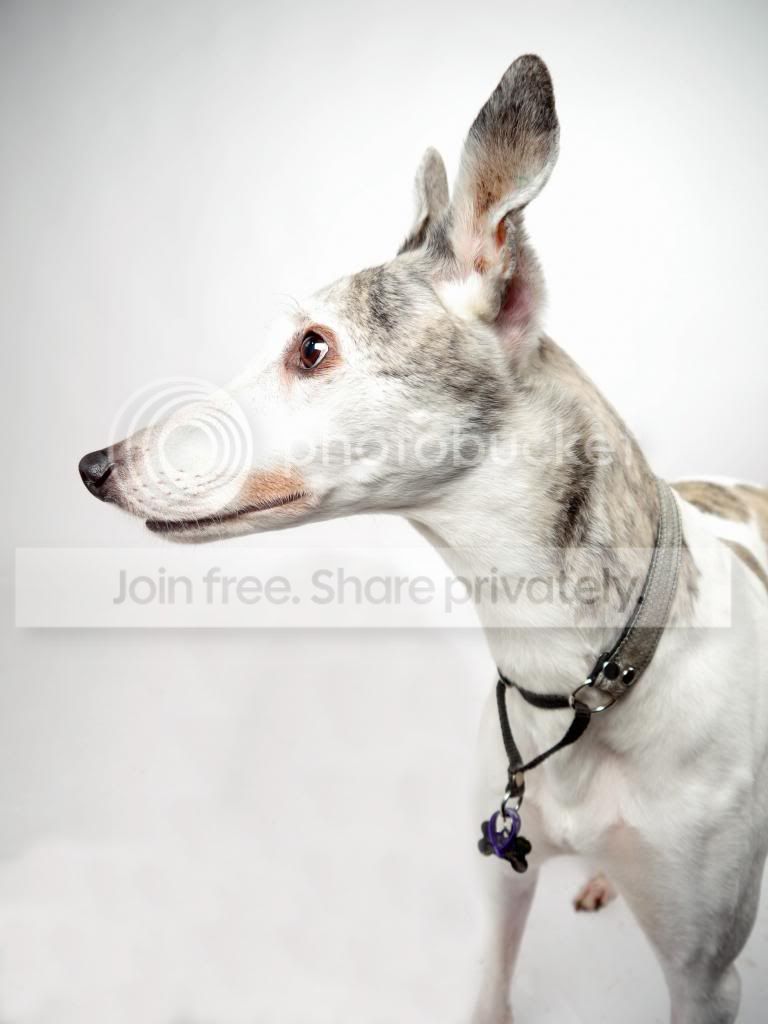
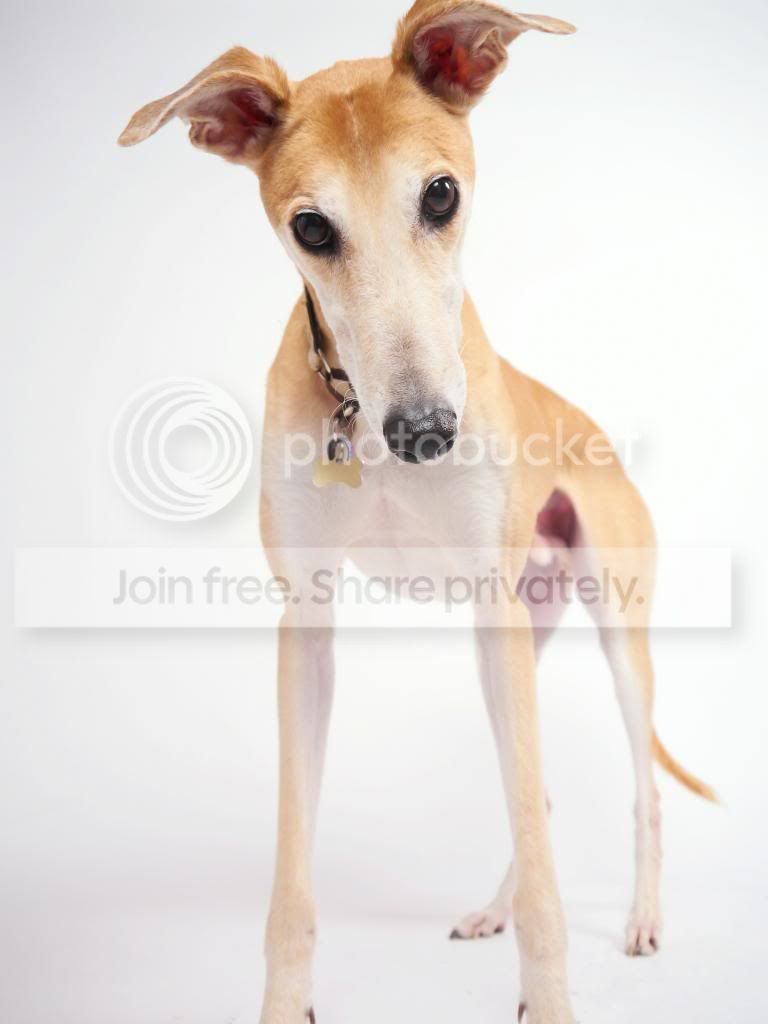


 Wish I'd noticed I had cropped his front paws out of the picture but will remember to bear it in mind next time i get him to stand still for long enough to take another photo!
 What I did wasn't to alter the b/g at all. I removed the dog from the b/g and basically erased it. Then I added another layer underneath that I made white. I could have made this layer any colour (or really put anything on it).