External Hard disk problem - well maybe a few

BillN_33

Suspended / Banned
Messages
13,952
Name
Bill
Edit My Images
No
Imac 5K 2020 -Ventura 13.6.6

I have just bought a WD External 5TB disk - used it to back up my Hard Disk using Time Machine - back up was OK - but I cannot "drag and drop" any images onto the new WD external disk - I could before I used it to back up my iMac but when I used "Time Machine" for the first time it reformatted the disk ....... now showing APFS as the format

Also I have a Crucial X9 which I have put my LR Catalogue onto - that seems to be formatted as Exfat

I cannot drop and drop any files from the X9 onto the (new) WD 5TB or a Toshiba 4TB which I have used to back up the iMac using Time Machine

I don't understand all this

the iMac, new WD and Toshiba show the format to be APFS, but the Crucial X9 shows a format of Exfat

Basically I want to drag and drop images onto the new WD and also drag and drop the LR Catalogue from the X9 onto one of the other External hard disks that I have, the WD or the Toshiba

Also ideally I like to back up one External to another external - i.e. the X9 to the WD

HELP!!
 
Last edited:
Imac 5K 2020 -Ventura 13.6.6

I have just bought a WD External 5TB disk - used it to back up my Hard Disk using Time Machine - back up was OK - but I cannot "drag and drop" any images onto the new WD external disk - I could before I used it to back up my iMac but when I used "Time Machine" for the first time it reformatted the disk ....... now showing APFS as the format

Also I have a Crucial X9 which I have put my LR Catalogue onto - that seems to be formatted as Exfat

I cannot drop and drop any files from the X9 onto the (new) WD 5TB or a Toshiba 4TB which I have used to back up the iMac using Time Machine

I don't understand all this

the iMac, new WD and Toshiba show the format to be APFS, but the Crucial X9 shows a format of Exfat

Basically I want to drag and drop images onto the new WD and also drag and drop the LR Catalogue from the X9 onto one of the other External hard disks that I have, the WD or the Toshiba

Also ideally I like to back up one External to another external - i.e. the X9 to the WD

HELP!!

I thought the general advice for Time Machine drives was to not use that drive for anything else.

You can erase all the backups from the Toshiba drive when the WD drive has been up and running for a while. It can then be re-formatted if necessary and used for other backups.

It is generally recommended to keep the LR catalogue on the internal hard drive.
 
I'm not an Apple person and have limited experience with Time Machine but my understanding is what you're seeing is the default behaviour for Time Machine which will allocate the entire drive to the backups and will not allow files to be added. There is a solution by adding a separate volume to the drive although as mentioned above there are recommendations to keep the drive for TM only.
 
I thought the general advice for Time Machine drives was to not use that drive for anything else.

You can erase all the backups from the Toshiba drive when the WD drive has been up and running for a while. It can then be re-formatted if necessary and used for other backups.

It is generally recommended to keep the LR catalogue on the internal hard drive.

Thanks Steve - my LR Catalogue is too big for my internal hard drive - excluding my LR Catalogue I have 618GB left on my internal iMac 1TB drive and my LR Catalogue is 725GB - I'm looking for a solution to this but it will mean buying a new Mac with a 2TB internal drive

I have just reformatted the WD 5TB as Exfat and I can now drag and drop from the X9 to the new WD 5TB, so that provides a back up solution for my LR Catalogue abeit taking 3 hours to copy from the X9 to the WD 5TB

trying to find a more efficient way........ but I am not a computer expert
 
Than
I'm not an Apple person and have limited experience with Time Machine but my understanding is what you're seeing is the default behaviour for Time Machine which will allocate the entire drive to the backups and will not allow files to be added. There is a solution by adding a separate volume to the drive although as mentioned above there are recommendations to keep the drive for TM only.

Thanks John - just replied to Steve above
 
Thanks Steve - my LR Catalogue is too big for my internal hard drive - excluding my LR Catalogue I have 618GB left on my internal iMac 1TB drive and my LR Catalogue is 725GB - I'm looking for a solution to this but it will mean buying a new Mac with a 2TB internal drive

I have just reformatted the WD 5TB as Exfat and I can now drag and drop from the X9 to the new WD 5TB, so that provides a back up solution for my LR Catalogue abeit taking 3 hours to copy from the X9 to the WD 5TB

trying to find a more efficient way........ but I am not a computer expert
Bill, the LR catalogue is usually relatively small. Try David’s advice above.

You probably have several folders associated with the catalogue that can be deleted.
 
Delete the previews in your LR catalogue, lots of advice on doing this on the web/Youtube - it will rebuild previews for folders that you open when they are needed

My Previews.Irdata file is 23.88GB

How about older LR Catalogues
 
Bill, the LR catalogue is usually relatively small. Try David’s advice above.

You probably have several folders associated with the catalogue that can be deleted.

I have 690GB of images - that's the problem
 
I have 690GB of images - that's the problem
That's roughly what I have on a 2TB SSD attatched to a 2012 MacBook Pro.

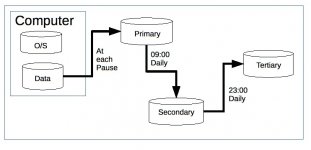
I don't have any problems but I don't use Time Machine - I just don't trust off site backups. Instead I have three drives labelled "Primary", "Secondary" and "Tertiary" and a copy of Carbon Copy Cloner, which I recommend for its simplicity and reliability over the last 10+ years.

"Primary" is backed onto "Secondary" once an hour After the initial backup which happened years ago, it takes a couple of minutes to update. I then back "Secondary" onto "Tertiary" once a day. Here's a very simple flow chart of the process...

20150414 01 Screen Grab.JPG
 
It still seems very large. Can you screenshot all the related folders?

That would take some time as I have over 50 folders - but that number is correct - almost 700GB of RAW/Jpeg/other and scanned images
 
I have 1.9TB of photographs. My Lightroom catalog is 24.36GB which includes 22.12GB of previews.
 
Thanks Steve - my LR Catalogue is too big for my internal hard drive - excluding my LR Catalogue I have 618GB left on my internal iMac 1TB drive and my LR Catalogue is 725GB - I'm looking for a solution to this but it will mean buying a new Mac with a 2TB internal drive

I have just reformatted the WD 5TB as Exfat and I can now drag and drop from the X9 to the new WD 5TB, so that provides a back up solution for my LR Catalogue abeit taking 3 hours to copy from the X9 to the WD 5TB

trying to find a more efficient way........ but I am not a computer expert
I have 690GB of images - that's the problem

You're not storing your images inside the Lightroom Catalog folder are you?
 
You're not storing your images inside the Lightroom Catalog folder are you?

If I run LR from the iMac internal hard disk they are in a Pictures folder on that hard disk

If I run LR from my X9 External disk they are in a Pictures folder on that X9 disks

where should I store my images?
 
If I run LR from the iMac internal hard disk they are in a Pictures folder on that hard disk

If I run LR from my X9 External disk they are in a Pictures folder on that X9 disks

where should I store my images?

You can store your images anywhere you like. I'm just trying to work out why your Lr catalog is 725GB when it should only be about 25-30GB including previews.
 
You can store your images anywhere you like. I'm just trying to work out why your Lr catalog is 725GB when it should only be about 25-30GB including previews.

My LR folder is 725GB
included in this is
.Ircat = 2.42GB
Previews = 23.8GB
Pictures folder = 689GB

originally all was stored on my internal hard disk

the whole folder got too big, (for the internal drive with the other stuff on that 1TB iMac drive), so I transfered all to an External X9 - and I now "run" LR from the External X9

if I keep just my images on the external folder and the LR app on my internal hard disk, (but why would i do this?) won't it be slow to run and I have not found a way for time machine to back up an external hard disk
 
Last edited:
This makes more sense - you are storing the pictures in the lightroom folder, which is different from the catalogue.

What I do, and it makes no difference Mac or PC, is to store images from this year and last year on my fast C: drive, older images going on a separate HDD. They are still accessible, and although access may be a bit slower, I don't often need to work with them, so that's acceptable.

As suggested, your time machine drive is not a user accessable drive for storage, and you will need a second drive to store your pictures.
 
This makes more sense - you are storing the pictures in the lightroom folder, which is different from the catalogue.

What I do, and it makes no difference Mac or PC, is to store images from this year and last year on my fast C: drive, older images going on a separate HDD. They are still accessible, and although access may be a bit slower, I don't often need to work with them, so that's acceptable.

As suggested, your time machine drive is not a user accessable drive for storage, and you will need a second drive to store your pictures.

Thanks Toni

I used to do something similar as I have 2 x 27" 1TB iMacs - I stored say half my images on one machine and half on the other - maybe I should go back to doing this, but I store my images differently as I have say a folder for Grandchildren, split into one for each and I keep adding to this - so all my images of Grandchildren need to be together - same goes for the Watches folder, Birds folder, etc., etc., which I am continually adding images to, so I need to keep the images of e.g. all Birds and all Watches, together in one place
 
Last edited:
Thanks Toni

I used to do something similar as I have 2 x 27" 1TB iMacs - I stored say half my images on one machine and half on the other - maybe I should go back to doing this
I have a couple of SSD's attached to my iMac, one dedicated to Timemachine and one dedicated to storage of new photos - C: drive for programmes etc.
 
I have a couple of SSD's attached to my iMac, one dedicated to Timemachine and one dedicated to storage of new photos - C: drive for programmes etc.
Thanks Roger
how do you back up your photos - "drag and drop" every so often
 
Thanks Roger
how do you back up your photos - "drag and drop" every so often
If your data is important to you, that is not a good way to back up your data, although it's better than nothing.

Rule 1 of data storage: systems fail --- and you will be very unhappy if this happens to you and you don't have up to date copies.

Disk drive destruction with hammer DSC-R1 06989.jpg
 
W
Thanks Roger
how do you back up your photos - "drag and drop" every so often
Well I don't use Lr so from Affinity I just export to the drive > File.
 
I have just reformatted the WD 5TB as Exfat and I can now drag and drop from the X9 to the new WD 5TB, so that provides a back up solution for my LR Catalogue abeit taking 3 hours to copy from the X9 to the WD 5TB

If you have reformatted the WD drive, what are you now using for Time Machine?

Are you aiming to have all your photos on one external drive and to backup to another drive?

Have you considered Cloud storage?
 
If you have reformatted the WD drive, what are you now using for Time Machine?

Are you aiming to have all your photos on one external drive and to backup to another drive?

Have you considered Cloud storage?

Thanks Steve

Time Machine back up - I am using the Toshiba 4TB which I always used

what I have not managed to do is to back up my X9 external to the WD external using an auto type back up system - (they are both formatted as ExFat) - the only way I have found I can do this is by drag and drop from one external to the other external - which takes 2 hours, or was it 3 hours - which is a pain!!

I think I will buy the upgrade kit and upgrade my 27" iMac to 2TB or 4TB - Apple no longer make the 27" iMac - my late 2014 iMac has a good 5K Retina screen which is still pretty good and I can then use this iMac for LR with no problem to back up using Time machine - going through the uTube vid it looks straight forward and will cost just over £300 for the 2TB kit

My other newer 27" iMac cannot be upgraded as it's post 2020 when Apple changed from a removable SSD to whatever they did, (presumably to stop upgrades??)

My only other solution would be to buy an new Apple 27" screen and a 2TB MacMini?? - which would be expensive - or a 21" iMac - but I have 2 very good 27" iMacs which serve my use

(for some reason I have never been a fan of "the Cloud" )

Thanks to all for your comments
 
Last edited:
Two points:

For a non-timemachine style back-up, investigate Chronosync (a complex interface, but it will do interesting things like initiate a back-up when drives are mounted) or Carbon Copy Cloner

ExFAT can be problematic if you are using an SSD and an application that needs lots of disk access such as Final Cut Pro.

https://mactakeawaydata.com/exfat-vs-apfs/ Gives an interesting table about pros and cons.
 
Thanks Steve

Time Machine back up - I am using the Toshiba 4TB which I always used

what I have not managed to do is to back up my X9 external to the WD external using an auto type back up system - (they are both formatted as ExFat) - the only way I have found I can do this is by drag and drop from one external to the other external - which takes 2 hours, or was it 3 hours - which is a pain!!

I think I will buy the upgrade kit and upgrade my 27" iMac to 2TB or 4TB - Apple no longer make the 27" iMac - my late 2014 iMac has a good 5K Retina screen which is still pretty good and I can then use this iMac for LR with no problem to back up using Time machine - going through the uTube vid it looks straight forward and will cost just over £300 for the 2TB kit

My other newer 27" iMac cannot be upgraded as it's post 2020 when Apple changed from a removable SSD to whatever they did, (presumably to stop upgrades??)

My only other solution would be to buy an new Apple 27" screen and a 2TB MacMini?? - which would be expensive - or a 21" iMac - but I have 2 very good 27" iMacs which serve my use

(for some reason I have never been a fan of "the Cloud" )

Thanks to all for your comments

One final comment. I have checked my Time Machine settings and my external drives are included. Perhaps this is not possible on your machines if you have older versions of the operating system.
 
One final comment. I have checked my Time Machine settings and my external drives are included. Perhaps this is not possible on your machines if you have older versions of the operating system.
the same on my Time Machine - but I cannot/could not figure out how to back up from one External drive to the other External drive using Time Machine - that why I change the formating on 2 of the external drives to ExFat as that was the only way I could copy from one to the other

If I format for Time Machine, the Mac OS formats the drives as APFS, but even with that Mac format I cannot backup from one External to another External - the + and - options in the General Settings_Time machine do you seem to work, although it recognises that the External drives are mounted
 
The internet seems to indicate that if both External drives are formatted as APFS Time Machine will back up one external to the other external .........
 
Back
Top