Editing with the NIK Collection

Longimanus

Suspended / Banned
Messages
1,218
Name
Lee
Edit My Images
Yes
I have been experimenting with the NIK collection of late, but on some occasions I seem to be getting more noise through this than I do from the original import.

I wanted to know how people use the collection in a workflow?

For example do you dfine first, then colour efex and then sharpen?

Im not sure how to approach it and seem to be using the noise reduction in LR once imported back.

Any help appreciated
 
What is it you're trying to achieve that you can't do with your current programs?

I got it when it went free a short while ago, but find it quite heavy handed, so tend to use it in very small doses.

I only use it in tandem with PS and then always on it's own layer, so I can play with the opacity later on.

Sharpening and NR should only be done last, and always after resizing for intended output, as the required amounts will change depending upon the file size. Maybe that's affecting things if you're going back into LR after using the noise reduction?

Mike
 
I have been experimenting with the NIK collection of late, but on some occasions I seem to be getting more noise through this than I do from the original import.

I wanted to know how people use the collection in a workflow?

I only use Dfine, and only occasionally, if I get to the output version and it is still too noisy. I find control points very useful for dealing with backgrounds.

I use Dfine last. (Well, almost last. I have been using it on a TIFF version of the image immediately prior to resizing as JPEG. Given what Mike just wrote, I'll now try it last of all, on the resized (JPEG) image.
 
What is it you're trying to achieve that you can't do with your current programs?

I got it when it went free a short while ago, but find it quite heavy handed, so tend to use it in very small doses.

I only use it in tandem with PS and then always on it's own layer, so I can play with the opacity later on.

Sharpening and NR should only be done last, and always after resizing for intended output, as the required amounts will change depending upon the file size. Maybe that's affecting things if you're going back into LR after using the noise reduction?

Mike

Mike, thanks for the information, I also use it in PS as a layer, but don't mess with the opacity, Im not too good with PS at the moment. I will try the sharpening and noise reduction last then and see how that affects things.

I like the way I can use the templates/recipes in the collection as its almost immediate and gives me a quick view, I suppose with more research I could use the powers of PS or LR :-)

Mike what do you mean by 'after resizing for intended output'? is this cropping, for screen, not sure exactly what you mean (feeling a bit dumb now ;-))
 
Resizing for output means whether you are going to print at 6x4 or 60x40. The 6x4 will require little if any sharpening - the 60x40 will require more.

Also print output requires different sharpening to screen output. Glossy and Matt paper require different amounts as well. It can get as complicated as you want it to.
 
Last edited:
@Longimanus - hope this helps a bit - hopefully this isn't too patronising, apologies if you already know all this.

Lee, regarding the final resizing, this is my basic workflow.

1) RAW conversion as per normal

2) Open the image in PS and do all the specific adjustments - backscatter cleanup, curves adjustments etc. but no sharpening or noise reduction yet

3) Save the file as it is - I save it as a .TIFF, others may use .PSD or similar.

I've now got my master file ready and it just needs finalising for whatever use I want. Normally its for web, so I'll try and show you below.

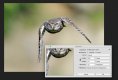
Here's a shot thats been saved as a Tiff. Ive now gone to Image -> Image size and you should see this box pop up.

long1-.jpg

I've inputted my size requirements for TP - 1024px on the long side and the resolution I'm choosing (72 used to be the standard but I've upped it to 120 due to 4k monitors)

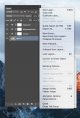
First I click on the background layer (sometimes called Layer 0 as here), I then go to my layers panel and click on the little box top right which has 4 horizontal lines in it and a little arrow next to it.

long2.jpg

Please note the adjustment layers are here as an example only, they show how may layer stack might look at this point.

I click on the 'merge visible' option near the bottom of the grey panel. That reduces the layer stack to the background layer only.

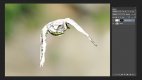
Next I use ctrl + J (cmd + J on a mac) to get a duplicate layer, and this is where I do my sharpening. It's difficult to show the over sharpening here, so I replaced the sharpening with a 3 stop over exposure as it's easier to see, but the steps are exactly the same. If you want to use NIK, then you can skip doing the ctrl + J step, as the Nik layer will automatically go where this duplicate layer would go.

long-3.jpg

I've applied the effect to the entire frame, then added a mask by clicking on the icon at the bottom of the layers panel which is 3rd from the left - a rectangle with a circle inside it. The mask is displayed as the right hand box on 'Layer 0 copy' here, and when you first add the mask all the box will be white. To work with masks you must always remember 'WHITE REVEALS, BLACK CONCEALS', so whatever inside the box is white will display the changes you made, whatever is black will mask the changes and the black areas will be unaffected. What I did here was do my changes (the overexposure instead of the sharpening). I then used a shortcut of ctrl + I (cmd + I on a mac) which turns all the box black and conceals the changes. I then choose a brush (shortcut B) and look at the panel on the left of the screen. Towards the bottom of all the icons are 2 overlapping squares, one white, one black. click on the little arrows just above the overlapping boxes to make sure the white one is on top and paint over the areas you want to affect. If you get it wrong, toggle the overlapping boxes so the black is on top and paint over your mistakes.

So, in reality, I'd only be sharpening my subject, not the background. (Please note I did my mask very roughly here just as an illustration - in a real shot I'd be a lot more accurate)

I then mentioned the opacity, I use this a lot. It has the effect of reducing the changes you just did to suit your taste.

long-4.jpg

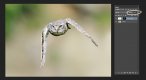
If you look on the layers panel I've circled the opacity slider and reduced the opacity to 50%. This has reduced the overexposure on the bird from the previous screenshot by 50%. I altered the opacity by clicking on the word 'opacity', holding the mouse down and dragging it to the left. You can keep doing the adjustments until you're happy with your result. This use of opacity is what I find really useful when using NIK filters.

I then save my file as I wish - for here on TP I'd just export for web, using file -> export -> save for web, and set the max file size to 350k using the quality slider.

It's all a lot easier than it sounds, once you've done it a few times it'll take about 2 minutes and the results are really worth it.

I'm not the best teacher, so if something doesn't make sense just give me a shout.

Mike

 
@pooley

Thanks for taking the time doing the long reply, this is something that Ive never looked at so have learnt something new, I will read it a bit more later and take it in and then have a go myself :-)
 
@Longimanus - hope this helps a bit - hopefully this isn't too patronising, apologies if you already know all this.

Lee, regarding the final resizing, this is my basic workflow.

1) RAW conversion as per normal

2) Open the image in PS and do all the specific adjustments - backscatter cleanup, curves adjustments etc. but no sharpening or noise reduction yet

3) Save the file as it is - I save it as a .TIFF, others may use .PSD or similar.

I've now got my master file ready and it just needs finalising for whatever use I want. Normally its for web, so I'll try and show you below.

Here's a shot thats been saved as a Tiff. Ive now gone to Image -> Image size and you should see this box pop up.

View attachment 73203

I've inputted my size requirements for TP - 1024px on the long side and the resolution I'm choosing (72 used to be the standard but I've upped it to 120 due to 4k monitors)

First I click on the background layer (sometimes called Layer 0 as here), I then go to my layers panel and click on the little box top right which has 4 horizontal lines in it and a little arrow next to it.

View attachment 73204

Please note the adjustment layers are here as an example only, they show how may layer stack might look at this point.

I click on the 'merge visible' option near the bottom of the grey panel. That reduces the layer stack to the background layer only.

Next I use ctrl + J (cmd + J on a mac) to get a duplicate layer, and this is where I do my sharpening. It's difficult to show the over sharpening here, so I replaced the sharpening with a 3 stop over exposure as it's easier to see, but the steps are exactly the same. If you want to use NIK, then you can skip doing the ctrl + J step, as the Nik layer will automatically go where this duplicate layer would go.

View attachment 73208

I've applied the effect to the entire frame, then added a mask by clicking on the icon at the bottom of the layers panel which is 3rd from the left - a rectangle with a circle inside it. The mask is displayed as the right hand box on 'Layer 0 copy' here, and when you first add the mask all the box will be white. To work with masks you must always remember 'WHITE REVEALS, BLACK CONCEALS', so whatever inside the box is white will display the changes you made, whatever is black will mask the changes and the black areas will be unaffected. What I did here was do my changes (the overexposure instead of the sharpening). I then used a shortcut of ctrl + I (cmd + I on a mac) which turns all the box black and conceals the changes. I then choose a brush (shortcut B) and look at the panel on the left of the screen. Towards the bottom of all the icons are 2 overlapping squares, one white, one black. click on the little arrows just above the overlapping boxes to make sure the white one is on top and paint over the areas you want to affect. If you get it wrong, toggle the overlapping boxes so the black is on top and paint over your mistakes.

So, in reality, I'd only be sharpening my subject, not the background. (Please note I did my mask very roughly here just as an illustration - in a real shot I'd be a lot more accurate)

I then mentioned the opacity, I use this a lot. It has the effect of reducing the changes you just did to suit your taste.

View attachment 73213

If you look on the layers panel I've circled the opacity slider and reduced the opacity to 50%. This has reduced the overexposure on the bird from the previous screenshot by 50%. I altered the opacity by clicking on the word 'opacity', holding the mouse down and dragging it to the left. You can keep doing the adjustments until you're happy with your result. This use of opacity is what I find really useful when using NIK filters.

I then save my file as I wish - for here on TP I'd just export for web, using file -> export -> save for web, and set the max file size to 350k using the quality slider.

It's all a lot easier than it sounds, once you've done it a few times it'll take about 2 minutes and the results are really worth it.

I'm not the best teacher, so if something doesn't make sense just give me a shout.

Mike

Interesting reading Mike (y)

You didn't mention NR though. When do you usually do this? Before or after the sharpening stage?
 
Interesting reading Mike (y)

You didn't mention NR though. When do you usually do this? Before or after the sharpening stage?

There is probably a better and quicker way of doing things by inverting stuff, but I've never bothered to learn it, so all I do is after the sharpening, I go back to the bit where I merge the layers and do the same process again, this time doing noise reduction to the background.

It doesn't matter what order the sharpening / NR is done though - as always, the important thing is to do it after resizing.

Mike
 
There is probably a better and quicker way of doing things by inverting stuff, but I've never bothered to learn it, so all I do is after the sharpening, I go back to the bit where I merge the layers and do the same process again, this time doing noise reduction to the background.

It doesn't matter what order the sharpening / NR is done though - as always, the important thing is to do it after resizing.

Mike

Thank you for the info, Mike. As always, very helpful (y)

I normally, in LR, do my crop first (if needed) then basic adjusts in LR. Then edit in PS, where I do any spot removal, then followed by NR. I then do my sharpening.

I'll have to try doing these after resizing, as I normally use a one-size fits all, following your advice.

Thanks again :)
 
One thing, Mike - I've just tried it with a pic and when I resized it to 1024px (even though I normally upload to Flickr at 2048 then link to TP) it makes the image pixelly and not a very nice image to work on in PS (the wing edges are all pixelly).

Is this normal?
 
When you say you resize to 1024 px, do you mean total pixels? Because that is around 300 pixels on each edge and will look awful.
 
For here it should be 1024px on the longest side, the dialogue box should look similar to the one in the first pane in my examples above. Obviously the size on the short side will vary with the crop.

Once you're doing the sharpening /NR you should be viewing the image at 100% as that is how the shot is intended to be viewed.

@wezza13 if you're getting bad jaggies after resizing and viewing at 100% then something is going wrong somewhere.

I find the problem with linking from Flickr is the way Flickr butchers images and adds extra sharpening which often introduces sharpening halos

Mike
 
Back
Top