Correcting White Balance in Lightroom

Brian G

Suspended / Banned
Messages
2,247
Name
Brian
Edit My Images
Yes
I was playing around with my Heliopan 10 stop ND filter the other week and I noticed that images taken with it have a shift towards magenta.

I have the scene taken with no filter and the WB looks correct, or at least the way I want it.

My question is, Is there a simple way (preferably in Lightroom) to take the WB setting from the "normal" image and apply it to the Long Exposure shot?
Just pushing the Colour Temperature slider is not enough, I have to go into the HSL settings and start tweaking the individual colours to get the WB back to where I want it.

I also have PS available if that makes it any easier.
 
Last edited:
You could do
  1. In LR: Use the eyedropper to find a neutral area in the good image. Use that same area in the 10 stop image to set the WB in Lightroom
  2. In PS: Use Image | Match colours. Might work, might not.
  3. Use the Heliopan to take a shot of a colour target - like the spyder data checker 24 - under similar lighting conditions. Use their software to create a develop preset in LR and apply that to your target image
  4. B&W
 
Thanks Simon.
I was looking for something like suggestion 1 but I wasn't sure how to reset the WB having sampled the "correct" image.
 
If you have two images can you not just sync them but only sync the WB and nothing else?

have both images selected while viewing the normal WB one, hit sync and only select WB and process version..
 
Thanks Simon.
I was looking for something like suggestion 1 but I wasn't sure how to reset the WB having sampled the "correct" image.
  1. Open the short exposure image in the develop module
  2. Pick up the WB eye dropper tool
  3. Hover over the image and keep on eye on the R:G:B percentages below the histogram. When you've found something where they're very nearly equal, make a note of what it is
  4. Exit develop model
  5. Open the long exposure image in develop
  6. Pick up the WB eye dropper tool
  7. Move to the same region of the image
  8. Left-click - this sets the white balance for the long exposure image
If you have two images can you not just sync them but only sync the WB and nothing else?

have both images selected while viewing the normal WB one, hit sync and only select WB and process version..
This won't work - the different images have different WB owing to the colour cast from the ND filter.

In fact my procedure outlined above will only work if the correction needed isn't too extreme and can be corrected just by tweaking the WB. Otherwise he'll need one of the other approaches.
 
It might be worth you setting a custom WB in the camera for the filter, that'll make life easier.
 
Easiest way to set the WB across multiple images in LR:
In the Develop Module,
Take the "source image" with the WB you want to apply to the other images and change it's WB setting to "custom" (adjusting the WB manually automatically switches it to custom).
Select the remaining images and select "sync."
Check the white balance option and then "synchronize."

You can also use the "previous" function to copy custom WB (and all other edits) to the next image.

But Simon is right, using the same WB settings (temp/tint) will not match images that have a different color cast initially.
 
Last edited:
If you have two images can you not just sync them but only sync the WB and nothing else?
.
LR syncs the WB option... i.e. if the source image is set to "as shot" then the other images will sync to "as shot."
Interestingly, WB is the only camera setting LR applies to raw images on import, but it imports as "as shot" regardless of the setting on the camera. The only way to sync the specific WB is to either match the WB option to the one used by the camera (i.e. cloudy) which may not actually work that well, or switch the option to custom.
 
  1. Open the short exposure image in the develop module
  2. Pick up the WB eye dropper tool
  3. Hover over the image and keep on eye on the R:G:B percentages below the histogram. When you've found something where they're very nearly equal, make a note of what it is
  4. Exit develop model
  5. Open the long exposure image in develop
  6. Pick up the WB eye dropper tool
  7. Move to the same region of the image
  8. Left-click - this sets the white balance for the long exposure image
This won't work - the different images have different WB owing to the colour cast from the ND filter.

In fact my procedure outlined above will only work if the correction needed isn't too extreme and can be corrected just by tweaking the WB. Otherwise he'll need one of the other approaches.
Thanks for the suggestion. I feel I'm getting near to what I want.
I've never tried setting a custom WB in Lightroom so I was a little unsure of how to go about it.
Obviously moving the "Temp" slider alone won't do it, since it affects all colours equally, and I have a shift towards magenta.
I was wondering if I could sample an area in the "correct" exposure and transfer that to the "wrong" example.
I follow your suggestion of sampling with the eye dropper, but I cannot see a way of actually applying the sampled values to the "incorrect" image.
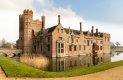
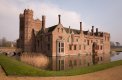
Here are two examples of what I'm working with.
The first is a straight exposure 1/400 sec at f8, no filter.
The second is 4 seconds at f8 with 10 stop ND filter.
OxHallTestRef.jpg
OxHallTestMagenta_01.jpg
What I want to do is take the WB from the first image and apply it to the second.

The nearest I can get is to apply the eyedropper tool to the white cloud near the centre of the second image.
This nearly does it, but the brickwork still has a pinkish tinge as opposed to the straw colour in the original.

It might be worth you setting a custom WB in the camera for the filter, that'll make life easier.
Cannot do that, since WB changes for different exposures.
 
The nearest I can get is to apply the eyedropper tool to the white cloud near the centre of the second image.
This nearly does it, but the brickwork still has a pinkish tinge as opposed to the straw colour in the original.

Once you've got it close, use the sliders to make minor adjustments to the tint until it's as you desire?

Also remember, it's not necessarily a white tone you want, it's a neutral tone, so you could try using the eye dropper on the grey stone work (it may or may not help).
 
Once you've got it close, use the sliders to make minor adjustments to the tint until it's as you desire?

This.. WB is unlikely to provide a complete fix. The sliders should work. For colour critical work a target - like the one I linked above - will do that job (nearly) automatically.

Alternatively, once you've got close it's definitely worth trying Image | Match colours on a new layer in photoshop and reducing the opacity of that layer as required.

edit: a complete aside - IMO the long exposure doesn't really add anything in this case and doesn't justify the processing grief.
 
Last edited:
My opinion is using WB to fix this isn't ideal for two reasons: it only gives you two dimensions of adjustment and secondly it's better to separate white balance which is based on lighting from cast correction which is introduced by the filter. The second point is about still having a "viable" white balance tool after you've made the correction for the colour cast.

So, I'd use HSL sliders to adjust the colour cast. This means you can then leave the WB unchanged and - in theory - apply the correct white balance adjustment for the actual light that was illuminating the scene.

To do this, I'd take two shots of your reference grey card - one without 10 stop and one with. Light both with the same consistent lighting, ideally flash or midday daylight. Make sure you've set both to the same WB in LR and get the exposure and vignetting adjustments correct (exposure may need a final tweak after correcting for cast, though). Then you need to go into HSL and work out the adjustment you need to get the reference grey back to that. Ideally, you want relatively few changes, but it will depend on what's needed. It's hard to do because one small change will affect at least two of R, G, and B values which if you're using LR's eyedropper to "check" how close to mid grey you are, will involve quite a lot of to-ing and fro-ing. An alternative and more scientific way would be to use PS. Use apply image in subtract mode (or add inverse if 16 bit) to work out the difference between your two images (you need to have auto aligned them first, obviously!) You can then look at the individual RGB or CMYK channels to determine what adjustments are most appropriate (ish). Still not dead easy, but can be done.

Once you've made the adjustments with the HSL sliders you can save that preset by JUST choosing the colour adjustments checkbox. And this leaves your white balance completely unaffected.
 
This.. WB is unlikely to provide a complete fix. The sliders should work. For colour critical work a target - like the one I linked above - will do that job (nearly) automatically.

Alternatively, once you've got close it's definitely worth trying Image | Match colours on a new layer in photoshop and reducing the opacity of that layer as required.

edit: a complete aside - IMO the long exposure doesn't really add anything in this case and doesn't justify the processing grief.
Thanks very much to all contributors.
Yes - I agree the filter doesn't add anything - I used the original fast shutter image for the final print.
I was experimenting with trying to reduce the slight rippling of the water surface (which it didn't.)
This became more an exercise in correcting WB than anything else, in case I ever need to do something similar in the future.

BTW none of the LR colour "sync" options gets near to correcting the shift.

I'm thinking for ultimate control I need a Datacolor SpyderCheckr 24 or similar? - take a reference shot and work from there.

Thanks again to everyone for the input.
 
My opinion is using WB to fix this isn't ideal for two reasons: it only gives you two dimensions of adjustment and secondly it's better to separate white balance which is based on lighting from cast correction which is introduced by the filter. The second point is about still having a "viable" white balance tool after you've made the correction for the colour cast.

So, I'd use HSL sliders to adjust the colour cast. This means you can then leave the WB unchanged and - in theory - apply the correct white balance adjustment for the actual light that was illuminating the scene.
Thanks for the input Paul.
You are right, WB alone will not correct the colour cast, which needs HSL adjustments.
What I was hoping, never having tried this before, is that there was a simple shortcut (possibly through sampling) to transfer the correct colour balance to the "wrong" image.
Unfortunately it seems this is outside the ability of Lightroom and introducing PS leads to (IMHO) additional complications that I don't really want to get involved with.

To do this, I'd take two shots of your reference grey card - one without 10 stop and one with. Light both with the same consistent lighting, ideally flash or midday daylight. Make sure you've set both to the same WB in LR and get the exposure and vignetting adjustments correct (exposure may need a final tweak after correcting for cast, though). Then you need to go into HSL and work out the adjustment you need to get the reference grey back to that. Ideally, you want relatively few changes, but it will depend on what's needed. It's hard to do because one small change will affect at least two of R, G, and B values which if you're using LR's eyedropper to "check" how close to mid grey you are, will involve quite a lot of to-ing and fro-ing. An alternative and more scientific way would be to use PS. Use apply image in subtract mode (or add inverse if 16 bit) to work out the difference between your two images (you need to have auto aligned them first, obviously!) You can then look at the individual RGB or CMYK channels to determine what adjustments are most appropriate (ish). Still not dead easy, but can be done.

Once you've made the adjustments with the HSL sliders you can save that preset by JUST choosing the colour adjustments checkbox. And this leaves your white balance completely unaffected.
Yes, the whole process is a lot more complicated than I thought it would be.
Although I've used this 10-stop filter before, I've never had the degree of colour shift that I have on these shots, although I may just be extra critical.
The additional complication is that the amount of colour shift is dependent on the exposure, so it will be necessary to have a correction for each individual shot.

It looks like, if I need to carry out this sort of correction in the future, I will need to do it on an individual image basis.

Once again, thanks to all for your valuable input and advice.
 
That's a bit rubbish isn't it?!

One thought it to find the worst example of colour shift you can. Find a way to fix it in PS using an adjustment layer and save that somewhere so you can easily get it again. Then you can add that layer into any image which needs correction and just adjust the opacity of that layer to apply the "right" amount of adjustment for each image.

Might not be 100% and it does require PS but can't think of anything else!
 
If you can work out what shade the cast is you can create a negative cast by using the split toning panel or painting over the whole image with a colour opposite the cast colour.
 
The problem, as I see it, with the cast produced by this sort of filter, is that although the cast produced is magenta, it will not necessarily be even across the image.
The reason ( again, IMHO ) is that the light will not be even across the frame, either due to the light source changing over the period of a long exposure, or maybe the different reflective properties of elements within the frame.
Because of this, the "magenta" cast cannot be masked out as easily as people think.
I'm about to have a dabble in long exposures, and I'm thinking of the Firecrest filters, as they seem to be the most neutral, thus avoiding this issue.

Others may well disagree of course !!
 
Back
Top