
and help to keep the site free for all
You are using an out of date browser. It may not display this or other websites correctly.
You should upgrade or use an alternative browser.
You should upgrade or use an alternative browser.
Copying eyes from one photo to another.
- Thread starter mikeyw
- Start date

troutfisher
Suspended / Banned
- Messages
- 2,981
- Name
- Chris
- Edit My Images
- Yes
You need PS , LR does not have layers.
IN PS open both images , select ( lasoo tool)and then copy the "good" eyes, leave plenty of space to erase and feather the bits you don't want)", then close the image ( it saves getting mixed up) create a new layer on the image with the "bad" eyes and paste the good eyes onto that layer , then adjust as needed.
Have fun.
IN PS open both images , select ( lasoo tool)and then copy the "good" eyes, leave plenty of space to erase and feather the bits you don't want)", then close the image ( it saves getting mixed up) create a new layer on the image with the "bad" eyes and paste the good eyes onto that layer , then adjust as needed.
Have fun.

admirable
Suspended / Banned
- Messages
- 11,612
- Name
- Jim
- Edit My Images
- Yes
Crop the good eyes from the image and place on top of the blinker eyes, position to suit. You can re position the good eyes using Edit/Free Transform. Make the good eyes a layer mask and using the black or white paintbrush add or remove the parts of the good eye layer to suit.
Merge the layers and you're done.
Any questions just ask
Merge the layers and you're done.
Any questions just ask

f/1.2
Suspended / Banned
- Messages
- 7,424
- Name
- Tommy
- Edit My Images
- No
I doubt this is going to end well. You've picked a hell of a task to get even close to realistic.
It’s actually very easy to do.

Boss
Suspended / Banned
- Messages
- 57
- Name
- Hitogami
- Edit My Images
- No
It’s actually very easy to do.
I find it difficult to get a natural look. (And I'm pretty good at PS) Maybe just me.

Harlequin565
Suspended / Banned
- Messages
- 8,684
- Name
- Ian
- Edit My Images
- No
Maybe just me.
I suspect it's entirely down to how much of the frame the "blinker" is filling - which we don't know from the OP. All of it and you've got your hands full. If it's one person in a large crowd it's going to be a doddle. Then there's all the circumstances in-between.

swanseamale47
Suspended / Banned
- Messages
- 10,876
- Name
- wayne clarke
- Edit My Images
- Yes
It helps to line up the pics if you lower the opacity on the new (replace) layer so you can see both sets of eyes at the same time (remember to put it back to 100% after) also try and find a similar angle of face, that saves fiddling it around too.
OP

mikeyw
Suspended / Banned
- Messages
- 1,436
- Edit My Images
- Yes
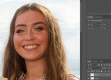
So guys i've got the eyes over, they are not perfect but on the final image i doubt it'll be visible as she is in a group of 4 and this is a crop of just the head, so thanks for that.
The last issue is how do i blend the skin tones where i've cropped as they are different across the two images as you can see, maybe the easier option is to take as little skin as possible over ?
Also i'm sure it's obvious but only when you know but how do i compress the 3 layers into a final image ready to be exported ?
Thanks again,
Mike.
The last issue is how do i blend the skin tones where i've cropped as they are different across the two images as you can see, maybe the easier option is to take as little skin as possible over ?
Also i'm sure it's obvious but only when you know but how do i compress the 3 layers into a final image ready to be exported ?
Thanks again,
Mike.
Last edited:
Harlequin565
Suspended / Banned
- Messages
- 8,684
- Name
- Ian
- Edit My Images
- No
how do i blend the skin tones
A layer mask will accomplish this.
- click on your eyes layer
- click on the layer mask icon in the bottom of the layers panel (it's a rectangle with a circle in it. It's very small)
- Select the mask - you'll see it appear next to the words "layer 2"
- Select an (appropriately sized) brush from the tool palette. You can change brush size with [ and ]
- Select Black as a colour and turn the opacity down to about 25%
- Paint around the skin tones and start to blend. If you get black paint on your image it's because you've selected the image and not the mask. If the skin tones start to fade you're doing it right.
Painting BLACK will HIDE/MASK the layer you have selected (the eyes). If you make a mistake, painting WHITE will REVEAL/UNMASK the layer you have selected.
If none of this made sense, look up a video on "layer masking in photoshop"

admirable
Suspended / Banned
- Messages
- 11,612
- Name
- Jim
- Edit My Images
- Yes
Also i'm sure it's obvious but only when you know but how do i compress the 3 layers into a final image ready to be exported ?
Thanks again,
Mike.
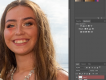
Layer/Merge Layers or Ctrl + E


riddell
Suspended / Banned
- Messages
- 563
- Name
- Paul
- Edit My Images
- No
I doubt this is going to end well. You've picked a hell of a task to get even close to realistic.
It’s actually very easy to do.
Boss is spot on, its very easy to, but very difficult to look realistic, its not always as simple as just swapping the eyes over, the whole shape along with the lighting can change around the eye as someone blinks. Sometimes eyebrows move as well, along with the cheek muscles.
As others have said lasso or pen and then carefully adjust and blend everything in, but at that point there is no one answer, because virtually every image is different.



Terrywoodenpic
Suspended / Banned
- Messages
- 8,172
- Name
- Terry
- Edit My Images
- Yes
In my opinion that result is too crude to be acceptable. I am certain that you can do better than that with a somewhat increased skill level.
It needs a far better selection, and a massively better blending. It is most certainly doable. retouching should never be visible.
It needs a far better selection, and a massively better blending. It is most certainly doable. retouching should never be visible.

keef32
Suspended / Banned
- Messages
- 1,139
- Name
- Richard
- Edit My Images
- Yes
Here's a crop of the end result at normal viewing size, not perfect but acceptable all the same. Yes one of her eyes was slightly smaller as she had an infection so it was a bit closed.
View attachment 254226
It looks to me like the woman next to her in glasses is also blinking