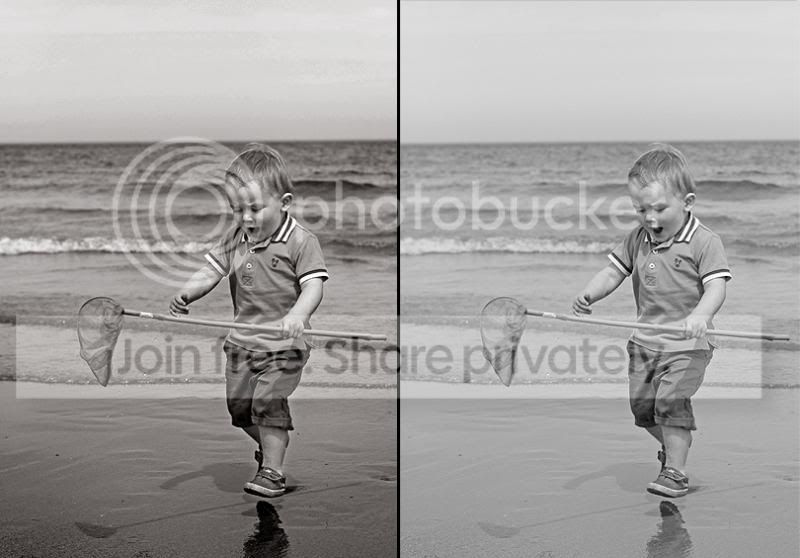
The good news (or bad news, depending on how you see it) is that there's more than one way to convert a picture to black and white, and different methods work better for different subjects.
Now, I've never used Elements, but you should be able to do this kind of stuff in it. If not, GIMP will do it.
The most obvious and easiest is by changing it to greyscale, or desaturating it. Sometimes this works nicely, but most of the time I find it gives a really safe, middle of the road, flat effect.
A better way is by using the RGB channel mixer. Your image has a lot of the green channel in it, which gives it its grey, almost vintage feel (back in t'old days, black and white films weren't sensitive to red light).
If you select the green channel only, and lower the contrast a bit, you'll see how it looks as though it were taken in the 1940s.
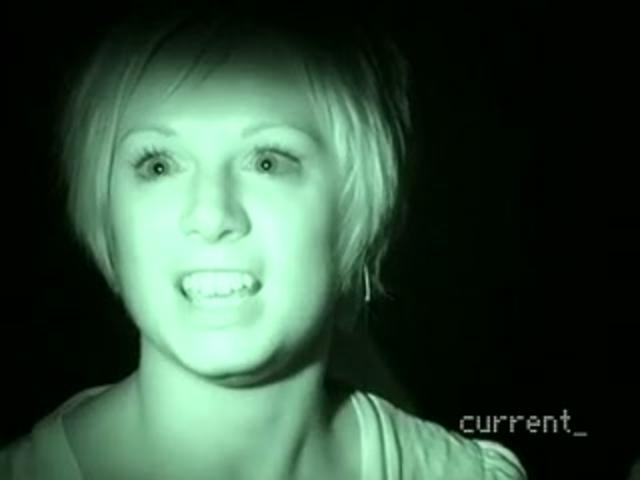
In contrast to this, selecting the red channel only will give a very high contrast image, where the blue of the sky goes very dark, and skin goes very light. On someone with very light skin, this can sometimes make them appear as though they're on Most Haunted...
...and so a mix of 80/20 or 70/30 red/green can be more flattering. The blue channel tends to darken skin and also emphasis imperfections in skin.
Once you've decided on which channel is going to give you the best look, that's when you tweak it with contrast, curves or levels.
Here's one I converted this at the weekend.
Because the light was good, this shot had quite a bit of contrast in it anyway, but my conversion is based on:
- Most of the picture is pure red channel, and then darkened. Moody.
- My upper body is 80-20 mix of red and green, as otherwise my face was too bleached looking. GIMP or some other program that uses layers will let you mix and match.
- A high-pass filter was added to the boards on the pier to emphasis the texture.
- The corners were darkened with a basic vignette. It's a psychological trick to draw people's eyes to the centre of the image, where I'm looking so dashing and charismatic.
- Lastly I converted it to duotone mode to give it a subtle sepia tint. Pure black and white can often look a little cold, and this takes the edge off.
On this one:
- Contrast increased by raising the black slider, and lowering the white slider in Levels.
- Contrast increased on the sand even more.
- Corners darkened a smidge.
- Converted to duotone to warm it up a little.