Colour Negative, am i missing something?

robhooley167

Sir, my fingers are stuck together
Suspended / Banned
Messages
4,158
Name
Rob
Edit My Images
Yes
Hi Gang

I'm having a bit of an issue with colour negative film, mainly the scanning part.

I've tried Portra, Ektar and Fuji Pro 160NS and I've yet to get a result i'm happy with when it comes to scanning. No matter how hard i try i just can't get the colours to come out right, they tend to come out with a blue tinge.

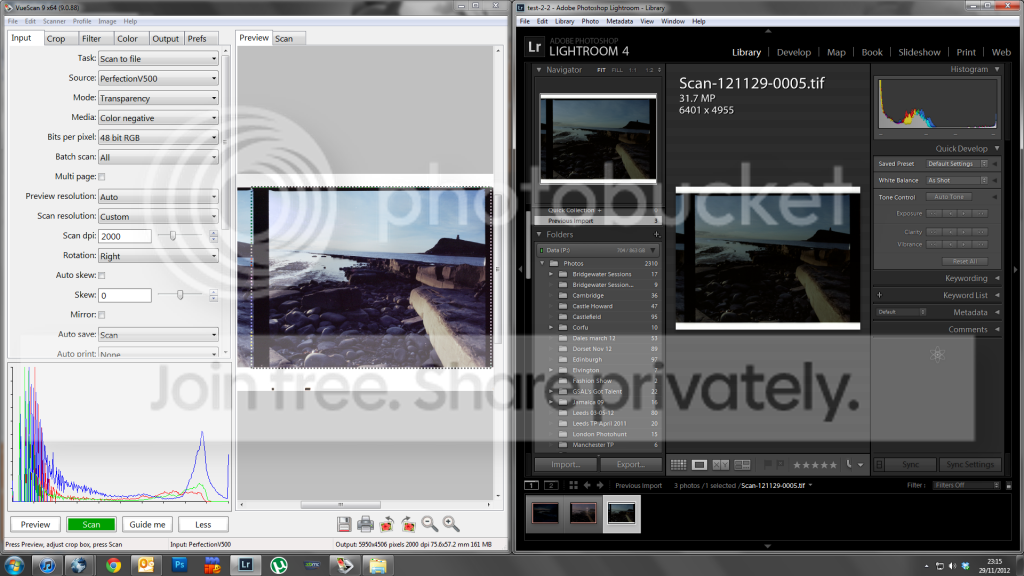
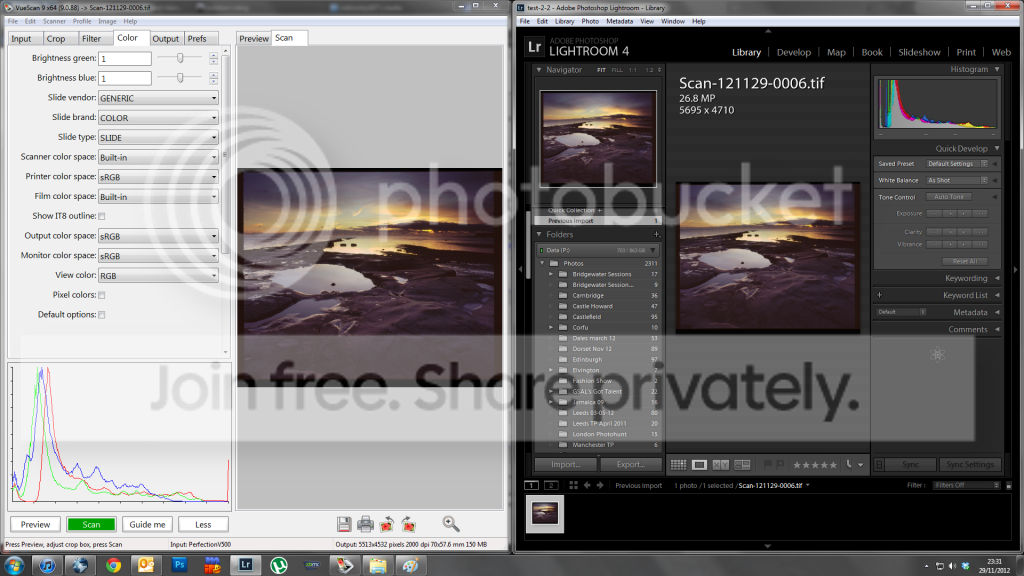
One of the issues i have is when i scan in Vuescan i get a reasonable looking image with some minor corrections but when i scan it and open it in Lightroom or Photoshop it looks completely different and it's driving me round the bend.

BTW I'm using a V500

If i can't work out where i'm going wrong there will be several rolls of Portra and Fuji 160 in the classifieds and i'll shoot solely Provia for colour work

Any help gratefully appreciated
 
Last edited:
I find vuescan works well as long as you remember to lock the film base colour (ie select an area from the film strip that includes the unexposed areas between each frame) before trying to set the white balance (by right clicking on a neutral light grey or white area of a photo).
 
I find vuescan works well as long as you remember to lock the film base colour (ie select an area from the film strip that includes the unexposed areas between each frame) before trying to set the white balance (by right clicking on a neutral light grey or white area of a photo).

I was reading that on your blog earlier but it didn't seem to make much difference. (your blog was 2nd on the google search for better vuescan workflow, not like i'm some creepy stalker)
 
if it's looking right in the scanner software and different in lightroom - could it be a colour space issue ?? I don't use Vuescan, but if it sets the colourspace as part of the film profiling it might possibly explain the differences ??

of course, I could just be talking a consignment of geriatric shoe menders...
 
if it's looking right in the scanner software and different in lightroom - could it be a colour space issue ?? I don't use Vuescan, but if it sets the colourspace as part of the film profiling it might possibly explain the differences ??

of course, I could just be talking a consignment of geriatric shoe menders...

It's entirely plausible, but i wouldn't have thought it would be this severe

buggeredscans.png
 
from adobe

About color management in Lightroom

Lightroom simplifies color management in your photographic workflow. You don’t need to choose color settings or color profiles until you are ready to output your photos. To take advantage of Lightroom color management, you need to calibrate your computer monitor so that you are viewing accurate color. See Calibrate and profile your monitor.
Color spaces, color profiles, and tonal response curves

It’s not necessary for you to understand how Lightroom manages color internally, but the following information may be useful in your workflow.
A color space describes a range or gamut of colors. Various devices in your photographic workflow have different color gamuts in which they can record, store, edit, and output photos. A color profile defines a color space so that Lightroom knows how to manage and convert colors in your photo.
Raw photo files generally don’t have embedded color profiles. For raw files, the Develop module assumes a wide color space based on the color values of the ProPhoto RGB color space. ProPhoto RGB encompasses most colors that cameras can record.
A color profile is also defined by a gamma value, or more accurately, its tonal response curve. The tonal response curve defines how tonal values in the raw image are mapped. To provide useful information in the histogram and RGB value display, Lightroom assumes a gamma value of approximately 2.2. More accurately, it uses a tonal response curve similar to the tonal response curve of the sRGB color space.
While Lightroom uses a tonal response curve to provide information for the histogram and RGB values, it manipulates the raw data before it is tone mapped. Working in this linear gamma avoids many of the artifacts that can result in working with a tone-mapped image.
The Library module stores previews in the Adobe RGB color space. These previews are also used when printing in draft mode.
For rendered files such as TIFF, JPEG, and PSD files, Lightroom uses the image’s embedded color profile to display the image, histogram, and color values. If the image doesn’t have a profile, Lightroom assumes the sRGB profile, and the image may not look as expected on your monitor.
 
Something funny going on in the histogram of those two programmes. Would colour space issues cause that?


Edit : looks like it would from a skim read of the ninja post above mine.
 
Vuescan is set to output in sRGB at the moment

Oddly, scans from slide film is exactly the same in Lr as it is in Vuescan

notsobuggeredscans.png
 
Wonder if it's a glitch in the software? Silverfast used to do it to me every now and then. as if it was updating it's preview screen but not actually doing what you've set it to with the actual scan?
 
I gave up shooting colour film because I never got it looking good. Film is now B&W for me, colour is digital. I know it doesn't help, Rob, but I am at least empathising how bloody hard it can be! ;)
 
I'm going to give it one more go with this film and if nothing works, i'll stick them on the classifieds and buy a stack of provia instead
 
I gave up shooting colour film because I never got it looking good. Film is now B&W for me, colour is digital. I know it doesn't help, Rob, but I am at least empathising how bloody hard it can be! ;)

For 35mm........... Asda or Tesco can be your friend if you live in a city ;) ....a competent operator plus £24,000 machine can knock spots off any flatbed scanner...shame they don't scan over 1800pixels for very large prints.
 
For 35mm........... Asda or Tesco can be your friend if you live in a city ;) ....a competent operator plus £24,000 machine can knock spots off any flatbed scanner...shame they don't scan over 1800pixels for very large prints.

No need when digital does it better and without entrusting film to a supermarket gimp! ;)

(Ooh, contriversial!!!)
 
No need when digital does it better and without entrusting film to a supermarket gimp! ;)

(Ooh, contriversial!!!)

What!!! on a film forum :thumbsdown: anyway I've only got an old digital Canon P&S and that's not working properly (before that my 5mp Sony also given to me packed up) so I can't share the delights of digital use for fantastic results. ;)
 
For 35mm........... Asda or Tesco can be your friend if you live in a city ;) ....a competent operator plus £24,000 machine can knock spots off any flatbed scanner...shame they don't scan over 1800pixels for very large prints.

I stopped scanning colour film because of colour cast problems as well; use Photo Express at £4 a film (for TP members) process and scann at 2000 ppi...
 
I stopped scanning colour film because of colour cast problems as well; use Photo Express at £4 a film (for TP members) process and scann at 2000 ppi...

Couldn't Photoshop correct them?
 
Overnight I remembered that this is very similar to a problem I had when I first started back with film, and at about the same time joined TP. See my thread at http://www.talkphotography.co.uk/forums/showthread.php?t=404577. This was actually C200 rather than Superia, scanning badly with SilverFast. As the thread shows, Mr T offered to run a high res, uncorrected scan through ColourPerfect with excellent results.

I decided not to use ColourPerfect partly because I found a relatively inexpensive way to get a medium res scan with my processing, and partly because using ColorPerfect required using other software (Photoshop or a few competitors) that I didn't want to get into. But, Mr T did a great job. The result he got was:

CN1204PTS233rpos2.jpg


Whereas my best shot with SilverFast was:

CN1204PTS233.jpg


While the lab I sent it to scanned it as:

88510031.jpg


Hope this helps!
 
Whoever did the first one did a great job, the 2nd I can get similar but erm no blue sky, same for the 3rd shot.
But I see what you mean about home scanning in that I couldn't correct your faults with a few clicks (like I do from Asda's scans) and if you have to spend too much time on each frame it's not worth DIY. :(
 
Rob. I've had similar results as you. Positive film is OK but negative very dark.

I now, after preview...zoom in and select an area of unexposed film from between frames and then lock the exposure.
Make a new selection and scan.
I'm getting pretty good results...still have to correct colour casts though.
 
I've had a few more goes and can't get anything near what i want

So expect to see 4 rolls of portra and 3 rolls of fuji 160 in the classifieds
 
Did you try ColourPerfect?
 
Did you try ColourPerfect?

I've tried it a couple of times before and couldn't get on with it, was too much hassle.
 
You tried using the Epson Scan software in professional mode? I have a V500 and use it with that.

That's what i use for scanning Ektar with and get perfectly fine results with it, where i get nothing but trouble with scanning slide film in either Epson Scan or Vuescan.
I use the technique described here http://photo-utopia.blogspot.co.uk/2010/11/scanning-with-epson-v500.html for scanning my films and it works fine for both B&W and colour negative. I scan for dynamic range and edit later in Lightroom for contrast and colour.

If you still don't like it i'll buy that Ektar and Portra from you, two of my favourite films.
 
Last edited:
I finished off the Ektar but i still have 4 rolls of portra and 3 rolls of Fuji 160, will make a thread in the classifieds soon
 
Back
Top