Clone NVME to a bigger one

Lemaildetom

Suspended / Banned
Messages
2,914
Name
thomas
Edit My Images
Yes
Hi,
I have bought a bigger NVME drive to replace my main NVME which holds win 10 in it.
I have put the NVME in a enclosure and can see it has a new drive.
I have downloaded and installed macrium reflect.

Now is it has simple has:
1) clone drive to new NVME
2) switch off, disconnect battery, switch NVME, reconnect battery
3) switch back on and it's good to go.

I see some tutorial that seem to boot from a USB and then install a backup onto the new NVME. I don't see why the simple step above wouldn't be enough?
 
I have just done this, to upgrade the slow 512GB HDD on my Dell micro format PC and get speed from 1TB NVMe. I put NVMe in an enclosure, used Acronis True Image to clone the HDD, switched off PC, removed the HDD and installed NVMe. It works a dream without doing anything else. I may reformat the HDD but probably out of PC as suspect that with 2 bootable memories installed I may have BIOS issues and I may not know how to change settings.
 
I’m not sure the windows recovery partition would be cloned over, that’s the only thing I can think of really
 
Hi,
I have bought a bigger NVME drive to replace my main NVME which holds win 10 in it.
I have put the NVME in a enclosure and can see it has a new drive.
I have downloaded and installed macrium reflect.

Now is it has simple has:
1) clone drive to new NVME
2) switch off, disconnect battery, switch NVME, reconnect battery
3) switch back on and it's good to go.

I see some tutorial that seem to boot from a USB and then install a backup onto the new NVME. I don't see why the simple step above wouldn't be enough?
Hi Thomas,

What you are planning to do is exactly what I did and it worked perfectly. Just make sure that (in Macrium) you select all the partitions on your original drive for cloning. There should be an option to expand the "C" drive to take up all the extra space on your NVME drive. It can take a long time to actually clone the drive.

It's a daunting task at first but the good news is that if you get it wrong all you have to do is reformat the NVME drive and do it again. Good luck with it :)
 
Thanks for the input. Hopefully sometime between now and the end of the weekend, I'll have done it all! It sounds pretty simple really. Finger cross it works flawlessly.
 
Job done and really super easy.
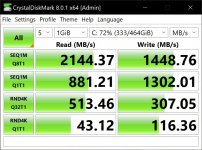
Before 500GB
DELL NVME - speed.jpg

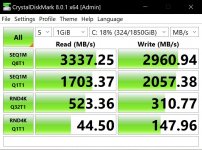
Now 2TB WD_Black
WD_BLACK NVME - speed.jpg

Nice speed increase as well has the extra 1.5TB!

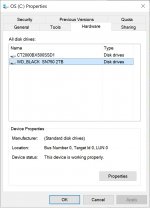
Only thing I'm unsure if that if I right click on the C: drive to see the drive property. I can see two devices install which are running properly. I don't really understand why?
Otherwise it works.
WD property.jpg
 
Hi @Lemaildetom

Sorry to post in your thread, did not want to start a new one hope you do not mind.

Please can I ask if you moved from SSD to NVME and if you did, did you find it a big improvement with the move from SSD to NVME with photo editing?]

With regards to the above screen shot, do you have another SSD in the machine like a Crucial BX500? As I think that is what is being shown.

What does it show as under disk management?

Thank you
 
Job done and really super easy.
Before 500GB
View attachment 329753

Now 2TB WD_Black
View attachment 329754

Nice speed increase as well has the extra 1.5TB!

Only thing I'm unsure if that if I right click on the C: drive to see the drive property. I can see two devices install which are running properly. I don't really understand why?
Otherwise it works.
View attachment 329755
Glad it worked. Most likely you see 2 drives because when you cloned the drive a matching partition was created. The other drive you see is the rest of the space on the physical drive.
 
Hi @Lemaildetom

Sorry to post in your thread, did not want to start a new one hope you do not mind.

Please can I ask if you moved from SSD to NVME and if you did, did you find it a big improvement with the move from SSD to NVME with photo editing?]

With regards to the above screen shot, do you have another SSD in the machine like a Crucial BX500? As I think that is what is being shown.

What does it show as under disk management?

Thank you

I moved from NVME to a bigger NVME. So only had to clone and replace. No need to go in the BIOS or anything fancy.

Yes I also have a Crucial BX500 but this is my D: drive not the C:... which is weird.
 
The list shows “All disk drives” - says so on the tab so the list will include both
 
I guess you are right!
Just checked my main PC and that shows all 8 drives connected to the system irrespective of which one you click on “Properties” for. Guess it’s easiest to programme as there isn’t always a 1:1 match between physical and logical disks.
 
Back
Top