

Blue Vingetting Issue with filter on Sony A7ii with Hitech ND...

jjcodex

Suspended / Banned
Messages
40
Name
James
Edit My Images
Yes
Hi guys

I hope you can help.

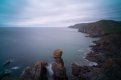
My current kit is a Sonry A7ii with a Sony Zeiss FE 16-35 F4. When using this with my new Formatt Hitech ND 3.0 (about 10 stops) with a square filter and wide angle adaptor I am getting blue vignetting from the edges at any zoom!

The shot was taken at 19mm Focal length. The lens has a 72mm opening.

The shot has had no post processing other than converting to Jpeg to post here and reducing quality but the RAW file is the same.

Any suggestions as to what may be causing this please? There is no presence of artefacts when the filter is removed and only the filter housing is present. And even at 35mm there is still evidence of the issue so I don't think it is a reulst of the wide angle shooting.

HELP!?!"?!?

Ta

JJ
 

Attachments

  • 1.jpg
    1.jpg
    71.9 KB · Views: 21


The vignetting is not blue, James, it is always
a neutral grey that is applied to blue sky areas
in the picture and the lower section too.

Here, it is possibly caused by the filter holder.
Applying a positive vignetting should resolve
the issue.
 
OK, in the case of the Hitech Resin filters the Vignetting will 'appear' blue as the filters have quite a strong blue colour cast - which is actually present though not as emphasised across your whole image. (FYI the Hitech Firecrest filters are very neutral)

But this is what you are looking for:-

All filters produce some optical vignetting (more so with wide angle lenses), because around the edges and corners the lens is looking through the filter at a shallower angle, so it is effectively thicker and therefore more dense. Again you can correct that in post processing but the effect can be a couple of stops or so when the corners are lightened you’re likely to get noise. The best way around that is to shoot at lowest ISO and push the histogram to the right. This delivers as much exposure as the sensor can handle and helps to pull the shadows up the scale, usually with much less noise and better shadow detail too.

So its the laws of physics (again) and something that you can only really correct in post production.

Hope that helps.
 
OK, in the case of the Hitech Resin filters the Vignetting will 'appear' blue as the filters have quite a strong blue colour cast - which is actually present though not as emphasised across your whole image. (FYI the Hitech Firecrest filters are very neutral)

But this is what you are looking for:-

All filters produce some optical vignetting (more so with wide angle lenses), because around the edges and corners the lens is looking through the filter at a shallower angle, so it is effectively thicker and therefore more dense. Again you can correct that in post processing but the effect can be a couple of stops or so when the corners are lightened you’re likely to get noise. The best way around that is to shoot at lowest ISO and push the histogram to the right. This delivers as much exposure as the sensor can handle and helps to pull the shadows up the scale, usually with much less noise and better shadow detail too.

So its the laws of physics (again) and something that you can only really correct in post production.

Hope that helps.

Firstly, my thanks for the above - very helpful. The shot was taken at 100ISO for info,

I have tried to resolve post-processing but with little success. I am finding that the blue casting is harder to resolve in Lightroom than typical vignetting.

Do you have any tips on how I may resolve in the processing lab by chance?

Thanks again

James
 
Firstly, my thanks for the above - very helpful. The shot was taken at 100ISO for info,

I have tried to resolve post-processing but with little success. I am finding that the blue casting is harder to resolve in Lightroom than typical vignetting.

Do you have any tips on how I may resolve in the processing lab by chance?

Thanks again

James

In something like Lightroom, you can use the Colour Temperature and Tint sliders to remove the colour cast. The colour cast is across the whole image, its just more noticeable where it vignettes as the light path to the sensor has effectively gone through more of the filter.

Having sorted the colour cast out, you can then apply a reverse vignette in Lightroom as @Kodiak Qc suggests.

I've always found colour cast removal to be tricky to get right. I've taught a few Long Exposure workshops for a local camera shop, and one thing I advise my students to do is to take a reference image with no filter, you can then display this side by side with the filtered one, and adjust the filtered one to match.

Its not easy, and why a lot of Long Exposures are presented in mono!!!

But seriously if this is a type of photography that you want to spend more time doing, then I would look at changing your filter to the Firecrest version.
 
Last edited:
In something like Lightroom, you can use the Colour Temperature and Tint sliders to remove the colour cast. The colour cast is across the whole image, its just more noticeable where it vignettes as the light path to the sensor has effectively gone through more of the filter.

Having sorted the colour cast out, you can then apply a reverse vignette in Lightroom as @Kodiak Qc suggests.

I've always found colour cast removal to be tricky to get right. I've taught a few Long Exposure workshops for a local camera shop, and one thing I advise my students to do is to take a reference image with no filter, you can then display this side by side with the filtered one, and adjust the filtered one to match.

Its not easy, and why a lot of Long Exposures are presented in mono!!!

But seriously if this is a type of photography that you want to spend more time doing, then I would look at changing your filter to the Firecreset version.

Thanks very much for your input! That is really helpful. I will give it a go, and take on board your advice.

I will check out the Firecrest filters as well!

JJ
 
Back
Top