
David Gethin
Suspended / Banned
- Messages
- 219
- Name
- David
- Edit My Images
- Yes
Here is one of my most recent submissions to the TP Photo52 that I embarked upon at the start of the year:
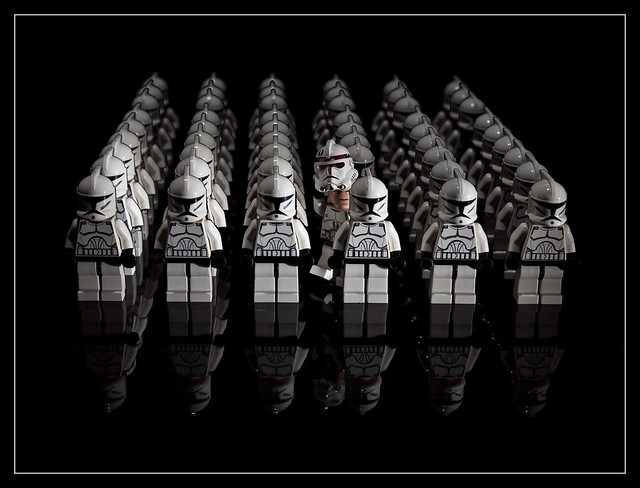
Week 22 - Hidden by morganthecat, on Flickr
It is a 9 shot composite where each row was shot separately using the same lighting set up for each shot (hence the light fall off towards the back). I am rather clumsy in my blending so that the black hands of the troopers are 'lost' on a number of occasions and there are black halos around the body and helmets not so obvious on the right hand column but definitely so in the centre and left hand columns.
Methodology:
My edit was to take the first layer (front row), apply and adjustment mask, use the magic wand with a low tolerance to select the black background and delete to reveal the troopers in the second row (layer below). I then painted back some of the top layer using the history brush such as the black T-visor and belt that had been selected by the magic wand and deleted. I merged these two top layers and then repeated the same methodology to reveal the third row.
Conclusion:
Crude edit and not particularly successful in dealing with the dark detail of the hands.
Help needed:
I can supply a much higher res psd file of the 9 layers if someone would like to demonstrate their better Photoshop skills (is there a way I could share this online?). I have CS3 so whilst a wonderful edit in CS5 would be nice to see, I would rather learn a technique that I could practice and hone my skills on using CS3 or below.
Many thanks
Week 22 - Hidden by morganthecat, on Flickr
It is a 9 shot composite where each row was shot separately using the same lighting set up for each shot (hence the light fall off towards the back). I am rather clumsy in my blending so that the black hands of the troopers are 'lost' on a number of occasions and there are black halos around the body and helmets not so obvious on the right hand column but definitely so in the centre and left hand columns.
Methodology:
My edit was to take the first layer (front row), apply and adjustment mask, use the magic wand with a low tolerance to select the black background and delete to reveal the troopers in the second row (layer below). I then painted back some of the top layer using the history brush such as the black T-visor and belt that had been selected by the magic wand and deleted. I merged these two top layers and then repeated the same methodology to reveal the third row.
Conclusion:
Crude edit and not particularly successful in dealing with the dark detail of the hands.
Help needed:
I can supply a much higher res psd file of the 9 layers if someone would like to demonstrate their better Photoshop skills (is there a way I could share this online?). I have CS3 so whilst a wonderful edit in CS5 would be nice to see, I would rather learn a technique that I could practice and hone my skills on using CS3 or below.
Many thanks


