Advice on Photoshop Manipulation

John.D

Suspended / Banned
Messages
335
Name
John
Edit My Images
No
Hey all,

I'm working on a project where i'm placing a person from one image into a landscape shot. I'm trying my best to match the lighting in both shots as I want to make it look as convincing as possible, but I was wondering what settings people use Photoshop-wise? I mean how do you cut out the person from shot 1, by making a selection around them or erasing the background around the edges of the person slowly and carefully. What feather and edge settings do you use, to get it looking as convincing as possible and smooth, and not just some 5 minute rough cut out stuck on another image!
 
You can use any of the selection tools, whatever your comfortable with, I usually feather just a few pixels,then just copy and paste.Getting the lighting looking right is half the battle, if ones taken in bright sun and the others a dull flat pic you have a heck of a job getting it to look right.
Adding a shadow for the person also makes a big difference, the eye expects to see one, if it's missing it'll look wrong. Wayne
 
Perhaps a small competition is in order?

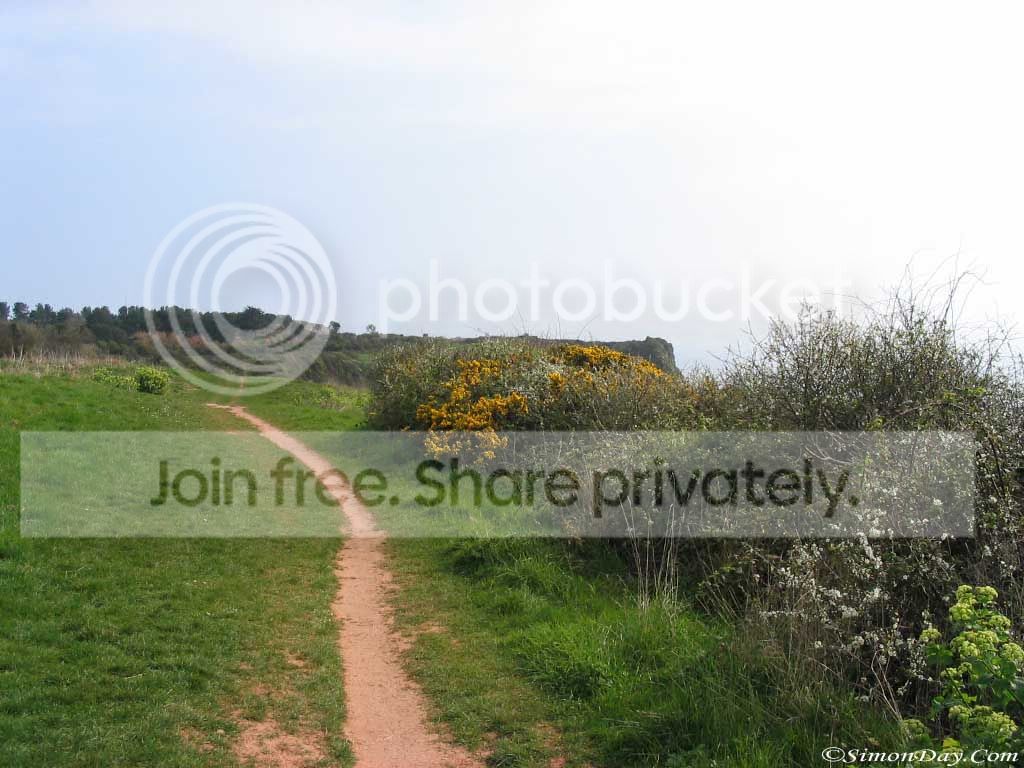
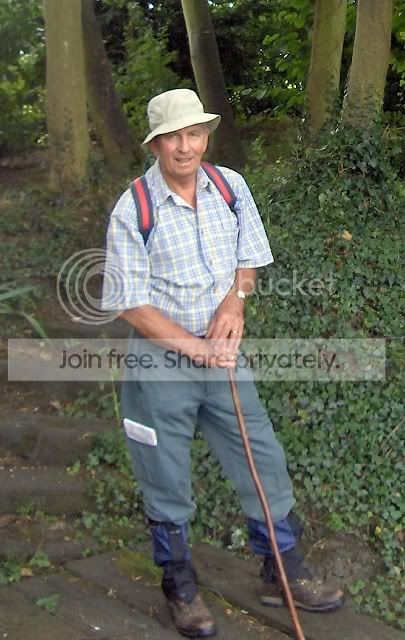
Who can edit the best image and show 3 shots the 1 you want the other picture to go in and the final result?

Good luck with finding out how this is done, i really wanna know this 2

Regards
 
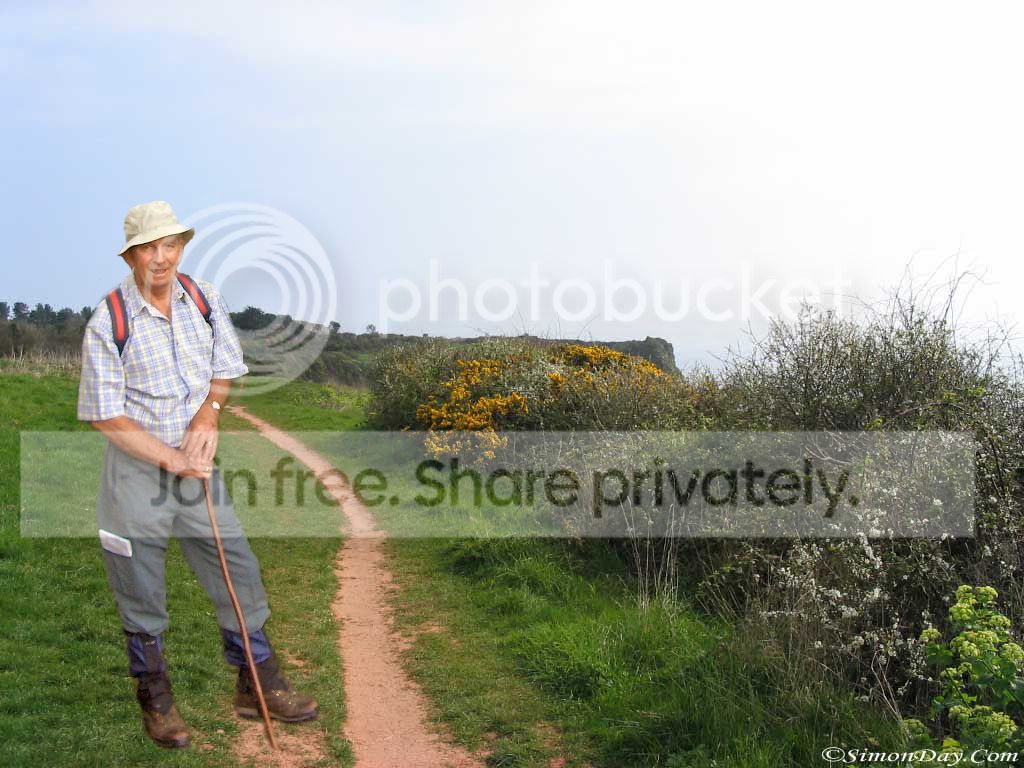
Having never done this before i dont think this was a bad first go

Original images and the final product started like 20 mins ago

Easy

Regards

countryside-0007.jpg


Walking.jpg


Mymerge.jpg
 
I'd darken the left side of him slightly, and add a bit of a shadow to his left (match the bush shadows best you can) and maybe darken him very slightly. Wayne
 
Good effort! :thumbs:

I'd darken him a bit as Wayne suggests and for me he looks like a giant compared to his surroundings, I'd just reduce hm in size a bit for the perspective to look better.

The biggest issue is he looks like he's floating and not connected to the ground. Try using any push/smear type tool set very small and just tease up a bit of grass so it's slightly overlapping the bottoms of his boots. That should anchor him to the ground and look a lot better.
 
Another area to look at the the edges of the dropped in image. They are fairly distinct. Try zooming in to 100%+ and then with a small brush clone a few pixels into the pasted image to kill the hard edge. Just offset the source by a couple of pixels and simply smooth the edge. The brush size needent be much larger than a couple of pixels either
 
Nice one

Appreciate the comments i did myself think argh doesnt look real

Any tips on how to reduce the size of a picture or object in photoshops would be appreciated i just cut him out with a lasso and dropped him in

Then just rubbed out the bits round him.

The lighting is poor on mine and looks to bright but im liking your attempt chaz 10x better than mine
 
I started by placing the two photo one on top of the other. I made a mask using the blue channel. Made a new layer linked to man layer, set blend mode to soft light then with a black brush set at 5% painted over the man more on the left also painted in shadow under and to the left. New adjustment layer HSL master S-34 Red channel S-5
New Adjustment layer Exposure E-.02 Offset .0131
NEW Adjustment layer Levels Black set 23 mid point .8
New adjustment layer Curves pull down a bit in lower end.
I have the PSD still if you want it file size 4.22Mg

One last point is placing him in the right spot, as one foot is higher then the other make sure that both look like they are on the ground and not in mid air
 
Back
Top