Adding in new sky

*kev*

Suspended / Banned
Messages
187
Name
Kevin
Edit My Images
Yes
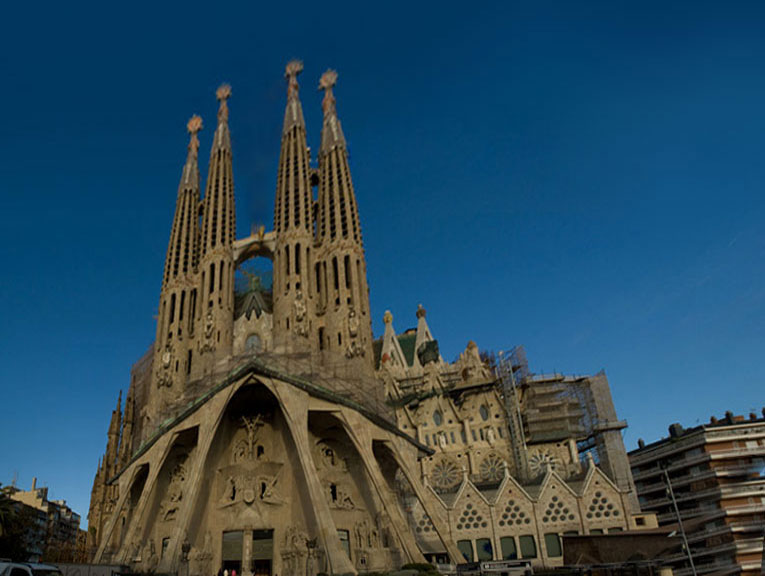
I've got this image from a recent trip to Barcelona, and I would like to level out the top of the image with more of the blue sky and also remove the cranes and the overhanging tree from the image. What is the best way to do this?

4285672694_624a43c22e_o.jpg


I thought about cutting out the cathedral and then pasting it on to a background of just the sky, which I could make using the gradient tool, but i wasn't sure how to it. Could someone let me know what is the best (quickest, easiest, neatest) way to add in more sky and remove the clutter?

Thanks

Kev


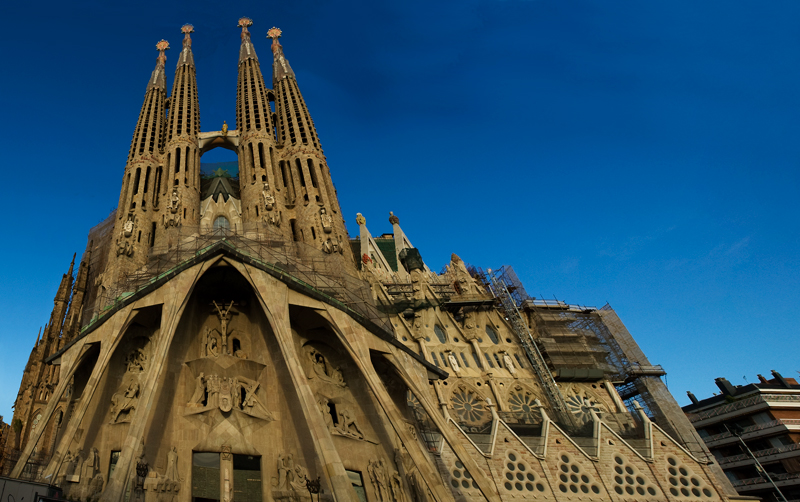
A fairly quick job.

First i selected the whole image and then used Free Transform/Distort to slightly rotate the image and fill the top part of the white area. This still left white areas to the left and right. Using the rectangular marque tool I selected an area on the left just by the white area on the right . Free transform again, but using the scale option to drag the selection over the white area..

The final problem was the triangular area on the left. Using the pen tool i drew a similar sized area in the picture. Used the "Make Selection" option, and again using the distort option with the free Transform tool draged the top section to the left to fill the white area.

This procedure does sometimes leave traces of different densities. Run the healing tool over this to blend the areas.

Cranes removed ( partly) by simple cloning

When dong panoramas like this you do need to leave a lot around the edges so that you can crop the combined image. Hard learnt fact
 
Hi Kev

I had a quick go really we need a bigger file I used edit Transform Skew and clone tool for the sky, "Sagrada Familia is one of my fav buildings

4285173703_f9d36b4d9f_o.jpg

Dave
 
Thanks for your help with that guy's, I'll give it ago myself now and let you know how i get, I'm sure it'll take my slightly longer, but we've all got to start some where!
 
I've had a play with the free transform tool, and i can get the image to rotate, but I'm left with the un-rotated image in the background, how do i get round this or remove it?

My photoshop skills are pretty limited at present, but I'm trying to get better.

Kev
 
Thanks dave,

I'll give it a try when I'm back on the right computer.
 
Here's my final result but I'm not happy with the sky, as you can see where i have cloned out the blank white spaces and other objects. I s there any way i can smooth out the right hand side of sky, to make it look more uniform like the left.

4293017311_6912136086_o.jpg


Thanks

Kev
 
To get the sky sorted in my image i used the clone too, but not very well it appears, as you can see the artifacts of my cloning. Whats the best way to remove these or cover them over? I tried using the free transform tool like Chappers said, but I couldn't get my head round it so went for simple cloning instead.

Can i make a selection of sky to the left of the towers and drag this over the rest of the sky, then paint out the sky where the towers are? If so how do I do it and is this the best way to rectify my poor cloning?

Thanks again for all your help.

Kev
 
Getting a good match on a graduated colour can be difficult.

Try running the healing tool over the area and see if that helps.
 
Back
Top